Layout
Strata lays out a tree in two passes, the way WPF and Wintergreen do. This page explains the passes, every input a component has, each of the containers, the spacer, lining up text, text styles that panels pass down, and mirroring for right to left languages.
The two passes
Layout runs before a frame is drawn, and only after something changed.
- Measure
- Each container offers each child some available space, possibly infinite, and asks how big it wants to be. The child answers with its desired size. Containers measure their children first, then decide their own desired size from them.
- Arrange
- Each container gives each child a slot: a rectangle, margin included. The child shrinks the slot by its margin and places itself inside by its alignment and size limits. The resulting rectangle is its bounds.
The screen's root gets the whole host as its slot.
A change that affects size, such as new label text, a new child or a different margin, marks the component and its ancestors for layout, and the tree is laid out again before the next frame. Only the changed branch does work: a component that did not change and is offered the same space as last time keeps its desired size without being measured, and one given the same slot keeps its bounds without arranging its children. Nothing is measured every frame, and a change that only affects drawing, such as a background, causes no layout at all. Moves that change no size, such as scrolling and a window's offset, arrange the component again in its last slot without measuring anything.
Inputs every component has
| Input | Default | Meaning |
|---|---|---|
| Margin | Insets.NONE |
Space kept clear around the component, outside its bounds |
| Minimum size | 0 by 0 | The smallest size it may take |
| Maximum size | infinite | The largest size it may take. It also limits the space offered when measuring, so text wraps within it. |
| Fixed width and height | unset (NaN) |
Replaces the measured size and overrides STRETCH |
| Horizontal alignment | LEFT |
Where it sits across its slot's width |
| Vertical alignment | TOP |
Where it sits across its slot's height |
| Offset | 0, 0 | Moves it after layout places it. Windows and custom components can set it; see Offset |
Containers add padding (Insets.NONE by default): space inside their edges that children stay out of.
Every container also has a border (setBorder(Border.of(argb, width)), a width per side with new Border(argb, insets)). It draws along the inside of the bounds, over the background, and takes no space in layout, so give a container padding at least as wide as its border.
Offset
A window's setOffset(dx, dy) moves it, and everything inside it, from where its parent's layout puts it. Siblings and the parent's size do not change, and the move needs no new measure. A window moves by its offset when its title bar is dragged.
How a component's size is decided
For each axis:
- If a fixed size is set, use it.
- Otherwise, if the alignment is
STRETCH, use the slot's size minus the margin. - Otherwise, use the desired size.
- Then clamp to the minimum and maximum.
The minimum and maximum always win, even over a fixed size.
Measuring follows the same rules. The space a parent offers, less the margin, is what the component measures its content in, except that a fixed size takes the place of the offered size on its axis and the maximum caps both. That is how a maximum width makes text wrap. A hidden component measures as zero, and its bounds are an empty rectangle at the top-left corner of its slot.
With any alignment other than STRETCH, a component keeps its size even if the slot is smaller and overflows it. If an ancestor clips its children, which containers do by default, the overflow is cut off.
Alignment
| Horizontal | Vertical | Places the component |
|---|---|---|
LEFT |
TOP |
Against the slot's left or top edge, after the margin |
CENTER |
MIDDLE |
Centered in the slot |
RIGHT |
BOTTOM |
Against the right or bottom edge, before the margin |
STRETCH |
STRETCH |
Filling the slot minus the margin, unless a fixed size is set |
setAlignment(horizontal, vertical) sets both. setAnchor(Anchor) sets both at once by name:
| Anchor | Horizontal, vertical |
|---|---|
TOP_LEFT, TOP_CENTER, TOP_RIGHT |
LEFT/CENTER/RIGHT, TOP |
MIDDLE_LEFT, CENTER, MIDDLE_RIGHT |
LEFT/CENTER/RIGHT, MIDDLE |
BOTTOM_LEFT, BOTTOM_CENTER, BOTTOM_RIGHT |
LEFT/CENTER/RIGHT, BOTTOM |
FILL |
STRETCH, STRETCH |
VerticalAlignment has a fifth value, BASELINE, which puts the component's first line of text on a line its neighbors share. See Lining up text.
Alignment is a request to the parent. Each container decides how big a slot to give, and some ignore alignment along one axis. The container sections below say which.
Margin and padding

final AnchorPanel inner = factory.anchorPanel().add(factory.label("Panel with a margin of 10"));
inner.setMargin(10).setBackground(INSET);

final StackPanel outer = factory.stackPanel()
        .setPadding(20, 6)
        .add(inner);
// The background covers the padding, but not the child's margin
outer.setBackground(PANEL);
A container's background covers its padding, but a child's margin belongs to the child and is never painted by it. Insets can be negative: a negative margin lets a component overlap its neighbors, and layout clamps any size that would go below zero.
Insets.of(all) sets every side, Insets.of(horizontal, vertical) sets left and right to one value and top and bottom to another, and the record constructor new Insets(left, top, right, bottom) sets each side. setMargin, setPadding and setTextPadding take the same numbers directly, so setPadding(8), setMargin(12, 0) and setPadding(3, 0, 0, 0) need no Insets at all.
Size limits in practice
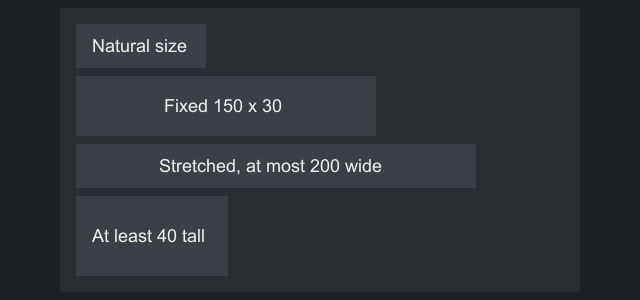
final Button natural = factory.button("Natural size");
final Button fixed = factory.button("Fixed 150 x 30").setSize(150, 30);
final Button stretched = factory.button("Stretched, at most 200 wide");
stretched.setMaxSize(200, Float.POSITIVE_INFINITY)
        .setAlignment(HorizontalAlignment.STRETCH, VerticalAlignment.TOP);
final Button tall = factory.button("At least 40 tall").setMinSize(0, 40);

final StackPanel column = factory.stackPanel().setPadding(8).setSpacing(4)
        .add(natural).add(fixed).add(stretched).add(tall);
column.setWidth(260);
column.setBackground(PANEL);
To go back to the measured size after fixing one, pass Float.NaN to setWidth or setHeight.
AnchorPanel
Every child gets the whole content area (the bounds minus padding) as its slot, so children overlap and place themselves by their own anchor. Use it to pin things to edges, corners and the center of the same area. Its desired size is the largest child plus margin, plus the padding.
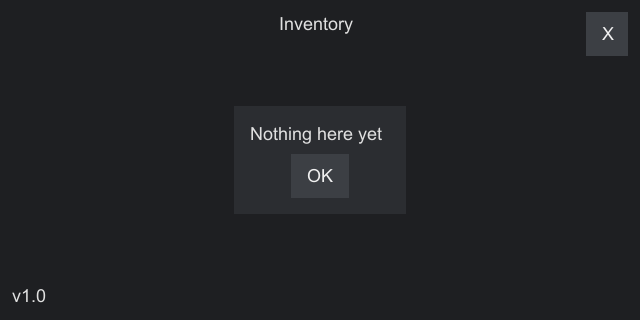
final AnchorPanel root = factory.anchorPanel().setPadding(6);
root.setAnchor(Anchor.FILL);

root.add(factory.label("Inventory").setAnchor(Anchor.TOP_CENTER));
root.add(factory.button("X").setAnchor(Anchor.TOP_RIGHT));
root.add(factory.label("v1.0").setAnchor(Anchor.BOTTOM_LEFT));

final StackPanel dialog = factory.stackPanel().setPadding(8).setSpacing(4)
        .add(factory.label("Nothing here yet"))
        .add(factory.button("OK").setAnchor(Anchor.TOP_CENTER));
dialog.setBackground(PANEL);
root.add(dialog.setAnchor(Anchor.CENTER));
The root of most screens is an anchor panel with Anchor.FILL.
StackPanel
Children follow one another in a column (Orientation.VERTICAL, the default) or a row (Orientation.HORIZONTAL), with setSpacing units between neighbors and none before the first or after the last.
Along the orientation, each child gets exactly the space it asks for, so alignment along that axis has no effect, unless the child has a weight (below). Across it, each child gets the full content size and aligns itself: in a column, STRETCH makes a child as wide as the column, and CENTER centers it. Hidden children take no space and no gap.
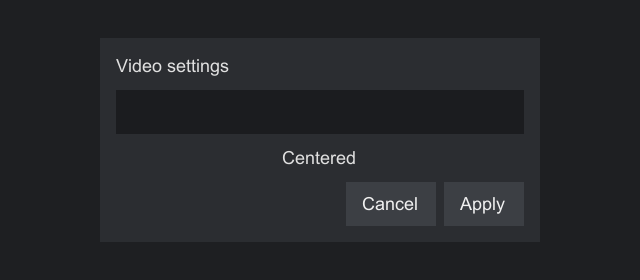
final StackPanel buttons = factory.stackPanel(Orientation.HORIZONTAL).setSpacing(4)
        .add(factory.button("Cancel"))
        .add(factory.button("Apply"));
// In a column, horizontal alignment places each child across the width
buttons.setAlignment(HorizontalAlignment.RIGHT, VerticalAlignment.TOP);

final Label heading = factory.label("Video settings");
final TextBox search = factory.textBox();
search.setAlignment(HorizontalAlignment.STRETCH, VerticalAlignment.TOP);
final Label centered = factory.label("Centered");
centered.setAlignment(HorizontalAlignment.CENTER, VerticalAlignment.TOP);

final StackPanel column = factory.stackPanel().setSpacing(6).setPadding(8)
        .add(heading)
        .add(search)
        .add(centered)
        .add(buttons);
column.setWidth(220);
column.setBackground(PANEL);
Weights
add(child, weight), or setWeight(child, weight) for a child already added, gives a child a share of the room the other children and the gaps leave. Weight 2 gets twice the space of weight 1, and 0 takes the weight away again. A weighted child is placed in its share by its own alignment, so give it STRETCH along the orientation to fill it. Its share stays within the child's minimum and maximum size plus its margin. The minimum is the larger of the minimum size and what the content needs, such as a wrapping label's longest word, a button's caption or a panel's children, or the fixed size where one is set. A child that would go past a limit is held at it, and the other weighted children share what is left. Its own desired size does not count once the panel has a size, so a weighted child shrinks first when space runs out, down to its minimum. When the minimums do not fit, the children run past the end of the panel. Measured without a limit along its orientation, inside a scroll panel for example, the panel asks for enough room to give each weighted child its desired size while keeping the proportions. weight(child) reads a weight back, and removing a child forgets its weight.
This covers a frame with a header and a footer at their own height and a body that takes the rest:
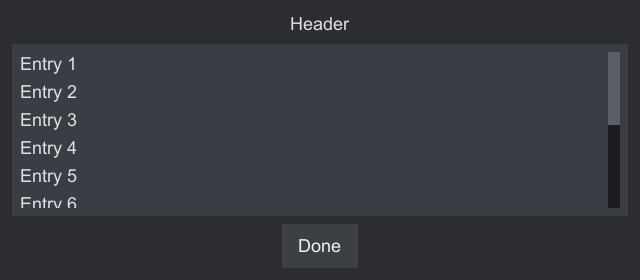
final StackPanel lines = factory.stackPanel().setSpacing(2);
for (int i = 1; i <= 12; i++) {
    lines.add(factory.label("Entry " + i));
}
final ScrollPanel body = factory.scrollPanel().add(lines).setPadding(4);
body.setBackground(INSET).setAnchor(Anchor.FILL);

final StackPanel frame = factory.stackPanel().setSpacing(4).setPadding(6)
        .add(factory.label("Header").setAnchor(Anchor.TOP_CENTER))
        // Weight 1: whatever the header, the footer and the gaps leave
        .add(body, 1)
        .add(factory.button("Done").setAnchor(Anchor.TOP_CENTER));
frame.setBackground(PANEL).setAnchor(Anchor.FILL);
Spreading
setSpread(true) spreads the children across the content box with equal gaps, the first at the start and the last at the end. The panel still asks only for its children and its spacing, so give it room: stretch it or give it a fixed size. The spacing becomes the smallest gap, a single child stays at the start, and spreading does nothing while a visible child has a weight, since that child takes the extra room.

final StackPanel row = factory.stackPanel(Orientation.HORIZONTAL)
        .setSpread(true)
        .setPadding(4)
        .add(factory.button("Back"))
        .add(factory.button("Skip"))
        .add(factory.button("Next"));
row.setBackground(PANEL);
row.setAlignment(HorizontalAlignment.STRETCH, VerticalAlignment.TOP);
GridPanel
Children sit in the cells of rows and columns. Each row and column has a GridLength:
| Length | Size |
|---|---|
GridLength.auto() |
As big as the largest child that sits only in it |
GridLength.fixed(size) |
Exactly size units, whatever its children need |
GridLength.weighted(weight) |
A share of the space left after the fixed and auto tracks. Weight 2 gets twice the space of weight 1. |
Fixed and auto tracks are sized first. Whatever width or height remains is shared among weighted tracks in proportion to their weights. A weighted track stays within the largest minimum and the largest maximum of the children that sit only in it, a minimum counting what the content needs as a stack's does, and children in weighted rows are measured with their row's share, so wrapping text in them sees its height. When the grid itself is measured without a size limit, weighted tracks take the smallest size that fits their children while keeping their proportions.
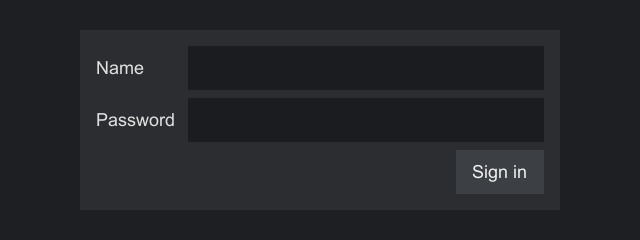
final TextBox name = factory.textBox();
name.setAlignment(HorizontalAlignment.STRETCH, VerticalAlignment.TOP);
final PasswordTextBox password = factory.passwordTextBox();
password.setAlignment(HorizontalAlignment.STRETCH, VerticalAlignment.TOP);

final GridPanel form = factory.gridPanel()
        // Labels take what they need; the fields share the rest
        .columns(GridLength.auto(), GridLength.weighted(1))
        .rows(GridLength.auto(), GridLength.auto(), GridLength.auto())
        .setSpacing(6, 4)
        .setPadding(8);
form.add(factory.label("Name").setAnchor(Anchor.MIDDLE_LEFT), 0, 0)
        .add(name, 0, 1)
        .add(factory.label("Password").setAnchor(Anchor.MIDDLE_LEFT), 1, 0)
        .add(password, 1, 1)
        // Row 2, column 0, one row tall, two columns wide
        .add(factory.button("Sign in").setAnchor(Anchor.TOP_RIGHT), 2, 0, 1, 2);
form.setWidth(240);
form.setBackground(PANEL);
add(child, row, column)puts a child in one cell.add(child, row, column, rowSpan, columnSpan)lets it cover several. A spanning child's slot includes the spacing between the cells it covers.- A child added with plain
add(child)sits in row 0, column 0. - Several children may share a cell. They overlap, like in an anchor panel.
- A child aligns itself within its cell.
STRETCHfills the cell. - Children spanning several auto tracks grow those tracks if they would not fit otherwise.
- A grid with no rows or columns defined has one cell that fills its content box.
- A cell outside the defined rows or columns is moved to the last row or column, and spans are cut to fit. A negative row or column, or a span below 1, throws
IllegalArgumentException. setSpacing(columnGap, rowGap)puts gaps between tracks, never around the edge. Use padding for that.columns(...)androws(...)replace the definitions;addColumnandaddRowappend one, andcolumnDefinitions()androwDefinitions()read them back.cellOf(child)returns a child'sGridPanel.Cell: its row, column and spans as given when it was added, before any cutting to fit. A child added with plainadd, or a component that is not a child, givesCell.ORIGIN.
Weighted tracks make proportional layouts:
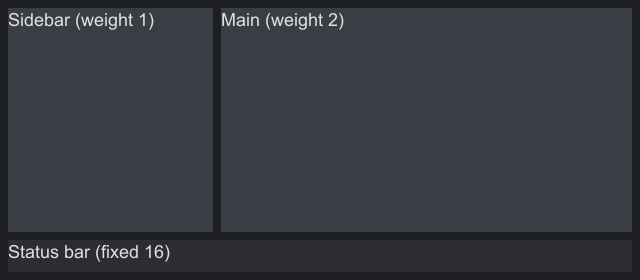
final GridPanel shell = factory.gridPanel()
        .columns(GridLength.weighted(1), GridLength.weighted(2))
        .rows(GridLength.weighted(1), GridLength.fixed(16))
        .setSpacing(4, 4)
        .setPadding(4);
shell.setAnchor(Anchor.FILL);

// Only containers have a background, so each area is a panel holding its label
final AnchorPanel sidebar = factory.anchorPanel()
        .setBackground(INSET)
        .add(factory.label("Sidebar (weight 1)"));
sidebar.setAnchor(Anchor.FILL);
final AnchorPanel main = factory.anchorPanel()
        .setBackground(INSET)
        .add(factory.label("Main (weight 2)"));
main.setAnchor(Anchor.FILL);
final AnchorPanel status = factory.anchorPanel()
        .setBackground(PANEL)
        .add(factory.label("Status bar (fixed 16)"));
status.setAnchor(Anchor.FILL);

shell.add(sidebar, 0, 0).add(main, 0, 1).add(status, 1, 0, 1, 2);
Spacer
factory.spacer() makes an empty component that only takes room: it draws nothing of its own, takes no input and asks for no size. It has Anchor.FILL, so it fills whatever slot it gets. Give it a weight in a stack panel to take the room that is left, or a fixed size with factory.spacer(width, height) to keep a set gap.

final StackPanel toolbar = factory.stackPanel(Orientation.HORIZONTAL)
        .setSpacing(4)
        .setPadding(4)
        .add(factory.button("New"))
        .add(factory.button("Open"))
        // Takes the leftover width
        .add(factory.spacer(), 1)
        .add(factory.button("Help"));
toolbar.setBackground(PANEL);
toolbar.setAlignment(HorizontalAlignment.STRETCH, VerticalAlignment.TOP);
WrapPanel
Children follow one another in rows, and a row that is full continues on a new one, like words in a paragraph. Use it for tags, chips and a toolbar that wraps as its window narrows. Orientation.HORIZONTAL, the default, fills rows; Orientation.VERTICAL fills columns, which is the same with the axes swapped. ui.wrapPanel() and ui.wrapPanel(orientation) make one.
/**
 * Tags that wrap onto new rows as the panel narrows.
 */
public static WrapPanel tags(final ComponentFactory ui, final List<String> names) {
    // 4 units between neighbors in a row, and 4 between rows
    final WrapPanel tags = ui.wrapPanel().setSpacing(4, 4);
    for (final String name : names) {
        tags.add(ui.button(name));
    }
    return tags;
}
setSpacing(spacing, lineSpacing) sets the gap between neighbors in a line and the gap between lines, both 0 by default. Gaps lie between children and between lines, never before the first or after the last, and a hidden child takes no space and no gap.
- Each child is measured with the content length along the lines and unlimited space across them. A new line starts when the next child would pass the end of the line. A child longer than the panel gets a line of its own.
- Offered unlimited length, as inside a horizontal scroll panel, every child is in one line, as in a stack panel. A wrap panel in a column needs a width from outside, such as a fixed width, a maximum width or
STRETCHin a parent that has one, just as a wrapping label does. - A line is as thick as its thickest child. Children sit in it by their own alignment across the line:
TOP,MIDDLE,BOTTOMorBASELINEin rows. setLineAlignment(alignment)places a line's spare length:LEFTleaves it after the children (the default),CENTERsplits it before and after,RIGHTputs it before, andSTRETCHshares it among the gaps so the first child is at the start and the last at the end. A line of one child stays at the start. In columns,LEFTis the top.- The panel asks for its longest line and for the sum of its lines and gaps, plus its padding. Its minimum size, which a parent that shares space respects, is its largest visible child's minimum on each axis plus the padding.
Lining up text
A form row of "Price", a text box and "per unit" looks wrong when each text sits at its own height, because the box pads its text and the labels do not. Give the children VerticalAlignment.BASELINE and the first line of text in each of them sits on one line:
/**
 * A form row whose texts share one baseline, although the text box pads its text and the labels do not.
 */
public static StackPanel priceRow(final ComponentFactory ui) {
    final StackPanel row = ui.stackPanel(Orientation.HORIZONTAL).setSpacing(4);
    row.add(ui.label("Price").setAlignment(HorizontalAlignment.LEFT, VerticalAlignment.BASELINE));
    row.add(ui.textBox().setWidth(60).setAlignment(HorizontalAlignment.LEFT, VerticalAlignment.BASELINE));
    row.add(ui.label("per unit").setAlignment(HorizontalAlignment.LEFT, VerticalAlignment.BASELINE));
    return row;
}
The baseline of a component is the distance from the top of its bounds to the bottom of its first line of letters. Strata's text controls report it: the label, buttons, the check box, radio button and toggle switch, the text box, password box, combo box and spinner, the date and time pickers, and the tab bar. A component that draws text of its own reports it by overriding baseline(); see Lining up text in the extending guide.
Three kinds of container line up their BASELINE children:
| Container | Lines up |
|---|---|
A horizontal StackPanel |
The children of the row |
WrapPanel |
The children of each line, in rows |
GridPanel |
The children of each row, but only those that sit in that row alone |
Each child moves down until its baseline meets the lowest baseline among them, and the row grows to hold the line and the deepest part below it. A child with no baseline, such as an image or a slider, counts its bottom edge as its baseline. Children in the same row that are not aligned BASELINE are placed by their own alignment as before. Everywhere else BASELINE acts as TOP: in a column, in an anchor or absolute panel, and for a child that spans several grid rows.
AbsolutePanel
Each child sits at a fixed position measured from the top-left corner of the content area. Children are measured with unlimited space, so a wrapping label in one needs a fixed or maximum width. Its slot is exactly its desired size plus margin at that position, so alignment has no effect. Children may overlap. Later ones are drawn on top, until raise, lower or a z index changes the drawing order, and a window in the panel comes to the front when it is pressed. The panel's desired size is just big enough to cover every child.
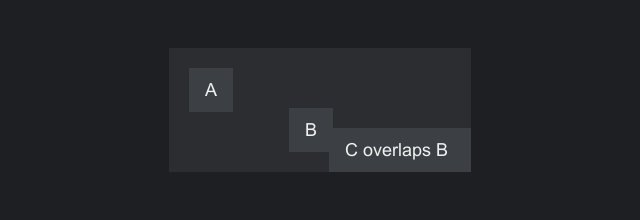
final AbsolutePanel board = factory.absolutePanel();
board.add(factory.button("A"), 10, 10)
        .add(factory.button("B"), 60, 30)
        .add(factory.button("C overlaps B"), 80, 40);
board.setBackground(PANEL);
add(child) places a child at (0, 0). move(child, x, y) moves one later and does nothing if it is not a child. It is not move(child, index), which every container has and which changes the order of children(). There is no getter for a child's position, so keep your own if you need it, as the drag example does.
Use it for free placement, such as a board of draggable pieces. For forms and menus, the other containers adapt to text and screen size, so prefer them.
ScrollPanel
Shows part of content larger than itself. Children are laid out as in an AnchorPanel, each given the whole scrolled area: the size of the largest child plus its margin, and at least the viewport. Most panels hold one StackPanel or GridPanel.
final StackPanel rows = factory.stackPanel().setSpacing(1);
rows.setAlignment(HorizontalAlignment.STRETCH, VerticalAlignment.TOP);
for (int i = 1; i <= 40; i++) {
    rows.add(factory.label("Row " + i));
}

// Scroll up and down only, so the rows are measured with the viewport's width
final ScrollPanel scroll = factory.scrollPanel()
        .setPolicy(ScrollPanel.ScrollPolicy.NEVER, ScrollPanel.ScrollPolicy.AUTO)
        .setScrollRate(12)
        .add(rows);
scroll.setSize(160, 100);

// SCROLLED reports every change of offset, by the wheel, the bar, the keys or code
final Label where = factory.label("Scrolled 0 of 0");
scroll.onEvent(ScrollPanel.SCROLLED, event -> {
    final ScrollPanel.State now = event.value();
    where.setText("Scrolled " + Math.round(now.scrollY()) + " of " + Math.round(now.maxScrollY()));
});
final Button top = factory.button("Top").onEvent(Button.PRESSED, event -> scroll.setScroll(0, 0));
Each axis has a ScrollPanel.ScrollPolicy, set with setPolicy(horizontal, vertical):
| Policy | The axis |
|---|---|
NEVER |
Does not scroll. Children are measured with the viewport's size on it, so text wraps. |
AUTO |
Scrolls, and its bar shows only while the content is larger than the viewport |
ALWAYS |
Scrolls, and its bar always shows |
The default is vertical AUTO, horizontal NEVER. The panel asks for its content's size plus its padding and shown bars, but no more than it is offered on a scrolling axis, so give it a height or stretch it in a parent with room. The viewport, which viewport() returns, is the bounds less the padding and the gutter of each shown bar (BAR_WIDTH plus BAR_GAP, 8 units).
| Input | Scrolls |
|---|---|
| Wheel | 10 units a notch, set with setScrollRate. A scroll past the end is not consumed, so it reaches an outer panel. A panel that scrolls only sideways takes the vertical wheel too. |
| The bar | Drag the thumb with the left button, or press the track to page |
| Up, Down, Page Up, Page Down, Home, End | Vertically, by the rate, by the viewport less one rate, or to the ends, when no focused descendant used them. Held keys repeat. Not with Control or Alt, nor while the vertical policy is NEVER, and consumed only when the offset changed. |
| Left, Right | Sideways by the rate, while the horizontal axis scrolls and no focused descendant used them. Not with Control or Alt, and consumed only when the offset changed. A panel that scrolls only sideways takes Left and Right and leaves the vertical keys alone. |
| Shift with the wheel | A vertical wheel with Shift held scrolls the horizontal axis while it scrolls. A horizontal scroll, such as one an engine makes from Shift and the wheel itself, is taken as it is. |
| A drag that carries data | Near the panel's edge, scrolls toward it; see below |
| Focus | A descendant that gains focus is scrolled into view |
setScroll(x, y), scrollBy and scrollToVisible(component) work from code, scrollX(), scrollY(), maxScrollX() and maxScrollY() read the offsets, and ScrollPanel.SCROLLED reports every change of offset with a ScrollPanel.State. The offset is clamped to its range on every change and after every layout (before the first layout it is only kept from going below 0), and children move by it rounded to whole units, so engines that draw whole pixels do not shimmer. A scroll panel is Focusable but starts unfocusable; call setFocusable(true) to let it take focus and its keys by itself. Scrolling moves the children's real bounds without measuring them again, so pointer positions and bounds() stay in host coordinates inside a scroll panel. Children are clipped to the viewport, the bounds less the padding and the bar's gutter. For long lists of similar rows, use a ListView, which builds only the rows in view.
A theme can make the panel glide to a new offset instead of jumping. With the metric scroll.smooth above 0, wheel steps, the scrolling keys and scrollToVisible take that many milliseconds to arrive, and a further step adds to where the glide is headed. The default is 0. setScroll, scrollBy, the thumb and a press on the track move at once and stop a glide. See Animation.
While a drag that carries data is held within 16 units of a viewport edge, the panel scrolls toward that edge, faster the deeper into the zone the pointer is, so a row can be dropped at the end of a long page. An inner panel that cannot scroll that way any more lets the outer one scroll. setDragScroll(false) turns it off. See Drag and drop.
Inherited text styles
A container can change the text of every control inside it. setTextStyle(patch) takes a TextStylePatch, which names only the properties it changes, such as the color, so the controls keep the rest of the style the theme gives them:
/**
 * A footer whose text, in every control inside it, is gray. The controls keep the rest of their style.
 */
public static StackPanel footer(final ComponentFactory ui) {
    final StackPanel footer = ui.stackPanel(Orientation.HORIZONTAL).setSpacing(8);
    footer.add(ui.label("Updated today"));
    footer.add(ui.label("3 offers"));
    return footer.setTextStyle(TextStylePatch.of().color(0xFF808080));
}
Each control's style from the theme comes first, then the patches of the containers around it, the outermost first, so an inner container wins where both set a property. textStyle() returns the patch, an Optional that is empty by default, and setTextStyle(null) removes it. The patch changes the text style keys the theme defines, for every control inside, and nothing else:
- A style set on a control in code, such as
Label.setStyle, wins over every patch. - A control that reads a key the theme lacks keeps its own fallback, unpatched.
- Popups and other overlays are not inside the container, so a menu opened from a control in it keeps its normal text.
- The container's own text, such as a window's title, is not changed by its own patch.
Strata works the styles out when the theme is applied or the tree changes, never while painting. A theme override can patch a text style key for the whole screen; see Changing part of a text style.
Right to left
Hebrew and Arabic are written from the right, and a screen in them should be the mirror image of one in English: the first column at the right, the back button at the right of the title, a progress bar filling from the right. Layout does this once for the whole tree, so a screen needs no code of its own for it.
Every component has a FlowDirection, LEFT_TO_RIGHT or RIGHT_TO_LEFT. flowDirection() returns the component's own direction if it has one, and otherwise the nearest ancestor's. At the top of a tree it is the direction of the screen's root content if that has one, and otherwise the direction of the translator's language, which FlowDirection.of(locale) works out from the language and its script. Overlays follow the screen. setFlowDirection(direction) sets a component's own direction, and setFlowDirection(null) makes it follow its parent again. A language change lays everything out again.
When the parent's direction is right to left, each child is placed as it is for left to right, and the result is then mirrored inside the parent's bounds. So every container mirrors with no code of its own, and:
LEFTandRIGHTalignment, margins and padding mean the start and the end of the line. A left margin of 8 units,new Insets(8, 0, 0, 0), is a gap at the left in English and at the right in Arabic.- A stack panel runs from the right, a grid's first column is at the right, a wrap panel fills its lines from the right, and the positions in an
AbsolutePanelare measured from the right edge. - The offset (
setOffset, a dragged window) is added after the mirror and is not mirrored. - Bounds are real coordinates, so hit testing and painting need nothing new. Text, sprites and visuals draw unmirrored.
/**
 * A bar that fills from the start of its line: the left in English, the right in Arabic or Hebrew.
 */
public static final class Meter extends CustomComponent<Meter> {
    private float fraction;

    public Meter(final ComponentFactory factory) {
        super(factory);
    }

    public Meter setFraction(final float fraction) {
        this.fraction = Math.max(0f, Math.min(1f, fraction));
        this.repaint();
        return this;
    }

    @Override
    protected Size measure(final MeasureContext context, final float availableWidth, final float availableHeight) {
        return new Size(100, 8);
    }

    @Override
    protected void paint(final Painter painter, final Rect bounds) {
        final float width = bounds.width() * this.fraction;
        // The component's own direction, else its parent's, else the language's. Bounds are real
        // coordinates, so a component that has parts places them itself.
        final float x = this.flowDirection() == FlowDirection.RIGHT_TO_LEFT ? bounds.right() - width : bounds.x();
        painter.fill(new Rect(x, bounds.y(), width, bounds.height()), 0xFF81C784);
    }
}

/**
 * A panel shown right to left whatever the language, whose rows and meter mirror with it.
 */
public static StackPanel mirrored(final ComponentFactory ui) {
    final StackPanel panel = ui.stackPanel().setSpacing(4);
    panel.add(ui.label("Stock"));
    panel.add(new Meter(ui).setFraction(0.4f));
    return panel.setFlowDirection(FlowDirection.RIGHT_TO_LEFT);
}
The built-in controls mirror their insides as well: check boxes, sliders, menus, tabs, trees, scroll bars and the rest. Internationalization lists what each one does, and covers text direction, plurals and numbers. A component of your own that places parts itself reads flowDirection() and mirrors them, as the meter above does.
Clipping
Containers clip their children to their own bounds by default. A clipped part of a child is neither drawn nor hit by the pointer, so a child scrolled out of view cannot be clicked, and a child entirely outside the clip is not drawn at all. setClipChildren(false) lets children draw outside, for example a focus glow. For something that must hang over everything, such as a menu, use a popup.
Recipes
Center something on the screen
Put it in a root anchor panel with Anchor.FILL and give it Anchor.CENTER. Give it a fixed width if it holds stretched children, so they have a width to stretch to.
Filling the remaining space
In a stack panel, give the child that should fill the rest a weight of 1 and stretch it, as the frame does. To push the children after a point to the far end, put a weighted spacer there. In a grid, use a weighted row or column, which can stay empty for the same effect.
Wrapping text
A wrapping label needs a width to wrap to: a fixed width, a maximum width, or STRETCH inside a parent that has a width. Offered unlimited width, it breaks only at \n.
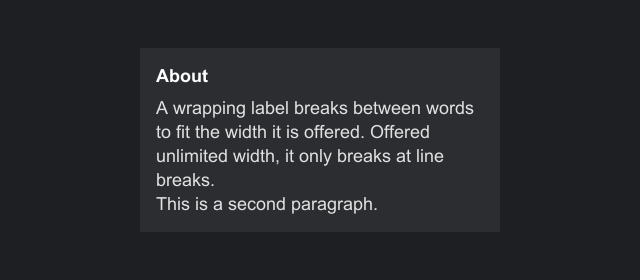
final Label body = factory.label("A wrapping label breaks between words to fit the width it is "
        + "offered. Offered unlimited width, it only breaks at line breaks.\nThis is a second paragraph.")
        .setWrap(true);
// Stretching gives it the column's width; setWidth or setMaxSize would work too
body.setAlignment(HorizontalAlignment.STRETCH, VerticalAlignment.TOP);

final StackPanel column = factory.stackPanel().setPadding(8).setSpacing(4)
        .add(factory.label("About").setStyle(TextStyle.DEFAULT.withBold(true)))
        .add(body);
column.setWidth(180);
column.setBackground(PANEL);
Equal-width buttons
Add them to a stretched row with the same weight each and give each Anchor.FILL, or put them in a grid with equal weighted columns, or give each the same fixed width.
Common problems
| Symptom | Likely cause |
|---|---|
| A component is not visible at all | Its size is zero: a container with no children measures as just its padding. Or it is hidden, or outside a clipping ancestor, or the root is not FILL and is smaller than you think. |
| A stretched child is not stretching | Its parent has no width to give. The root must be FILL, or a parent between needs a fixed width or STRETCH. |
| A child is cut off | It is bigger than its slot and an ancestor clips. Give the ancestor more room, or turn clipping off. |
| Text does not wrap | See Wrapping text. |
| Alignment along a stack's direction does nothing | A stack panel gives each child exactly its size along that axis. Give the child a weight, or use a grid. |
bounds() is out of date |
Layout runs before the next frame. Read bounds in a later frame or in an event handler. |
BASELINE seems to do nothing |
The parent is a column, an anchor panel or an absolute panel, or the child spans several grid rows, where it acts as TOP. Use a horizontal stack panel, a wrap panel or a grid row. |
| A wrap panel shows one long line | It was offered unlimited width. Give it a fixed or maximum width, or STRETCH in a parent that has one. |
See Troubleshooting for more.
Writing your own layout
Extend CustomContainer. The extending guide walks through a flow layout that wraps children into rows, and Lining up text shows how a layout of your own lines up baselines.