Controls
Strata's built-in controls are interfaces in the subpackages of org.inspirenxe.strata.api.control, made by the factory: display (Label, Image, Avatar, InfoBar, ProgressBar, BusyIndicator, Separator), button (Button, ToggleButton, DropDownButton, CycleButton, CheckBox, RadioButton, RadioGroup, ToggleSwitch), field (TextBox, PasswordTextBox, TextArea, Spinner, Slider, ColorPicker, CalendarView, DatePicker, TimePicker, DateTimePicker), collection (ListView, ComboBox, TableView, TreeView, GridView), menu (Menu, MenuBar, Flyout), pane (TabBar, Expander, SplitPane, ScrollBar, NavigationView) and window (Window, MessageBox). Each one has events: a request (Pre) for each change the user can make, which a handler can cancel or rewrite, and a report (Post) for each change from any source. Each section below lists them in an Events table. Their theme keys are listed on each control below and in the theme key reference. Scrolling is a container, ScrollPanel, and popups, dialogs and tooltips are in Overlays and tooltips; Menu and Flyout are controls that open themselves as popups.
Making controls
Every factory method has a form with no arguments, and the forms with arguments are shorthands for it followed by setters. factory.button("Save") makes the same button as factory.button().setText("Save"), and factory.infoBar(InfoBar.Severity.ERROR, "Not saved", message) the same bar as factory.infoBar() with its severity, title and message set. Where a control shows your items, the form with no arguments shows each item through its appearance: factory.listView(), factory.treeView() and factory.gridView() build each row or cell with factory.cell(item), which shows the item's icon and name, and factory.comboBox() shows each option by its name. Pass a cell factory or a label function to show items your own way.
Setters return the control, so a control is made, set up and given its handlers in one chain. Text setters take a String or a Text, which may be styled or translated.
Attributes
Controls that do the same kind of thing share small interfaces called attributes, in org.inspirenxe.strata.api.control.attribute. A control has every attribute that fits it, so the same thing has the same name on every control, and code written against an attribute works for all of them.
| Attribute | Package | What it adds | Events | Binding keys | Controls |
|---|---|---|---|---|---|
HasText |
text |
text(), setText |
TEXT |
Button, DropDownButton, ToggleButton, CycleButton, CheckBox, RadioButton, ToggleSwitch, Label, InfoBar and MessageBox (the message), ProgressBar, BusyIndicator, and through TextInput the text fields; also the entries MenuItem, CheckMenuItem, SubmenuItem, Tab, NavigationItem and NavigationHeader |
|
Titled |
text |
title(), setTitle |
TITLE |
Window, MessageBox, Expander, InfoBar, NavigationView; also the entry TableColumn |
|
HasIcon |
text |
iconSprite() and iconVisual() (each an Optional), setIcon(SpriteId), setIcon(Visual), clearIcon(), iconWidth(), iconHeight(), setIconSize |
Button, DropDownButton, ToggleButton; also the entry NavigationItem |
||
TextEntry |
text |
length(), isEmpty(), clear(), the caret, the selection, setMaxLength, setReadOnly, setTextPadding and clearTextPadding(); nothing that carries the text |
MODIFY, MODIFIED, CARET_MOVED |
READ_ONLY |
TextBox, TextArea, PasswordTextBox |
TextInput |
text |
TextEntry plus text(), setText, selectedText(), the highlighter, the edits from code (insert, replace, append, delete) and undo (canUndo(), canRedo(), undo(), redo(), clearHistory(), setHistoryLimit) |
EDIT, EDITED |
TEXT |
TextBox, TextArea |
Toggle |
value |
isSelected(), setSelected, toggle() |
TOGGLE, TOGGLED |
SELECTED |
CheckBox, ToggleSwitch, ToggleButton, RadioButton |
Ranged |
value |
value(), setValue, min(), max(), setRange |
CHANGE, CHANGED |
VALUE |
Slider, Spinner, ProgressBar, ScrollBar |
Stepped |
value |
Ranged plus step(), setStep |
Slider, Spinner |
||
Validatable |
value |
validation(), setValidation, setValidator |
VALIDATED |
VALIDATION |
TextBox, TextArea, PasswordTextBox, Spinner, Slider, ComboBox, CheckBox, DatePicker, TimePicker, DateTimePicker, ColorPicker |
HasDate |
value |
date(), setDate, clearDate(), minDate(), maxDate(), setDateRange, setDateFilter, firstDayOfWeek(), setFirstDayOfWeek |
PICK_DATE, DATE_PICKED |
DATE |
CalendarView, DatePicker, DateTimePicker |
HasTime |
value |
time(), setTime, clearTime(), clockFormat(), setClockFormat, isSecondsShown(), setSecondsShown, minuteStep(), setMinuteStep |
PICK_TIME, TIME_PICKED |
TIME |
TimePicker, DateTimePicker |
HasCommand |
command |
command() (an Optional), setCommand; a command gives the control its text, its enabled state and, for a toggle, its selection |
Button and MenuItem take a Command.Action; CheckBox, ToggleSwitch, ToggleButton and CheckMenuItem a Command.Toggle |
||
ItemSource |
item |
items(), setItems, refresh(), refresh(item), setKeyFunction |
itemsKey() |
ListView, TableView, TreeView, ComboBox, GridView, CycleButton |
|
CellSource |
item |
setCellFactory, setCellEditor |
ListView, TreeView, GridView; also the entry TableColumn |
||
Selection |
item |
selectedIndex(), selected(), select(index), selectItem(item), clearSelection(): the current entry |
SELECT, SELECTED |
SELECTED_INDEX, selectedItem() |
every control below that selects |
SingleSelection |
item |
Selection and nothing more: the control only ever selects one entry |
ComboBox, CycleButton, TabBar, MenuBar, RadioGroup, NavigationView |
||
MultiSelection |
item |
Selection plus setSelectionMode, selectedIndexes(), selectedItems(), selectIndexes, selectItems, selectAll() |
SELECT_MANY, SELECTED_MANY |
SELECTED_INDEXES, selectedItemsKey() |
ListView, TableView, TreeView, GridView |
Activatable |
item |
setActivateOnClick |
ACTIVATE, ACTIVATED |
ListView, TableView, TreeView, GridView, NavigationView |
|
RowView |
item |
row height and spacing, the placeholder, scrolling, setDeselectable, setDragScroll |
ListView, TableView, TreeView |
||
CellEditing |
item |
isEditing(), cancelEdit(): a cell becomes an editor once the control has a CellEditor |
EDIT_CELL, CELL_EDITED |
ListView, TableView, TreeView, GridView |
|
ItemDragging |
item |
dragTransfer(), setDragTransfer: rows drag once a function makes their payload |
MOVE_ITEMS |
ListView |
|
Closable |
popup |
close() |
CLOSE, CLOSED |
Window, Overlay, and through Openable the others |
|
Openable |
popup |
Closable plus isOpen() and open(), which opens it from code, reports OPENED and asks nothing |
OPEN, OPENED |
ComboBox, DropDownButton, DatePicker, TimePicker, DateTimePicker, InfoBar, and through Popup the popups |
|
Popup |
popup |
Openable plus open(rect) and openAt(x, y): a component that opens itself in an overlay. A popup that was opened before opens again where it last opened. |
Menu, Flyout |
An attribute owns its events, so Toggle.TOGGLED fires for a checkbox, a switch and a radio button alike, and one handler on a container hears every control inside it that has the attribute:
// Save the settings page whenever any checkbox, switch or radio button on it changes
settings.onEvent(Toggle.TOGGLED, event -> save());

// Refresh the buttons whenever any list, table, tree, combo box or grid in the form changes selection
form.onEvent(Selection.SELECTED, event -> updateButtons());
Every component also has the keys Component.ENABLED and Component.VISIBLE, and every component with a tooltip has HasTooltip.TOOLTIP. Controls have keys of their own for what no attribute covers, such as CheckBox.STATE and Expander.IS_EXPANDED; the binding guide lists them all. A binding key names a property that bind can keep in step with a state, and sits beside the events that report the property's changes:
The event's control() is typed as the attribute, such as Toggle<?>, and target() is the component that fired it. An event fires only where it means something: a progress bar has no user input, so it reports Ranged.CHANGED but never asks with Ranged.CHANGE. Each control's section below says which events it fires and when. Events that only one control has, such as Button.PRESSED or TableView.SORTED, stay constants on that control.
Entries such as menu items, tabs and table columns have the attributes without events (HasText, Titled, HasIcon, HasCommand, CellSource), so a menu item's setText is the same method as a button's. Only components bind, so an entry takes no binding key.
Three more interfaces are shared the same way and also have no events of their own. Enableable (in org.inspirenxe.strata.api.component) holds isEnabled() and setEnabled(boolean), and every component and the entries MenuItem, CheckMenuItem, RadioMenuItem, SubmenuItem, Tab and NavigationItem have it, so one method can turn a button, a menu item and a tab on and off. HasShortcut (in api.control.menu) holds the shortcut hint of MenuItem, CheckMenuItem and RadioMenuItem: shortcut(), setShortcut(Text) and setShortcut(String). It is only text drawn at the right of the entry and binds no key; a command with a stroke shows its own. HasContextMenu (in api.component) is on every container and every control except Spacer, Separator and BusyIndicator, and is covered under Context menus.
Controls that show items
The item attributes fit together. A control that shows your data is an ItemSource: it keeps a copy of the list you give setItems, and refresh() shows the same items again after they changed inside. Each item gets a key, the item itself unless setKeyFunction says otherwise, and when setItems replaces the list each selected item moves to the new item with the same key, so a list of offers fetched again from a server keeps the same offer selected. Items with equal keys are matched in order: the second item with a key moves to the second new one, or to the last when there are fewer. A selected item that no new item matches leaves the selection, and nothing is selected in its place. Items are never null, except in a grid, where a null item is an empty cell; the other controls throw a NullPointerException that names the index of the null item. selectItem(null) clears the selection on a list, table, tree, combo box and grid alike. Three controls differ. A grid is positional: it keeps the selected index while that cell exists, and its selectItem finds filled cells only. A combo box selects its first option only if it never had a selection and code has not cleared it. A cycle button always shows a value, so it selects its first item when its selected item is gone or nothing is selected. A CellSource builds a component for each item with its cell factory; lists, tables and trees build only the cells in view and drop them when they scroll out, so a cell is built from the item and keeps nothing that must outlive it.
Every control that selects is a Selection and also exactly one of these:
SingleSelection: only ever one entry, such as a combo box, a tab bar or a radio group. It adds nothing toSelection; it says the current entry is the whole selection.MultiSelection: a list, a table or a tree, which select one entry inSelectionMode.SINGLE, the default, and any number inSelectionMode.MULTIPLE. See ListView for the clicks and keys.
Selection events carry indexes into what the control shows: a list's items, a table's sorted rows (shownItems()), a tree's visible rows (shownItems()), a tab bar's tabs, a navigation view's allItems(). Read the entry from the control, or use selected(). -1 means nothing is selected.
Activatable controls, the lists, tables, trees, grids and navigation views, report a double click or Enter on an entry as ACTIVATED, or a single click with setActivateOnClick(true). There is no method that activates an entry from code. RowView controls, the lists, tables and trees, show their entries as rows of one height (setRowHeight, 20 units by default, and setRowSpacing), show a placeholder while there are none (setPlaceholder, read back with placeholder(), which is empty for none), scroll with setScrollY and scrollToIndex, and let a press on the selected row clear it once setDeselectable(true).
Stepped is a Ranged control whose value moves in steps, a slider or a spinner. setStep rounds the value to the new step at once. A slider takes a step of 0 for any value in the range; a spinner needs a step above 0.
Entries
Some controls hold a list of things that are not your data and not components: a menu's MenuEntrys, a navigation view's NavigationEntrys, a tab bar's Tabs and a table's TableColumns. They follow the same rules:
- The factory makes them, with a form with no arguments and one that takes the text or title:
factory.menuItem("Copy"),factory.navigationHeader("Account"),factory.tab("Sell"),factory.tableColumn("Price"). Each control also has shorthands that make and add one, such asmenu.addItem("Copy", this::copy). - They are mutable. A change to one shows in its control at once, so you can keep an entry and enable, rename or check it later.
- An entry belongs to one control at a time. Adding one that another control holds throws
IllegalArgumentException; remove it first. - They are not components and not event targets. The control's events carry the entry, or for selection the entry's index, so a handler on the control or a container hears them.
- Call them on the UI thread, as you call controls.
Absent values
The same rule holds on every control:
- A getter whose value can be missing returns an
Optional:parent(),tooltip(),cursor(),contextMenu(),command(), the icon getters, an image'ssprite(),visual(),pixels()andvalue(), an expander'scontent(), a split pane'sfirst()andsecond(), a drop-down button'spopup(). - A setter that has one form takes null to clear:
setCommand,setContextMenu,setSprite,setVisual,setValueon an image or avatar. A setter with overloads never takes null and has a clear method beside it:clearTooltip(),clearPadding(),clearTextPadding(),clearIcon(),clearDate(),clearTime(). - Text is never absent.
placeholder(),text()and an avatar'sname()return aText, and empty text means none, so you hide a placeholder withsetPlaceholder(""). - A selection that can be empty reports -1 from
selectedIndex(), asList.indexOfdoes. Values carried by events may be null where their Javadoc says so, as an empty date is. A binding key reads anOptionalas null and writes null as a clear.
The Javadoc reference states the rule once.
Validation
A validatable control holds a Validation: a severity (NONE, WARNING or ERROR) and a message Text. Validation.VALID is where every control starts, Validation.error(message) and Validation.warning(message) make the others, and isValid() is false only for an error, so a warning marks a field without counting as a failure.
| Method | Notes |
|---|---|
validation() |
What the control shows: a binding's conversion error if there is one, else what was set last |
setValidation(validation) |
Sets it from code. The next change of the control's value replaces it when the control has a validator. |
setValidator(function) |
Works the validation out from the control, asked at once and then after each change of the control's value, from the user or from code, once the change has been reported. The function must not return null. setValidator(null) stops validating and leaves the validation as it is. |
static StackPanel orderForm(final ComponentFactory ui, final State<Integer> quantity, final Runnable place) {
    // The text follows the quantity through a converter. Text that is not a whole number from 1 to 64 marks the
    // box as an error with the converter's message and leaves the quantity alone.
    final State<Validation> quantityCheck = State.of(Validation.VALID);
    final TextBox amount = ui.textBox().setWidth(60)
            .bind(TextInput.TEXT.convert(Converters.integer(1, 64)), quantity)
            .bind(Validatable.VALIDATION, quantityCheck);

    // A validator checks a box after each change of its text
    final TextBox name = ui.textBox().setPlaceholder("Name")
            .setValidator(box -> box.text().isBlank()
                    ? Validation.error(Text.of("Enter a name"))
                    : Validation.VALID);

    final Button order = ui.button("Order")
            .bind(Component.ENABLED, quantityCheck.map(Validation::isValid))
            .onEvent(Button.PRESSED, event -> place.run());
    return ui.stackPanel().setSpacing(4).add(name).add(amount).add(order);
}
A bound field whose text does not convert, such as "abc" in a field bound with Converters.integer(1, 64), shows the converter's message as an error at once, and the state keeps its last valid value. That error wins over setValidation and over the validator while it lasts. It goes away when the text converts again, when the state's value is written to the field, or when the key is unbound. See Data binding for converters, and for binding Validatable.VALIDATION to a state so a form can gather its fields' validations in one place.
An enabled control with an error draws its theme's invalid face in place of its normal, hovered and focused faces. Which key that is depends on the control:
| Control | Invalid face |
|---|---|
TextBox, TextArea, PasswordTextBox, DatePicker, TimePicker, DateTimePicker |
textbox.invalid |
Slider |
slider.invalid, the track |
CheckBox |
checkbox.invalid, the box, with the check mark still drawn on it |
ComboBox |
combobox.invalid |
All of these are optional. Where the theme has no invalid face, and for every warning, the control keeps its normal face and draws a one-unit outline inside its bounds (the check box's box for a check box) in validation.error, a solid #FFE04848 by default, or validation.warning, #FFE0A030. The spinner and the color picker have no invalid face, so they always draw the outline, over their parts. A disabled control draws as it always does.
While the validation has a severity and a message, the message is the first thing in the control's tooltip: the first line of a lines tooltip, a line above a custom tooltip's component, and a text tooltip of its own when the control has none. tooltip() still returns only what code set.
| Event | Kind | Fires |
|---|---|---|
Validatable.VALIDATED |
Post | After the validation the control shows changed, from any source, with the new and previous Validation. There is no request. |
Each validatable control's section lists VALIDATED among its events.
Label
Text the user reads but does not edit.
Label title = factory.label("Settings").setStyle(TextStyle.DEFAULT.withBold(true));
Label help = factory.label(longText).setWrap(true);
help.setAlignment(HorizontalAlignment.STRETCH, VerticalAlignment.TOP);
| Method | Default | Notes |
|---|---|---|
setText(text) |
A String or a Text, which may be styled or translated. \n starts a new line. A new layout runs if the text changed. |
|
setWrap(boolean) |
off | Also break between words to fit the width offered. See Wrapping text. |
setStyle(TextStyle) |
null |
Overrides the theme's label.text for this label. null goes back to the theme. |
setTextAlignment(HorizontalAlignment) |
LEFT |
How each line sits within the label's width. It only shows when the label is wider than its text, for example when stretched. STRETCH acts as LEFT. LEFT means the start of the line, so in a right-to-left screen it puts lines at the right. |
setTextScale(float) |
1 | Draws and measures the text larger or smaller, such as 0.8 for small print. Not greater than 0 throws. |
setOverflow(TextOverflow) |
VISIBLE |
ELLIPSIS cuts a line that does not fit the bounds and ends it with ..., and the label asks for no more width than it is offered. |
setMnemonicParsing(boolean) |
off | Reads the letter after the first single underscore as the label's mnemonic. See below. |
With wrapping on, a single word wider than a whole line is broken between grapheme clusters, so a letter keeps its accents and an emoji stays whole, and styled text wraps the same way, each piece keeping its part's style. Ellipsis cuts between clusters too. The desired size is the widest line by the number of lines times the line height, all times the text scale.
Label price = factory.label(Text.of("125.50").color(GOLD).append(Text.of("/ea").color(GRAY)))
        .setTextScale(0.8f);
Label name = factory.label(item.name()).setOverflow(TextOverflow.ELLIPSIS);
name.setAlignment(HorizontalAlignment.STRETCH, VerticalAlignment.MIDDLE);
A label is not focusable and has no default behavior for input, so clicks and keys pass through to its ancestors. That makes labels handy click targets for a container-level handler; see Handling input on a container.
With setMnemonicParsing(true) the letter after the first single underscore in the text is the label's mnemonic: it draws underlined while Alt is held, __ draws one underscore, and no marker is drawn. Alt with the letter moves focus to the next tab stop after the label, so put the label just before the control it names:
static StackPanel nameField(final ComponentFactory ui) {
    // Alt+N moves focus to the text box after the label
    final Label caption = ui.label("_Name").setMnemonicParsing(true);
    return ui.stackPanel(Orientation.HORIZONTAL).setSpacing(4).add(caption).add(ui.textBox().setWidth(120));
}
Buttons, check boxes, radio buttons, toggle switches, tabs, expander titles and menus read mnemonics always. A label does not, because a label's text may hold an underscore that means itself. On a platform whose conventions turn mnemonics off, every caption still drops its markers, and Alt does nothing. See Keyboard shortcuts.
style() returns the style the label draws with: the one you set, or the theme's.
A label reads one key, label.text (text style, optional), unless you set a style; without it the label draws in TextStyle.DEFAULT.
A label fires no events, since the user cannot change it. setText reports nothing; bind HasText.TEXT to keep it in step with a state.
Image
A sprite drawn at a size you choose, such as an icon or a picture.
// assets/examplemod/sprites/icon/star.png, drawn at 16 by 16 units
final Image star = factory.image(SpriteId.of("examplemod", "icon/star"));

// The same sprite as a large picture that keeps its shape however it is stretched
final Image banner = factory.image(SpriteId.of("examplemod", "icon/star"))
        .setImageSize(16, 16)
        .setScaling(Image.Scaling.FIT);
banner.setAnchor(Anchor.FILL);

// Tints multiply the image: half transparent here
final Image faded = factory.image(SpriteId.of("examplemod", "icon/star")).setTint(0x80FFFFFF);
| Method | Default | Notes |
|---|---|---|
setSprite(SpriteId) |
The sprite, looked up as described in Sprites | |
setImageSize(w, h) |
the source's size | The size in UI units. It is the desired size and the aspect ratio FIT and COVER keep. Once set, it stays when the image shows another sprite or buffer. Negative or infinite sizes throw. |
setScaling(Scaling) |
STRETCH |
STRETCH covers the bounds and FIT draws as large as fits with the image size's aspect ratio, centered. COVER draws as small as covers the bounds with that aspect ratio, centered and cut to the bounds, as a banner in a square. NONE draws at the image size, centered and cut to the bounds. |
setTint(argb) |
0xFFFFFFFF |
Multiplied with the sprite. Lower alpha fades it. |
setSampling(Sampling) |
NEAREST |
How a sprite or pixel buffer drawn at another size picks its colors. NEAREST keeps pixel art sharp; LINEAR scales a photo or a blurred picture smoothly. A visual is drawn the engine's way. |
setVisual(Visual) |
Shows an engine visual instead of a sprite, and takes its natural size | |
setPixels(PixelBuffer) |
Shows a pixel buffer your code fills, at its own size until you set one | |
setValue(value) |
none | Shows a value through its appearance: its icon at the icon's natural size, or nothing, and its tooltip, asked anew each time the pointer arrives. A tooltip set afterwards replaces the value's until the next setValue, and a sprite or a visual set afterwards clears the value. |
factory.image() makes an empty image, factory.image(sprite) and factory.image(visual) show one, and factory.image(value) shows a value as setValue does. An image shows a sprite, a visual, pixels or a value, one at a time: each setter replaces the others, and null shows nothing. sprite(), visual(), pixels() and value() return an Optional, empty for what the image is not showing.
Until you call setImageSize, an image takes its size from what it shows: a pixel buffer's width and height, one pixel to a unit, and a sprite's size where the engine knows it, which it learns once the image is attached to a host. A sprite the engine cannot size, and an empty image, are 16 by 16. A visual brings its natural size whenever it is set, even over a size you set. So ui.image().setPixels(photo).setScaling(Image.Scaling.FIT) keeps the photo's shape in any slot without a size from you. Swing and Vulkan size a sprite by its plain image, and Minecraft by its GUI sprite. A missing sprite draws the engine's placeholder. An image reads no theme keys, is not focusable and has no input behavior, so clicks pass through to its ancestors. A disabled image looks the same as an enabled one; change its tint to show it. It fires no events.
Engine visuals
A Visual is something only the engine can draw, such as a game's item icon. The API never names the engine's type: the adapter makes the visual from the engine object, and Strata hands it back to the adapter's canvas to draw. factory.image(visual) shows one at its natural size.
A canvas draws a placeholder for a visual it did not make. Each adapter documents the visuals it makes.
Pixel buffers
A PixelBuffer (in org.inspirenxe.strata.api.visual) is a width by height grid of ARGB colors that your code computes, such as a heat map or a minimap, and Image.setPixels(buffer) shows it as it would a sprite: at the buffer's size, one pixel to a unit, unless you set an image size, stretched or fitted by setScaling, tinted, and sampled as setSampling says. PixelBuffer.of(width, height) starts transparent black.
static Image heatMap(final ComponentFactory ui, final PixelBuffer cells) {
    // The image is drawn at 64 by 64 units whatever the size of the buffer
    return ui.image().setPixels(cells).setImageSize(64, 64);
}

static void recolor(final PixelBuffer cells, final IntUnaryOperator shade) {
    // Write the array directly, then say the buffer changed so engines copy it again
    final int[] argb = cells.array();
    for (int i = 0; i < argb.length; i++) {
        argb[i] = shade.applyAsInt(i);
    }
    cells.changed();
}
Write the colors with set or fill, or into the array() directly, and call changed() when you are done. That moves version(), which tells an engine to copy the buffer again; a buffer that changed without changed() may keep its old picture. Write on the UI thread. A buffer equals only itself, so giving an image another buffer with the same colors replaces the first. An engine that cannot draw pixel buffers shows the placeholder it shows for a visual it did not make.
Avatar
Who someone or something is, in a small square: their picture, or else their initials, or else a placeholder figure, with an optional badge for a count or a status.
// No picture, so the avatar shows initials from the name: Ana Lima shows AL
final Avatar avatar = factory.avatar()
        .setName(seller)
        .setAvatarSize(32)
        .setBadge(unread)
        .setTooltip(unread + " unread");
final StackPanel line = factory.stackPanel(Orientation.HORIZONTAL).setSpacing(6)
        .add(avatar)
        .add(factory.label(seller).setAnchor(Anchor.MIDDLE_LEFT));
The square shows the first of these it has:
- A sprite or visual set with
setSpriteorsetVisual, stretched over the square. - The icon of the value's appearance. An adapter that registers an appearance for its user or account type makes
factory.avatar(account)show that face with no more code. - Initials: those set with
setInitials, else worked out from the name set withsetName, else from the value's name. They are the first letter of the first word and the first letter of the last word, uppercased for the language, so Ana Lima showsAL, Cleo showsC, and a name with no letters shows none. - The theme's
avatar.placeholder, oravatar.placeholder.groupfor a group, when it has one. Otherwise only the background shows.
| Method | Default | Notes |
|---|---|---|
setValue(value) |
none | Its icon, its name for the initials, and its tooltip, all through its appearance. A value with no appearance is named by String.valueOf, so factory.avatar("Ana Lima") shows AL. |
setSprite(sprite), setVisual(visual) |
none | The picture. Each replaces the other, and null clears it. |
setName(name) |
none | A String or a Text the initials come from, in place of the value's name. Empty text goes back to the value's name. |
setInitials(initials) |
worked out | null works them out from the name again, and an empty string shows none |
setGroup(group) |
false |
Shows the group placeholder |
setAvatarSize(size) |
24 | The side of the square, which is also the desired size. Negative or infinite sizes throw. |
setBadge(count) |
0 | 0 hides the badge, and a count above 99 shows as 99+. Negative counts throw. |
setBadgeVisual(visual) |
none | A visual shown in place of the number, such as a status dot, in a square a third of the avatar's size |
The initials draw centered in the avatar.initials style. They are scaled by a whole number so that a line takes at most two fifths of the square, and never drawn smaller than the font's own size, which keeps bitmap fonts crisp: with a 9-unit line, a 24-unit avatar draws them at their own size and a 48-unit one at twice it. Translated names follow the language.
avatar.background draws behind the square and avatar.frame over the picture. An avatar is always square: in bounds of another shape it draws the largest square that fits, centered. value(), sprite() and visual() return an Optional.
avatar.radius rounds the corners. The background, the picture, the initials, the placeholder and the frame are cut to a rounded square whose radius is the metric, limited to half the size, so half the size makes the avatar a circle. The badge sits outside the cut. The metric is 0 by default, and an override from code sets it for every avatar:
An engine that cannot draw shapes keeps the corners square; see Platform differences.
The badge sits at the square's bottom-right corner: its number is a line tall, with badge.padding around it on badge.background. The three badge.* keys carry no avatar prefix, since the items of a navigation view read them too.
An avatar has no input. It is not focusable, and clicks pass through it to its ancestors. Its tooltip is the value's, asked anew each time the pointer arrives, until you set one with setTooltip. To make an avatar clickable, put it in a component that handles clicks, or use a button whose icon is the avatar's picture. A disabled avatar looks the same as an enabled one.
| Key | Required | Used for |
|---|---|---|
avatar.background |
yes | Behind the square |
avatar.frame |
no | Over the picture, the initials or the placeholder. Nothing if missing. |
avatar.radius |
no | The corner radius, a metric in UI units. 0, square corners, if missing. |
avatar.initials |
no | The initials. Falls back to TextStyle.DEFAULT. |
avatar.placeholder, avatar.placeholder.group |
no | The figure shown with no picture and no initials. Nothing if missing, and the group's falls back to the plain one. |
badge.background |
no | Behind the badge's number. A red fill if missing. |
badge.text |
no | The badge's number. Falls back to TextStyle.DEFAULT. |
badge.padding |
no | Around the number. 2 at the sides and 1 at the top and bottom. |
An avatar fires no events.
InfoBar
A strip in a screen's layout that tells the user something about the screen, such as a failed save or a message from a server, and stays until it is closed. A toast closes itself after its time; an info bar does not.
final InfoBar failed = factory.infoBar(InfoBar.Severity.ERROR, "Not saved", "The server did not answer.")
        .setAction("Try again", save);
// The close button asks first, so a handler can keep the bar open
failed.onEvent(Closable.CLOSE, event -> {
    if (saving.getAsBoolean()) {
        event.cancel();
    }
});
factory.infoBar() makes an open INFO bar with a close button and no title, message or action, and factory.infoBar(severity, title, message) sets those three.
From the left, the bar shows an accent strip in the severity's color, the severity's icon when the theme has one, the title in bold, the message, the action, and the close button at the right end. When the title, the message and the action fit on one line beside the close button, they share it. Otherwise the title and the message wrap, the message below the title, and the action goes below the message. The bar stretches across its slot unless you align it otherwise.
| Method | Default | Notes |
|---|---|---|
setSeverity(severity) |
INFO |
An InfoBar.Severity: INFO for something the user may want to know, SUCCESS for something that went well, WARNING for something that may need their attention, ERROR for something that failed. Picks the background, the accent strip and the icon. |
setTitle(title) |
none | A String or a Text, drawn before the message in the title style |
setText(message) |
none | The message. It is the bar's HasText, so code written against labels reaches it. |
setAction(component) |
none | Any component after the message, such as a button. null removes it. A component already in a tree, or made by another factory, throws. |
setAction(caption, runnable) |
A link button that runs the code when pressed | |
setClosable(closable) |
true |
Whether the close button shows. A bar without one closes only from code. |
setIconShown(shown) |
true |
Whether the severity's icon shows when the theme has one |
open(), close() |
open | Show the bar again, or close it from code |
A click on the close button, or Enter or Space while it has focus, asks Closable.CLOSE. Unless a handler cancels it, the bar closes. The close button is in the tab order, and its tooltip is the translated strata.button.close. The bar itself takes no focus.
A closed bar takes no space: it measures zero and takes its action and close button out of the tree, as a collapsed expander takes out its content, so nothing in it keeps focus. Wrap the bar in a panel of fixed height if the screen must not move when it closes. open() shows it again. setVisible(false) is separate from closing, so layout code that hides a bar is not the user closing it, and a hidden bar reports nothing.
The action is your content, so its events, such as a button's PRESSED, pass the bar on to its ancestors. Pressing it leaves the bar open; close it from a handler if you want. A disabled bar and everything in it take no input.
| Key | Required | Used for |
|---|---|---|
infobar.background |
yes | Behind the bar |
infobar.background.info, .success, .warning, .error |
no | Behind a bar of that severity. Each falls back to infobar.background. |
infobar.accent.info, .success, .warning, .error |
no | The strip, 3 units wide, down the left edge. Nothing if missing; the strip's space stays. |
infobar.icon.info, .success, .warning, .error |
no | The icon, a square one line tall. No icon, and no space for one, if missing. |
infobar.title |
no | The title. Falls back to infobar.text made bold. |
infobar.text |
no | The message. Falls back to TextStyle.DEFAULT. |
infobar.close, infobar.close.hovered |
no | The close button's x, and while it is hovered or focused. Fall back to window.close and window.close.hovered. |
infobar.padding |
no | Between the strip and the bar's edges and its contents. 6 at the sides and 4 at the top and bottom. |
The focused close button also draws button.focus as a ring.
| Event | Kind | Fires |
|---|---|---|
Closable.CLOSE |
Pre | When the user presses the close button. Cancel it to keep the bar open. |
Closable.CLOSED |
Post | After the bar closed, by the user or with close() |
Openable.OPENED |
Post | After open() showed a closed bar. A bar never fires Openable.OPEN, since only code opens it. |
Button
A push button with a text caption, an icon, or both.
| Method | Notes |
|---|---|
setText(text) |
One line. A new layout runs. |
press() |
Presses it from code: fires PRESSED but no PRESS request. Does nothing while disabled. |
setTextPadding(Insets), setTextPadding(all), setTextPadding(h, v), setTextPadding(l, t, r, b) |
Space between the caption and the edges. By default the theme's button.padding (8 left and right, 5 top and bottom without it), button.padding.icon (2 on every side) for an icon with no caption, and none for a link. clearTextPadding() follows the theme again. |
setIcon(SpriteId), setIcon(Visual), setIconSize(width, height), clearIcon() |
The icon, from HasIcon: see Icons. iconSprite() and iconVisual() return an Optional. |
setIconPlacement(IconPlacement) |
Where the icon sits against the caption. START by default. |
setCaptionAlignment(HorizontalAlignment) |
Where the caption and its icon sit across the button, inside the padding: LEFT, CENTER (the default) or RIGHT. STRETCH counts as LEFT, and right to left the sides swap. Toggle and drop-down buttons have it too. |
setLink(boolean) |
Makes the button a link. See below. |
setDefault(boolean), setCancel(boolean) |
Makes it the screen's or window's default or cancel button. See Default and cancel buttons. |
setCommand(Command.Action) |
Shows a command. See Commands. |
A button presses on a left click, or on a press of Enter, keypad Enter or Space while it has focus. Held keys that repeat do not press it again. It consumes those inputs. A disabled button does neither and draws its disabled face.
Some engines' own buttons act as soon as the pointer button goes down. On a platform whose Conventions.activateOnPress is on, a button presses on the left pointer press instead of the click, and so do toggle buttons, cycle buttons, checkboxes, radio buttons, toggle switches and tabs. Keys work the same either way, and so do drop-down buttons, menus and menu bars, which always act on the click. Swing and the default conventions act on the click.
It is focusable and tabbable, shows the hand cursor, and has a minimum width of 20. Its desired size is the caption plus the text padding, and at least 20 tall; a smaller height set on it applies. The caption is centered in whatever size the button ends up, unless setCaptionAlignment puts it at the left or the right, as a full-width menu button might. A caption too wide for the button is cut at its padding, or at the theme's button.clip, and when the theme's button.text.scroll is above 0 it slides from one end to the other and back instead. See Theme keys.
| Face | When |
|---|---|
button.normal |
Idle |
button.hovered |
Hovered, or focused with the focus shown |
button.pressed |
Pressed with the pointer still over it |
button.disabled |
Disabled |
button.default (optional) |
In place of the idle face on a default button. Falls back to button.normal. |
button.focus (optional) |
A one-unit ring drawn inside the edge while focus is shown |
| Event | Kind | Fires |
|---|---|---|
Button.PRESS |
Pre | When the user presses it. Cancel to refuse the press. |
Button.PRESSED |
Post | After every press, including press() |
To react to other mouse buttons, such as a right click, handle CLICK yourself; see Clicks.
Icons
Button refresh = factory.button("Refresh").setIcon(SpriteId.of("mymod", "refresh"));
Button settings = factory.button().setIcon(icon);
The icon is drawn 4 units before the caption, and the two are centered together as one block. A button with an icon and no caption is meant to be square: it pads by 2 units on every side, so a 16 by 16 icon gives 20 by 20. A disabled button draws its icon in half-bright gray. setIcon with a sprite keeps the current icon size, and with a visual takes the visual's size. clearIcon() removes the icon and keeps the size for the next one. setIconSize throws for a negative, infinite or NaN size. Button, DropDownButton, ToggleButton and a navigation view's items share these members through the HasIcon attribute, and their getters return an Optional.
setIconPlacement(IconPlacement) puts the icon somewhere else against the caption:
| Placement | The icon sits |
|---|---|
START (the default) |
Before the caption |
END |
After the caption. The caption is centered and cut within the bounds less the icon and its gap, so the icon stays in view. |
TOP, BOTTOM |
Above or below the caption. The button is as wide as the wider of the two and as tall as both and the 4-unit gap between them, each centered across, and its baseline is the caption's. |
Right to left, START and END swap sides. TOP suits a ribbon, where a large icon sits over a short caption:
static Button ribbonButton(final ComponentFactory ui) {
    // The icon sits above the caption, as a ribbon draws it
    return ui.button("Paste")
            .setIcon(SpriteId.of("examplemod", "icon/star"))
            .setIconSize(24, 24)
            .setIconPlacement(IconPlacement.TOP);
}
Default and cancel buttons
setDefault(true) makes a button the one Enter presses, and setCancel(true) the one Escape presses, so a dialog or a form works from the keyboard without focusing its buttons:
static StackPanel signInRow(final ComponentFactory ui, final Runnable signIn, final Runnable cancel) {
    // Enter in the text box presses Sign in, and Escape presses Cancel, wherever focus is on this screen
    return ui.stackPanel(Orientation.HORIZONTAL).setSpacing(4)
            .add(ui.textBox().setWidth(120))
            .add(ui.button("_Sign in").setDefault(true).onEvent(Button.PRESSED, event -> signIn.run()))
            .add(ui.button("Cancel").setCancel(true).onEvent(Button.PRESSED, event -> cancel.run()));
}
The scope of a default or cancel button is the nearest Window around the key's target, or the top of its layer (the screen, or the overlay a popup or dialog opens in) when there is no window. The first such button in the scope, in tree order, is the one pressed. Windows nested inside the scope do not count, and neither do buttons that are hidden or disabled, themselves or through an ancestor.
- Enter or keypad Enter with no modifiers presses the default button when nothing consumed the key and no shortcut or mnemonic took it. A text box consumes Enter only while a submit handler is on its path, so a form's text boxes pass Enter on to the default button unless they handle
SUBMITthemselves. - Escape with no modifiers presses the cancel button before the root closes the top overlay. A closable window that acts on Escape, because it is in an overlay or has close handlers, presses its cancel button in place of closing, and an unclosable one still consumes Escape and does nothing.
- The press is the user's: it asks
Button.PRESSfirst, so a handler can refuse it, and then reportsPRESSED. - A default button draws the
button.defaultface when the theme has one, in place of its idle face. Themes without it show a default button as any other.
A message box names its default and cancel results the same way.
Mnemonics
A caption may mark one letter as its mnemonic with an underscore before it: "_Save" shows Save, and Alt+S presses the button. The letter underlines while Alt is held. Two underscores draw one underscore. Alt with a letter or a digit from the number row (Shift may be held, Control and Super may not) acts when nothing consumed the key and no shortcut took it. It looks for a control with that letter from the top overlay (toasts excepted) down to the screen, and stops at a dialog. A button presses and a drop-down button opens its popup, as the keyboard would. When several controls share the letter, each press moves focus to the next of them in turn without acting. On a platform whose conventions turn mnemonics off, the markers are still removed from the caption and Alt does nothing. Keyboard shortcuts lists the keys.
Commands on buttons
A button takes a Command.Action, a value that holds the caption, an optional shortcut stroke, an enabled source and the code to run:
static Button saveButton(final ComponentFactory ui, final State<Boolean> canSave, final Runnable save) {
    // The button takes the command's text, follows its enabled source and runs it after it is pressed
    final Command.Action command = Command.of("_Save", save)
            .withShortcut(KeyStroke.shortcut(Key.S))
            .withEnabled(canSave);
    return ui.button().setCommand(command);
}
setCommand sets the button's text from the command and keeps its enabled state following the command's enabled source, as a binding to Component.ENABLED would. Pressing the button runs the action after PRESS and PRESSED, and press() runs it too. A canceled press runs nothing, and the action runs only while the command is enabled. setCommand(null) stops following and keeps the text. Setting the text afterwards replaces the command's text without clearing the command. The command's shortcut is registered with the screen's shortcuts, not by the button; see Commands and shortcuts. A command makes a button, a menu item and a key share one action and one enabled state.
Links
Button terms = factory.button("Terms of sale").setLink(true).onEvent(Button.PRESSED, event -> this.openTerms());
A link has no frame. It draws only its caption, and the caption underlines while the link is hovered or focused. It has no padding and no minimum size, so it sits in a line of other text. It presses, focuses and fires events exactly like a button. setLink(false) brings the frame back, with the minimum width of 20 and the desired height of at least 20.
| Key | Used for |
|---|---|
button.link.text (optional) |
The caption. Falls back to button.text. |
button.link.text.hovered (optional) |
The caption while hovered or focused. Falls back to button.link.text underlined. |
button.link.text.disabled (optional) |
The caption when disabled. Falls back to button.text.disabled. |
A link reads none of the face keys and no focus ring.
ToggleButton
A button that stays down while it is on, such as Bold in a toolbar, or one of a row of view modes.
static StackPanel formatBar(final ComponentFactory ui, final Consumer<String> log) {
    final ToggleButton bold = ui.toggleButton("Bold")
            .setIcon(SpriteId.of("examplemod", "icon/star"))
            .onEvent(Toggle.TOGGLED, event -> log.accept("bold " + event.value()));

    // Two toggle buttons used as a pair. Turning one on turns the other off, and the one that is on refuses to
    // turn itself off, so one of them is always on.
    final ToggleButton list = ui.toggleButton("List").setSelected(true);
    final ToggleButton grid = ui.toggleButton("Grid");
    list.onEvent(Toggle.TOGGLE, event -> {
        if (!event.value()) {
            event.cancel();
        }
    });
    grid.onEvent(Toggle.TOGGLE, event -> {
        if (!event.value()) {
            event.cancel();
        }
    });
    list.onEvent(Toggle.TOGGLED, event -> {
        if (event.value()) {
            grid.setSelected(false);
        }
    });
    grid.onEvent(Toggle.TOGGLED, event -> {
        if (event.value()) {
            list.setSelected(false);
        }
    });
    return ui.stackPanel(Orientation.HORIZONTAL).setSpacing(4).add(bold).add(list).add(grid)
            .add(FieldExamples.ribbonButton(ui));
}
It is a Toggle, so isSelected(), setSelected(boolean), toggle() and the Toggle.SELECTED key work as they do on a check box, and it is a HasText and a HasIcon, so it has a caption, an icon and setIconPlacement exactly as a button does. factory.toggleButton() makes one that is off with no caption, and factory.toggleButton("Bold") gives it a caption.
| Method | Default | Notes |
|---|---|---|
setText(text) |
empty | One line |
setSelected(boolean) |
off | Turns it on or off from code. Fires TOGGLED if it changed. Works while disabled. |
toggle() |
Flips it from code: fires TOGGLED but no TOGGLE request. Does nothing while disabled. |
|
setTextPadding(...), clearTextPadding() |
the theme's | As on a button |
setIcon(...), setIconSize(width, height), clearIcon(), setIconPlacement(IconPlacement) |
no icon, START |
As on a button |
setCommand(Command.Toggle) |
none | Shows a toggle command: it takes the command's text, follows its enabled source, and its selection and the command's state follow each other both ways |
A left click, or Enter, keypad Enter or Space while the button has focus, asks for the opposite state. Held keys that repeat do not. It parses mnemonics in its caption. It measures, pads and draws its caption and icon as a button does, is focusable and tabbable, shows the hand cursor, and is at least 20 wide and 20 tall. A disabled toggle button takes no input.
A toggle button does not choose among its neighbors. For a set of buttons of which one is on, as in the pair above, cancel Toggle.TOGGLE when the button would turn itself off, and turn the others off from TOGGLED; a radio group is the control that does this for you with radio buttons.
It reads the button.* keys of Button and adds three faces for the on state, which the flat theme sets:
| Face | When |
|---|---|
button.normal, button.hovered |
Off, idle and hovered or focused |
button.selected (optional) |
On. Falls back to button.pressed. |
button.selected.hovered (optional) |
On and hovered or focused. Falls back to button.selected. |
button.pressed |
Held with the pointer still over it |
button.disabled |
Disabled and off |
button.selected.disabled (optional) |
Disabled and on. Falls back to button.disabled. |
button.focus (optional) |
A one-unit ring drawn inside the edge while focus is shown |
| Event | Kind | Fires |
|---|---|---|
Toggle.TOGGLE |
Pre | When the user flips it, with the state it would take. Cancel to keep it as it is, or set the other value. Fires only when the state would change. |
Toggle.TOGGLED |
Post | After every change of the state, from any source, with the new and previous state |
The button has no PRESS or PRESSED, because it is not a Button.
DropDownButton
A button with a down arrow after its caption that opens a popup below itself: a menu of commands, or a flyout that holds any component.
final Menu order = factory.menu()
        .addItem("By name", () -> sortBy.accept("name"))
        .addItem("By price", () -> sortBy.accept("price"))
        .addSeparator()
        .addCheckItem("Hide sold", true, hidden -> sortBy.accept(hidden ? "unsold" : "all"));
final DropDownButton sort = factory.dropDownButton("Sort", order).setTooltip("Change the order");
// The button asks before it opens, so a handler can keep the menu closed
sort.onEvent(Openable.OPEN, event -> {
    if (loading.getAsBoolean()) {
        event.cancel();
    }
});
factory.dropDownButton() makes one with no caption and no popup, factory.dropDownButton(text) gives it a caption, and factory.dropDownButton(text, popup) a popup too.
| Method | Notes |
|---|---|
setPopup(popup) |
The Menu or Flyout it opens; null for none. Replacing an open popup closes it first. A popup belongs to one button at a time, so a popup another button holds, a menu that is a submenu or in a menu bar, and a popup made by another factory throw IllegalArgumentException. |
popup() |
The popup, or empty |
open(), close() |
Open the popup below the button, or close it, from code. Neither asks anything; both report. open() is the one Openable declares for every control that opens a popup. |
isOpen() |
True from OPENED to CLOSED. A popup the button holds but someone else opened does not count. |
setText(text), setTextPadding(...), clearTextPadding(), setIcon(SpriteId), setIcon(Visual), setIconSize(width, height), clearIcon(), setIconPlacement(IconPlacement) |
As on a button |
A left click opens the popup, and so does Enter, keypad Enter, Space or Alt+Down while the button has focus (held keys that repeat do not). The popup takes focus. A menu opened by a key highlights its first item, so a second Enter chooses it. When the popup closes, for any reason, focus goes back to the button. A click on the open button closes the popup; with a popup that closes on a press outside, that press closes it and does nothing else.
A menu opens at least as wide as the button, for that opening only, and keeps any minimum width you gave it. A flyout opens at its content's size. With no popup, or one with nothing to show (a menu with no items, a flyout with no content), the button asks nothing and stays closed. A disabled button takes no focus, does not open, and closes its popup if it is open.
Alt with the caption's mnemonic opens the popup. It looks and measures like a button, with the combo box's arrow, 7 by 4, at the right end of the space inside its padding, 4 units after the caption. Right to left, the arrow is at the left and the icon follows the caption. The caption and icon center in the space left of the arrow. While open it draws button.pressed. It reads every button.* key a framed button reads, the clip and scroll keys included, requires the same four faces, and adds one key:
| Key | Required | Used for |
|---|---|---|
dropdown.arrow |
no | The arrow's lines. Falls back to the caption's text color. A disabled button draws the arrow in the disabled caption's color whatever the key says. |
| Event | Kind | Fires |
|---|---|---|
Openable.OPEN |
Pre | When the user opens the popup. Cancel it to keep the popup closed. A handler may also change the menu's items first; a menu left empty does not open. |
Openable.OPENED |
Post | After the button opened its popup, including open(), once the popup has reported its own OPENED |
Closable.CLOSED |
Post | After the popup the button opened closed, for any reason, once the popup has reported its own CLOSED. The button never fires Closable.CLOSE; the popup asks it when the user dismisses it. |
The popup's own events, such as Menu.CHOSEN, reach only handlers on the popup, since it opens in an overlay outside the screen's tree. Listen on the menu or the flyout, or give menu items their actions.
CycleButton
A button that steps through a list of values, one on each click, and shows the current one after its label, as in Difficulty: Hard.
CycleButton<Difficulty> difficulty = factory.<Difficulty>cycleButton("Difficulty")
        .setItems(List.of(Difficulty.values()))
        .onEvent(Selection.SELECTED, event -> this.apply());
| Method | Default | Notes |
|---|---|---|
setText(label) |
empty | The text before the value (HasText). With no label only the value shows, and with no value only the label. |
setValueLabelFunction(function) |
the value's appearance name | Turns a value into what the button shows: a Text, or any other value shown by its appearance's name, which is String.valueOf for a value with no appearance. factory.cycleButton(label, function) sets it at once. |
setItems(list) |
none | The values (ItemSource). The selection stays on the item with the same key, or moves to the first item. |
select(index), selectItem(item) |
the first item | Chooses a value from code (Selection). |
cycle(steps) |
Moves the selection from code, wrapping at the ends. One step forward from nothing selects the first item. |
A left click, or Enter, keypad Enter or Space while focused, selects the next value, and the first one after the last; held keys that repeat do not. A right click, or Shift with any of those, selects the previous one. The button consumes those inputs. A disabled button ignores them, and a step that would land on the value already selected, as with a single value, fires nothing. The button asks for the label plus its widest value, so cycling never changes its size, and it is focusable, tabbable, at least 20 units wide and asks to be at least 20 tall, though a smaller height set on it applies. It draws with the button.* keys of Button, and cuts or scrolls a caption too wide as a button does.
| Event | Kind | Fires |
|---|---|---|
Selection.SELECT |
Pre | When the user steps to another value, with the index about to be selected. Cancel to keep the value, or set another index (-1 clears). |
Selection.SELECTED |
Post | After the selection changed from any source, with the index and the previous index |
CheckBox
A box that is checked or not, with a caption to its right.
final CheckBox music = factory.checkBox("Music")
        .setSelected(settings.music())
        .onEvent(Toggle.TOGGLED, event -> settings.setMusic(event.value()));
| Method | Default | Notes |
|---|---|---|
setText(text) |
One line. May be empty for a box alone. | |
setSelected(boolean) |
unchecked | Checks or empties it. Fires CHANGED, and TOGGLED if it changed whether the box is checked. Works while disabled, so code can keep a disabled box in step with its setting. |
setState(CheckState) |
UNCHECKED |
UNCHECKED, CHECKED or MIXED, the filled square a box shows while the things it stands for disagree. isSelected() is true only for CHECKED. |
setAllowsMixed(boolean) |
off | Makes the user's clicks cycle empty, checked, mixed. Off, a click checks an empty or mixed box and empties a checked one, and only code sets mixed. |
toggle() |
Flips it from code: fires TOGGLED but no TOGGLE request. Does nothing while disabled. |
|
setBoxSize(size) |
line height plus 8 | The square box's size. Float.NaN goes back to the default, which is 17 with a 9-unit line height. |
setCommand(Command.Toggle) |
none | Shows a toggle command: the check box takes its text and follows its enabled source, and its checked state and the command's state follow each other both ways |
setValidation(...), setValidator(...) |
valid | From Validatable: see Validation. A validator can require that a box be checked. |
A left click anywhere on the checkbox, caption included, toggles it, and so does a press of Enter, keypad Enter or Space while it has focus, or Alt with the caption's mnemonic. It consumes those inputs. It is focusable and tabbable and shows the hand cursor. The caption sits 4 units right of the box, both centered vertically. Right to left, the box is at the right edge and the caption before it.
| Face | When |
|---|---|
checkbox.normal, checkbox.checked |
Idle |
checkbox.hovered, checkbox.checked.hovered |
Hovered or focused |
checkbox.disabled, checkbox.checked.disabled (optional) |
Disabled. Fall back to the idle faces. |
checkbox.invalid (optional) |
The box while the validation is an error, with the marks still drawn on it. Without it, and for a warning, the box keeps its face and gets a one-unit outline in validation.error or validation.warning. |
checkbox.mark, checkbox.mark.disabled (optional) |
A check drawn over a checked box, inside a fifth of its size from each edge |
checkbox.mark.mixed, checkbox.mark.mixed.disabled (optional) |
A square over a mixed box, inset by a fifth of its size. Fall back to the mark keys. A mixed box uses the unchecked faces. |
checkbox.focus (optional) |
A one-unit ring inside the box's edge while focused |
checkbox.text, checkbox.text.disabled (optional) |
The caption, and the caption when disabled. The first falls back to TextStyle.DEFAULT and the second to the first. |
Themes built from images can draw the check mark into the checked faces and leave checkbox.mark out. Themes built from colors use checkbox.mark.
| Event | Kind | Fires |
|---|---|---|
CheckBox.CHANGE |
Pre | When the user changes it, with the CheckState about to be taken. Cancel to refuse, or set another state. |
Toggle.TOGGLE |
Pre | After CHANGE, when the change would check or uncheck the box, with whether it would be checked. Cancel to refuse. |
CheckBox.CHANGED |
Post | After every change of state, with the new and previous CheckState |
Toggle.TOGGLED |
Post | After a change that checked or unchecked it. Going between empty and mixed fires only CHANGED. |
Validatable.VALIDATED |
Post | After the validation the box shows changed, with the new and previous Validation |
Slider
A slider that picks a number from a range. It runs across by default; setOrientation(Orientation.VERTICAL), or factory.slider(Orientation.VERTICAL), stands it up with the minimum at the bottom.
final Slider volume = factory.slider()
        .setRange(0, 100)
        .setStep(1)
        .setValue(settings.volume())
        .setLabel(value -> "Volume: " + (int) value + "%")
        .onEvent(Ranged.CHANGED, event -> settings.setVolume(event.value()));
volume.setAlignment(HorizontalAlignment.STRETCH, VerticalAlignment.TOP);
| Method | Default | Notes |
|---|---|---|
setRange(min, max) |
0 to 1 | Bounds must be finite with max above min. The value is clamped into the new range. |
setStep(step) |
0, continuous | Values snap to min + k * step. The maximum is always reachable, even off that grid. |
setValue(value) |
0 | Clamped and snapped. NaN throws. Works while disabled. |
setLabel(DoubleFunction<String>) |
none | Text drawn centered over the track, recomputed when the value changes. Text wider than the slider is cut at its padding, or scrolls when the theme's slider.text.scroll is above 0. |
setOrientation(orientation) |
HORIZONTAL |
VERTICAL runs up from the bottom. The value is kept. |
keyStep() |
How far an arrow key moves the value: the distance between ticks while values snap to them, else the step. Without one, the value that moves the thumb slider.key.travel units when the theme sets that above 0 and the slider is longer than its thumb, else a hundredth of the range. |
|
setTicks(major, minorPerMajor) |
none | Draws marks along the track: one every major values from the minimum, and minorPerMajor shorter ones evenly between two of them. 0 for major removes them. See Ticks. |
setSnapToTicks(boolean) |
off | Values snap to the nearest tick, minor ones included, in place of the step. Does nothing while there are no ticks. |
isAdjusting() |
True from the left press on the slider to the release of that button | |
setValidation(...), setValidator(...) |
valid | From Validatable: see Validation |
| Event | Kind | Fires |
|---|---|---|
Ranged.CHANGE |
Pre | When a press, a drag move or a key would change the value, with the new value already clamped and snapped. Cancel to keep the old value, or set another, which is clamped and snapped again. |
Ranged.CHANGED |
Post | After every change, including each drag move and changes from setValue, setRange and setStep |
Slider.COMMITTED |
Post | Once the user is done: when the button that pressed the slider is released, after each key that changed the value, and after each change from code made while no press is under way. It carries the value then and, as the previous value, the one COMMITTED reported last (the value the slider started with the first time). A press and drag that end where they began report nothing. It never fires while isAdjusting() is true. |
Validatable.VALIDATED |
Post | After the validation the slider shows changed, with the new and previous Validation |
Both CHANGE and CHANGED fire only when the value actually changes, so setting the same value twice, or a value that clamps or snaps to the current one, fires nothing.
CHANGED reports each move of a drag. For work that should run once per drag, such as sending a volume to a server, listen for COMMITTED, or bind Slider.COMMITTED_VALUE in place of Ranged.VALUE, which writes a state once per drag instead of on every move:
static StackPanel volume(final ComponentFactory ui, final Consumer<Double> preview, final Consumer<Double> save) {
    // CHANGED reports every move of a drag. COMMITTED reports where the user stopped, so only that is saved.
    final Slider slider = ui.slider().setRange(0, 100).setValue(50)
            .setTicks(10, 1)
            .setSnapToTicks(true)
            .onEvent(Ranged.CHANGED, event -> preview.accept(event.value()))
            .onEvent(Slider.COMMITTED, event -> save.accept(event.value()));
    return ui.stackPanel().setSpacing(4).add(ui.label("Volume")).add(slider);
}
Whole numbers come from a step of 1:
// A step of 1 keeps the value whole; cast it when storing
final Slider distance = factory.slider()
        .setRange(2, 32)
        .setStep(1)
        .setValue(settings.distance())
        .setLabel(value -> "Render distance: " + (int) value + " chunks")
        .onEvent(Ranged.CHANGED, event -> settings.setDistance(event.value().intValue()));
Input:
- A left press anywhere on the slider moves the thumb's center to the pointer. Dragging then follows the pointer, even outside the slider, once it has moved past the 4-unit drag threshold. A vertical slider follows only the pointer's height.
- While focused, Left and Down lower the value by the key step and Right and Up raise it, in either orientation. Page Down and Page Up move ten key steps, and Home and End go to the ends. Held keys repeat. Right to left, a horizontal slider rises toward the left, for the pointer and the keys alike.
- Scrolling is ignored, so a scroll over a slider reaches its ancestors and a scrolling panel still scrolls.
It is focusable and tabbable and shows the hand cursor. A horizontal slider wants 150 by 20 units and a vertical one 20 by 150; stretch it or set its length to change that. The thumb is 8 units along the track and spans the slider across it.
| Key | Required | Used for |
|---|---|---|
slider.track |
yes | The track: the whole bounds |
slider.track.focused |
no | The track while focused. Falls back to slider.track. |
slider.track.disabled |
no | The track when disabled. Falls back to slider.track. |
slider.thumb |
yes | The thumb |
slider.thumb.hovered |
yes | The thumb while the slider is hovered, focused or pressed |
slider.thumb.disabled |
no | Falls back to slider.thumb |
slider.invalid |
no | The track while the validation is an error. Without it, and for a warning, the track keeps its face and gets a one-unit outline in validation.error or validation.warning. |
slider.tick, slider.tick.minor |
no | The major and the minor ticks. Fall back to slider.thumb, because the track's own paint would hide marks drawn over it. |
slider.text, slider.text.disabled |
no | The label, drawn over the thumb as well as the track. The flat theme gives it a shadow so it stays readable on both. |
slider.padding |
no | Between the slider's edges and its label, which centers inside it and is cut at its left and right. None by default. |
slider.text.scroll, slider.text.scroll.minimum |
no | Milliseconds per unit of overflow for one sweep of a label too wide, and the shortest sweep. 0 cuts the label instead. |
slider.key.travel |
no | How far an arrow key moves the thumb of a slider with no step, in units along the track. 0 moves a hundredth of the range. |
Slider ticks
setTicks(10, 1) on a slider from 0 to 100 draws a major tick at every multiple of 10 and one minor tick halfway between each pair. A tick is a one-unit mark along the bottom of a horizontal slider, or the left of a vertical one, at the place the thumb's center would be for that value. Major ticks are 4 units long and minor ticks 2. Ticks closer than 3 units are left out, so a slider that is too short for its ticks shows fewer. Right to left, the ticks are mirrored with the thumb.
With setSnapToTicks(true), the value snaps to the finest tick, minor ones included, in place of the step, and the arrow keys move by one tick. Snapping is worked out in decimal, as the step is, so ticks every 0.1 do not drift.
The controls together
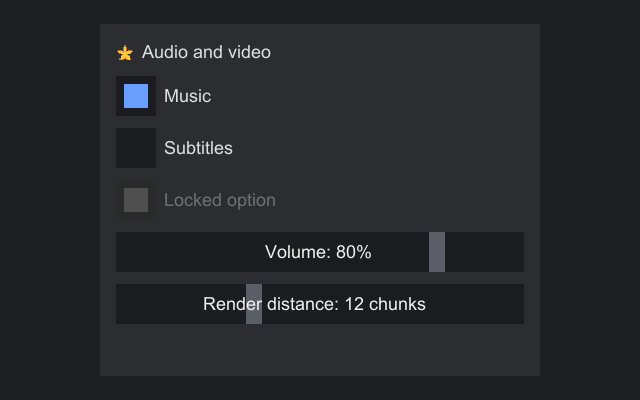
TextBox
A single-line text field.
TextBox name = factory.textBox()
        .setMaxLength(32)
        .onEvent(TextInput.EDITED, event -> preview.setText("Hello, " + event.value()));
name.setAlignment(HorizontalAlignment.STRETCH, VerticalAlignment.TOP);
Settings
| Method | Default | Notes |
|---|---|---|
setText(text) |
empty | Removes line breaks and control characters, cuts to the length limit and puts the caret at the end. Fires EDITED if the text changed, but no EDIT request. Clears the undo history. |
setMaxLength(n) |
Integer.MAX_VALUE |
Counted in code points. Longer text is cut at once, which fires EDITED, and a cut never leaves half of a character (a grapheme cluster) behind. Negative throws. |
setPlaceholder(text) |
none | A hint drawn in textbox.placeholder while the box is empty, focused or not, unless the theme's textbox.placeholder.hide hides it while focused. It is never part of text(). Empty text is none. |
setTextPadding(Insets) and its number forms |
the theme's textbox.padding, else 4 left and right, 5 top and bottom |
Space between the text and the edges; clearTextPadding() follows the theme again |
setTextAlignment(HorizontalAlignment) |
LEFT |
Where text that is narrower than the box sits: LEFT, CENTER or RIGHT. STRETCH acts as LEFT, and LEFT is the start, so right to left it is at the right. Wider text starts at the left and scrolls sideways as before, so alignment never hides the caret. |
setDropDown(boolean) |
off | Draws an arrow that lists every suggestion, which makes the box an editable combo box. See Drop-down. |
setHistoryLimit(n) |
100 | How many edits undo remembers. See Undo. |
setValidation(...), setValidator(...) |
valid | From Validatable: see Validation |
setReadOnly(boolean) |
off | The box still focuses, selects and copies, but does not edit, and shows no caret. Its text uses textbox.text.readonly. |
setHighlighter(h) |
none | Draws parts of the text in their own styles, for syntax coloring, highlighted matches or colored input. See Styled text in fields. |
setSelectAllOnFocus(boolean) |
off | Gaining focus selects everything, so typing replaces it. |
Reading and selecting
| Method | Returns |
|---|---|
text() |
The text, never null |
caret() |
The caret, a char index from 0 to text().length() |
selectionStart(), selectionEnd() |
The selected range. Equal when nothing is selected. |
selectedText() |
The selected text, or empty |
select(anchor, caret) |
Selects a range. The anchor stays put and the caret is the moving end, as after Shift+arrow. Out-of-range indexes are clamped. |
selectAll() |
Selects everything, caret at the end |
Indexes count UTF-16 chars, like String indexes, but never fall inside a character as the user sees it, which is a grapheme cluster: a letter with its accents, a flag or an emoji with a skin tone is one step for the caret and for Backspace. select, the edits from code and the caret after an edit snap an index inside a cluster to the cluster's start. A password box snaps to code points instead.
Mouse
- A click puts the caret at the nearest character boundary. Shift+click extends the selection to it.
- A drag selects by character. A drag that starts with a double click selects whole words.
- A double click selects the word, or the run of spaces, under the pointer. Double-clicking the first letter of a word selects that word.
- A triple click selects everything.
- A press inside the selection places the caret only when the button is released without a drag. A drag from the selection carries the selected text out, as described under Dragging text.
Keyboard
| Keys | Action |
|---|---|
| Left, Right | Move one character (a grapheme cluster). With a selection and no Shift, collapse it to its start or end. Right to left, Left moves toward the end of the text. |
| Home, End | Move to the start or end |
| Ctrl+Left, Ctrl+Right | Move by word. A word is a run of letters and digits; punctuation next to it makes a run of its own, and so does whitespace. |
| Backspace, Delete | Delete the selection, or one character |
| Ctrl+Backspace, Ctrl+Delete | Delete the selection, or one word |
| Shift with any movement | Extend the selection |
| Shortcut+A | Select all |
| Shortcut+C, Shortcut+X | Copy, cut |
| Shortcut+V | Paste. Line breaks and control characters in the pasted text are removed. |
| Shortcut+Z | Undo. See Undo. |
| Shortcut+Y, Shortcut+Shift+Z | Redo |
| Typing | Replaces the selection. Text past the length limit is dropped. |
Shortcut is the platform's shortcut modifier: Control, or Command where the platform's conventions say so. The word keys keep Control. Shortcuts need that modifier held without Alt, so AltGr combinations, which many layouts report as Control plus Alt, type their characters instead of triggering shortcuts. A key held with Alt never edits or moves the caret in any text field, and a key with Super held is not typing, so a host shortcut such as Command+S runs from inside a field. On macOS, see the platform note on Command.
Focus and the engine
The box is focusable and tabbable and shows the text cursor. Focus by Tab or requestFocus() puts the caret at the end; focus by a click puts it at the click. While focused, it:
- asks the engine for text input, which some engines need before they send any characters;
- consumes every key press that types a character (any printable key without Control, Alt or Super), so engine shortcuts on those keys do not fire while you type;
- consumes the editing keys and shortcuts in the table above, except that Ctrl+Z and Ctrl+Y are consumed only when there is something to undo or redo, so a screen's own binding still works on an empty history;
- does not consume Tab, Escape, Up, Down, Page Up or Page Down. Tab moves focus and Escape reaches the engine, which may close the screen. Enter is consumed only when a
SUBMITorSUBMITTEDhandler is on the box's path; otherwise it bubbles to ancestors. While the suggestion list is open, the box consumes Up, Down, Tab, Enter and Escape itself.
A disabled box ignores input.
Drawing
The caret is one unit wide and blinks on the host's clock, shown and hidden for the theme's textbox.caret.blink in milliseconds, half a second without it. It shows again after each edit or move. When the text is wider than the box, it scrolls sideways to keep the caret in view.
| Key | Required | Used for |
|---|---|---|
textbox.normal |
yes | Background when not focused |
textbox.focused |
yes | Background when focused |
textbox.disabled |
yes | Background when disabled |
textbox.invalid |
no | Background while the validation is an error, in place of the normal and focused ones. Without it, and for a warning, the box keeps its face and gets a one-unit outline in validation.error or validation.warning. |
textbox.text |
no | Text style. Falls back to the default text style. |
textbox.text.disabled |
no | Text when disabled. Falls back to textbox.text. |
textbox.text.readonly |
no | Text when read-only. Falls back to textbox.text.disabled. |
textbox.placeholder |
no | The placeholder. Falls back to textbox.text.disabled. |
textbox.selection |
no | Behind selected text. Falls back to translucent blue. |
textbox.caret |
no | The caret. Falls back to light gray. |
textbox.suggestions |
no | Behind the suggestion list. Falls back to combobox.popup. |
textbox.suggestion.text |
no | The text of each suggestion. Falls back to textbox.text. |
textbox.text.selected |
no | Selected text. None by default, so selected text keeps its style. |
textbox.selection.extend, textbox.caret.extend |
no | Units the selection and the caret reach above and below the line. 0. |
textbox.caret.blink |
no | Milliseconds the caret stays shown, then hidden. 500. |
textbox.caret.underscore |
no | Any value but 0 draws a caret at the end of the text as an underscore in the text's style. 0. |
textbox.placeholder.hide |
no | Any value but 0 hides the placeholder while the box has focus. 0. |
The suggestion rows use the ListView row keys, the highlighted one as the selected row.
Suggestions
Give the box a suggestion provider and it offers completions in a popup list below it as the user types:
TextBox name = factory.textBox()
        .setSuggestionProvider(TextBox.SuggestionProvider.words(List.of("Ana", "Ben", "Cleo", "Dev")))
        .onEvent(TextBox.COMPLETED, event -> greet(event.value().text()));
A provider is a function from the text and the caret to a list of TextBox.Suggestions. A suggestion holds the text the list shows and the range of the box's text it replaces, so one provider can complete the word at the caret and another the whole text:
box.setSuggestionProvider((text, caret) -> text.startsWith("/")
        ? commands.stream()
                .filter(command -> command.startsWith(text))
                .map(command -> new TextBox.Suggestion(command, 0, text.length()))
                .toList()
        : List.of());
TextBox.SuggestionProvider.words(list) completes the word around the caret from a list. The word is the run of characters other than whitespace around the caret. Every entry that starts with the part of the word before the caret, ignoring case, is suggested in the list's order, except an entry equal to the whole word, and each suggestion replaces the whole word. It suggests nothing for a caret with no word before it, and it copies the list, so later changes to it are not seen.
A Suggestion's range counts chars, as the caret does: start is where the replaced range begins and end where it ends, exclusive. A suggestion with start equal to end inserts its text at that point, and a range that starts below 0 or ends before it starts throws. The provider runs on the UI thread each time the box asks, so keep it quick. setSuggestionProvider(null) turns suggestions off again.
The box asks the provider after each edit by the user that changes the text, and on Ctrl+Space. If there are suggestions, the list shows them with the first highlighted, at least as wide as the box and up to setMaxVisibleSuggestions(n) rows tall (8 by default) before it scrolls. If there are none, the list closes. A read-only or disabled box never asks.
| Keys or input | While the list is open |
|---|---|
| Up, Down | Move the highlight, wrapping at either end |
| Tab, Enter, keypad Enter | Accept the highlighted suggestion. Enter then does not submit. |
| Click on a row | Accept that suggestion. The box keeps focus and its caret. |
| Escape | Close the list |
Moving the caret with the keys, losing focus, setText, a press outside the list |
Close the list |
Accepting closes the list, then replaces the suggestion's range with its text and puts the caret after it. That is an edit by the user, so it goes through TextInput.EDIT like typing, and the list stays closed until the next edit. showSuggestions() and hideSuggestions() open and close the list from code, and shownSuggestions() returns what it shows.
Drop-down
setDropDown(true) makes the box an editable combo box: the user can type anything, and an arrow offers a list.
static TextBox countryBox(final ComponentFactory ui) {
    // A text box with an arrow that lists every word, and completes as the user types. The user may still type
    // a country that is not in the list.
    return ui.textBox().setWidth(120).setDropDown(true)
            .setSuggestionProvider(TextBox.SuggestionProvider.words(
                    List.of("Canada", "Chile", "China", "Croatia", "Denmark")));
}
The box draws the combo box's arrow inside its padding, 4 units after the text, at the right, or at the left right to left, in the text's color. A left press on the arrow, or Alt+Down, shows every suggestion in the list, or closes the list while it is open. Which suggestions those are is up to the provider's every(String text). By default it is the provider's suggestions for empty text, each with its range stretched over the whole text, so choosing one replaces everything in the box. SuggestionProvider.words(list) overrides it to offer every entry. Typing still completes by prefix as it does for any box with a provider. With no provider the arrow does nothing.
Events
| Event | Kind | Fires |
|---|---|---|
TextEntry.MODIFY |
Pre | When the user's typing, deleting, cutting, pasting, dropping or undoing would change the text, before TextInput.EDIT. It carries no value. Cancel to reject the edit; EDIT then does not fire. |
TextInput.EDIT |
Pre | For the same edits, unless MODIFY was canceled, with the whole text the edit would produce. Cancel to reject the edit, or set another text, which is cleaned of line breaks and cut to the length limit. |
TextInput.EDITED |
Post | After every change of the text, with the new and previous text, including setText, setMaxLength cutting, the edits from code, undo() and redo() |
TextEntry.MODIFIED |
Post | After EDITED, for every change, with the new and previous length in code points |
TextEntry.CARET_MOVED |
Post | After the caret or the selection's anchor moved, by the user or from code, with a TextEntry.Caret(anchor, caret) that also has selectionStart(), selectionEnd() and hasSelection(). It fires once for an input or a call, after EDITED and MODIFIED when an edit moved the caret, and once for a press that gives the box focus. |
Validatable.VALIDATED |
Post | After the validation the box shows changed, with the new and previous Validation |
Focusable.FOCUS_GAINED, FOCUS_LOST |
Input | When the box gains or loses focus |
TextBox.SUBMIT |
Pre | When the user presses Enter or keypad Enter. Cancel to ignore it. |
TextBox.SUBMITTED |
Post | After a submit nobody canceled, with the text |
TextBox.COMPLETE |
Pre | When the user accepts a suggestion, with the suggestion. Cancel to keep the text, or set another suggestion to apply instead. |
TextBox.COMPLETED |
Post | After an accepted suggestion was applied, unless TextInput.EDIT canceled the edit |
Undo
A text box and a text area record their edits, and each keeps its own history. Shortcut+Z undoes the last edit and Shortcut+Y or Shortcut+Shift+Z redoes it. An undo puts the selection back too.
- Typing merges into the entry before it while that entry is open: the new text follows straight on from it, the caret is where it left off, and less than a second passed, by the platform's clock. Typing a space (or a tab or line break) closes the entry after it, so "ab cd" undoes as "cd" and then "ab ". Backspaces merge into a run that grows to the left and Deletes into one that stays put, the word versions included.
- A paste, a cut, a deleted selection, a completed suggestion and every edit from code is an entry of its own.
- An undo or redo by key is the user's, so it does nothing in a read-only box, and with a
MODIFYorEDIThandler on the path it asks both, with the text it would restore. A canceled request leaves the text and the history alone. A handler that rewrites the text turns the step into an ordinary edit of the rewritten text, recorded like any edit. - The keys are consumed only when there is something to undo or redo.
undo()andredo()from code ask nothing, work on a read-only box and reportEDITEDandMODIFIED.canUndo()andcanRedo()say whether they would do anything, so buttons can follow them.- Any new edit clears the redo stack.
setTextclears the whole history, and so doesclearHistory().setMaxLengththat cuts the text is recorded as an edit from code. setHistoryLimit(n)sets how many edits are kept, 100 by default. 0 keeps none, and a negative number throws.
A password box keeps no history and leaves Ctrl+Z and Ctrl+Y to the engine.
Changing the text from code
setText replaces everything and forgets the history. When code edits text that the user is also editing, the four edit methods keep the user's place and the history:
| Method | Does |
|---|---|
insert(text) |
Puts the text at the caret, over the selection if there is one. The caret goes after it. |
append(text) |
Adds the text at the end |
replace(start, end, text) |
Replaces a range. start above end throws IllegalArgumentException. |
delete(start, end) |
Removes a range |
Each cleans the text as typing does (a text box drops line breaks and control characters), cuts it to the room the length limit leaves, reports EDITED and MODIFIED, asks nothing, and is recorded for undo. An edit that leaves the text as it is reports and moves nothing. Ranges are char indexes, kept inside the text and snapped to the start of the character they fall in. The caret and the anchor stay with the characters they were next to: at or after the range's end they shift with the change, inside it they go to the end of the new text, and before it they stay. insert puts both at the end of the new text. A box hides its suggestions after an edit from code, as setText does.
static StackPanel noteField(final ComponentFactory ui) {
    final TextBox note = ui.textBox().setWidth(160);
    final Button mention = ui.button("@Ana").onEvent(Button.PRESSED, event -> note.insert("@Ana "));
    final Button undo = ui.button("Undo").onEvent(Button.PRESSED, event -> note.undo());
    final Button redo = ui.button("Redo").onEvent(Button.PRESSED, event -> note.redo());

    // The buttons follow the history, which changes with every edit
    final Runnable refresh = () -> {
        undo.setEnabled(note.canUndo());
        redo.setEnabled(note.canRedo());
    };
    note.onEvent(TextInput.EDITED, event -> refresh.run());
    refresh.run();
    return ui.stackPanel().setSpacing(4).add(note)
            .add(ui.stackPanel(Orientation.HORIZONTAL).setSpacing(4).add(mention).add(undo).add(redo));
}
Dragging text
A drag that starts inside the selection carries the selected text out as text, allowing a move and a copy, or only a copy from a read-only box. An enabled, editable box takes text dropped on it: it draws a caret that does not blink at the boundary under the pointer while a drag is over it, and inserts the text there as one edit through EDIT, with its line breaks removed. A move inside the box is one edit over the span it crosses, so it undoes in one step, and a drop inside the dragged text is rejected. After a move to another component, the box removes the text it gave away, as an edit. Text dragged from another application is accepted the same way. See Drag and drop.
Context menu
A text box, a text area and a password box start with a context menu of editing commands: Undo, Redo, Cut, Copy, Paste, Delete and Select all, captioned by the translation keys strata.edit.undo and the like. Each is enabled only while it would do something, shows its key as the hint, and acts through the field as the key does, so the field's requests fire. A password box leaves out Undo, Redo, Cut and Copy. Right click, the Menu key and Shift+F10 open it, and SHOW_CONTEXT_MENU lets a handler change it; see Context menus. setContextMenu(null) removes the menu and setContextMenu(menu) replaces it. Opening the menu takes focus from the field, and the field keeps its selection while the menu is open.
Size
The desired size is 120 units wide and one line plus the text padding tall, and at least 20 tall, with a minimum width of 20. A smaller height set on it applies. Stretch it or set a width to make it wider.
Common recipes
Submit on Enter:
// Enter in the box asks to submit; SUBMITTED fires once nothing refused
name.onEvent(TextBox.SUBMITTED, event -> submit.accept(event.value()));
Accept only a whole number up to a limit:
amount.onEvent(TextInput.EDIT, event -> {
    String digits = event.value().replaceAll("[^0-9]", "");
    event.setValue(digits.isEmpty() ? "" : Long.toString(Math.min(Long.parseLong(digits), max)));
});
When the number belongs to a state, a converter does the same and also marks the box as an error while the text is not a number in range; see Validation and Data binding.
React to each change: TextInput.EDITED. React only when the user leaves the field: handle Focusable.FOCUS_LOST. React to any field of a form changing, password boxes included, without reading text: TextEntry.MODIFIED. React to the caret moving, as a status line showing the line and column does: TextEntry.CARET_MOVED.
PasswordTextBox
A single-line field for a password, a PIN or another secret. It edits like a TextBox and keeps its text from showing up where nobody meant it to: on screen, on the clipboard, in a form's event handlers, in snapshots, in toString and log lines, and in Strings left on the heap after the screen closes.
final PasswordTextBox password = factory.passwordTextBox().setPlaceholder("Password").setMaxLength(64);
final PasswordTextBox confirm = factory.passwordTextBox()
        .setPlaceholder("Repeat password")
        .setRevealable(false);
final Label status = factory.label("");
final Button saveButton = factory.button("Save").setEnabled(false);
final StackPanel form = factory.stackPanel().setSpacing(4)
        .add(password).add(confirm).add(status).add(saveButton);
// MODIFIED carries lengths, never text, so one handler can watch every field of the form
form.onEvent(TextEntry.MODIFIED, event ->
        saveButton.setEnabled(!password.isEmpty() && password.matches(confirm)));
// The reader gets a copy of the chars, which is zeroed as soon as it returns
saveButton.onEvent(Button.PRESSED, event ->
        status.setText(password.withPassword(save::test) ? "Saved" : "Not saved"));
It cannot hide the text from code in the same process that sets out to read it. A CHAR handler on the box sees each typed code point, the engine delivers them, and any mod can read the heap.
Reading the password
The box holds its text in a char[] that Strata zeroes, and makes a String of it only to show it while revealed.
| Method | What it does |
|---|---|
withPassword(reader) |
Hands the reader a copy of the text and zeroes the copy when the reader returns or throws. A reader that keeps the array sees zeros later. |
copyPassword() |
Returns a new copy on each call. You own it; zero it with Arrays.fill(chars, '\0') when done. |
matches(other) |
Whether two boxes hold the same text, compared in constant time without copying either, for a confirm field |
setPassword(char[]) |
Copies the array with its line breaks removed, cut to the length limit. Your array is not kept. The caret goes to the end, and the text hides if it showed. |
clear() |
Zeroes and empties the box |
length(), isEmpty() |
The length in code points |
There is no setPassword(String). Code that has a String passes toCharArray(), which keeps the conversion in sight, and code that needs a String, such as a network library, makes one itself with new String(chars).
The box also zeroes and empties itself, firing nothing, after the screen that holds it closes or rebuilds and after the overlay that holds it closes. Screen.closed() runs first, so a screen can still read the box there. A collapsed expander or a swapped tab page keeps its boxes' text, since the content comes back.
Settings
| Method | Default | Notes |
|---|---|---|
setMaskCodePoint(cp) |
'*' |
What every code point draws as. Every font has *; • looks like other platforms but may be missing from bitmap fonts. Throws for an invalid code point. |
setRevealable(boolean) |
on | Off removes the eye, ignores Alt+F8 and hides the text if it showed |
setRevealed(boolean) |
off | Shows or hides the text from code, revealable or not |
setCodePointFilter(filter) |
none | Which code points the user may type or paste. It sees one code point at a time and belongs to the box; it does not bubble. |
setMaxLength(n) |
Integer.MAX_VALUE |
Counted in code points, as on a text box |
setPlaceholder(text) |
none | Drawn in textbox.placeholder while the box is empty. The mask does not cover it. Empty text is none. |
setReadOnly(boolean), setSelectAllOnFocus(boolean), setTextPadding(insets), clearTextPadding() |
off, off, the theme's textbox.padding |
As on a text box |
setTextAlignment(HorizontalAlignment) |
LEFT |
Where a mask narrower than the box sits, within the room left of the eye. As on a text box. |
setValidation(...), setValidator(...) |
valid | From Validatable: see Validation. A validator reads the length with length(), since the box has no text to hand out, or the password through withPassword. |
// Only digits, at most six; a paste with anything else, or one that would not fit, is refused whole
final PasswordTextBox pin = factory.passwordTextBox()
        .setMaxLength(6)
        .setCodePointFilter(Character::isDigit)
        .setMaskCodePoint('\u2022')
        .setPlaceholder("PIN");
Peeking
An eye at the right end of the box shows the text on a left click and hides it on the next, and Alt+F8 does the same while the box has focus, as in Windows' own password fields. Held keys that repeat do not, and the box consumes Alt+F8 even while it cannot reveal. The eye cannot take focus, so Tab order is the same with or without it, and a click on it leaves focus and the caret in the box. It shows while the box is revealable, enabled and not empty, and the text always keeps room for it, so nothing moves when it appears. Its tooltip reads "Show password" or "Hide password", from the translation keys strata.password.show and strata.password.hide.
- Text set from code cannot be revealed by the user until they clear the box or replace all of it, so someone at an unlocked screen cannot read a remembered password. The eye draws disabled until then.
setRevealed(true)still works from code. - The box hides the text again when it loses focus, is disabled or is made unrevealable, and when code sets its text.
- While revealed, the box makes a
Stringof its text once per edit to measure and draw it, and drops it when the text hides. A project that cannot accept that callssetRevealable(false).
What differs from a text box
| Path | In a password box |
|---|---|
text(), selectedText(), setText |
Not there. Use withPassword, copyPassword, setPassword and clear. |
TextInput.EDIT, EDITED |
Not fired. TextEntry.MODIFY carries no value and MODIFIED carries lengths. CARET_MOVED fires, and its indexes say only where in the length the caret is. A TextInput<?> parameter does not take a password box. |
| Snapshots | PasswordTextBox.State holds the length, caret, anchor, length limit and reveal state, never the text |
| Shortcut+C, Shortcut+X | Do nothing, read-only or not, revealed or not |
| Undo and redo | Not there. The box keeps no history, and Ctrl+Z and Ctrl+Y are left to the engine. |
Edits from code, canUndo() and the rest |
Not there. Only setPassword, clear and setMaxLength change the text. |
| Dragging | The box is never a drag source and takes no drops. |
| Context menu | A default menu of Paste, Delete and Select all. Cut, Copy, Undo and Redo are left out. |
| Shortcut+V | Pastes with line breaks removed. A paste that still holds a control character, or that the length limit or the filter would change, is refused whole, since a password silently cut short is worse than none. |
| Word movement | Ctrl+Left, Ctrl+Right, Ctrl+Backspace and Ctrl+Delete treat the whole text as one word, and a double click selects everything, so the caret does not show where spaces are |
| Suggestions, highlighter | Not there |
| Typed characters | Consumed while the box has focus, read-only included, so they never reach an ancestor's CHAR handler. Control characters are not typed. |
| Text input | The box asks the engine for TextInputKind.SECRET text, so it can turn off input methods and suggestions. Swing turns input methods off while the box has focus. |
| Tooltips | Only what code sets, and the eye's |
toString() |
The class name |
The caret and the selection sit on the mask glyphs. Every glyph of the mask is as wide as the next, so the boundary after the k-th of n code points is at k over n of the mask's width.
Drawing
A password box reads the TextBox keys for its face, text, selection, caret, placeholder and padding, the metrics included, so any theme that styles text boxes styles it too. Its own keys are optional:
| Key | Required | Used for |
|---|---|---|
passwordbox.mask |
no | The mask while enabled and editable. Falls back to textbox.text. A disabled or read-only box draws the mask in textbox.text.disabled or textbox.text.readonly. |
passwordbox.reveal |
no | The eye while the text is hidden. Falls back to an eye drawn in the placeholder's color. |
passwordbox.reveal.hovered |
no | The eye under the pointer. Falls back to passwordbox.reveal, else an eye in the text color. |
passwordbox.reveal.active |
no | The eye while the text shows, offering to hide it. Falls back to an eye with a slash, in the text color. |
passwordbox.reveal.disabled |
no | The eye while the user cannot reveal the text. Falls back to passwordbox.reveal, else an eye in the disabled text color. |
The textbox.invalid face and the validation outline apply to a password box as they do to a text box.
The eye is a square one line tall at the right of the text area, 2 units from the text. Themes.flat() sets none of these keys.
Events
| Event | Kind | Fires |
|---|---|---|
TextEntry.MODIFY |
Pre | When the user's typing, deleting, cutting or pasting would change the text. It carries no value; cancel it to refuse the edit. |
TextEntry.MODIFIED |
Post | After every change, with the new and previous length in code points, including setPassword, clear and setMaxLength cutting. A wipe on close fires nothing. |
PasswordTextBox.REVEAL |
Pre | When the user clicks the eye or presses Alt+F8, with the state it would set. Cancel it, for example to ask for the account password first, or set another value. |
PasswordTextBox.REVEALED |
Post | After the text was shown or hidden, by the user, by setRevealed, or by the box hiding itself |
TextEntry.CARET_MOVED |
Post | After the caret or the selection's anchor moved, with a TextEntry.Caret whose indexes count code points of the hidden text. Wiping the box moves the caret to the start without a report. |
Validatable.VALIDATED |
Post | After the validation the box shows changed |
PasswordTextBox.SUBMIT |
Pre | When the user presses Enter or keypad Enter. Cancel it to ignore the key. |
PasswordTextBox.SUBMITTED |
Post | After a submit nobody canceled. It carries no value; read the box with withPassword. |
Moving from setPassword(true)
Text boxes had a password mode until Strata gained this control. TextBox.isPassword, setPassword(boolean) and setMaskCodePoint are gone, and TextBox.State lost its password component. Make the field with factory.passwordTextBox(), read it with withPassword, and listen for TextEntry.MODIFIED where you listened for TextInput.EDITED.
Size
As a text box: 120 units wide and one line plus the text padding tall, at least 20 wide, and asking to be at least 20 tall, though a smaller height set on it applies.
ListView
A scrolling list of items that selects one row, or several in MULTIPLE mode. Each row is built by a cell factory, and only the rows in view exist, so a list of thousands of items costs no more than a screenful.
ListView<Listing> listings = factory.<Listing>listView(listing -> factory.label(listing.name()))
        .setRowHeight(24)
        .setKeyFunction(Listing::record)
        .setPlaceholder("No results found.")
        .onEvent(Selection.SELECTED, event -> updateButtons());
listings.onEvent(Activatable.ACTIVATED, event -> buy(listings.items().get(event.value()), 1));
listings.setItems(fromServer);
| Method | Default | Notes |
|---|---|---|
setItems(list) |
empty | Rebuilds the rows in view. Each selected item moves to the item with its key, or leaves the selection. A null item throws. |
setKeyFunction(f) |
the item itself | How items are told apart when setItems keeps the selection, such as a record id from the server |
setRowHeight(h), setRowSpacing(s) |
20, 0 | Every row has the same height |
select(index), selectItem(item) |
nothing selected | Selecting scrolls the row into view. -1 clears. |
setDeselectable(boolean) |
off | A press on the selected row deselects it |
setSelectionMode(SelectionMode) |
SINGLE |
MULTIPLE lets the user select several rows; see below |
selectIndexes(indexes), selectAll() |
Replace the selected set from code. More than one index in SINGLE mode throws. selectAll() does nothing in SINGLE mode. |
|
setActivateOnClick(boolean) |
off | A single click activates, as in a drop-down, instead of a double click |
setPlaceholder(text), placeholder() |
none | Shown in the middle while there are no items. null or empty text means none, and placeholder() is empty then. |
refresh(), refresh(item) |
Rebuilds the rows in view from the same items, or only the rows of the items with the same key as item; see Refreshing one row |
|
setScrollY(y), scrollToIndex(i) |
Scroll by code | |
setTypeAhead(name) |
each item by its text | Typing letters jumps to an item by name; null turns it off. See Type-ahead. |
setCellEditor(editor) |
none | Makes rows editable in place; see Editing in place |
setDragTransfer(function) |
none | Makes rows draggable; see Dragging rows |
setDragScroll(boolean) |
on | Scrolls the list while a drag that carries a transfer is held near its top or bottom edge |
A left press on a row selects it, unless something in the cell consumed the press. A double press on a row activates it, and so does Enter or keypad Enter on the selected row while the list has focus; Space does not. While focused, Up and Down move the selection a row, Page Up and Page Down by the rows in view, and Home and End to the ends; with nothing selected, Up starts from the last row. Held keys repeat. The list leaves keys with Alt alone, and keys with Control or the shortcut modifier alone except the shortcut modifier with A in MULTIPLE mode, and an empty list takes no keys. The shortcut modifier is Control, or Command on a platform whose conventions name it. The wheel scrolls one row per notch, or the theme's list.scroll.rows, and the scroll bar works as in a ScrollPanel. Rows sit inside the list's border widths, so a bordered list keeps its rows off the border.
In MULTIPLE mode, a press selects one row, the shortcut modifier and a press adds or removes one, Shift and a press selects the range from the anchor, Shift and the keys that move the selection extend it, and the shortcut modifier with A selects every row. On a platform whose shortcut modifier is Command, Control and a press add nothing. Those keys without Shift select only the row they move to. selectedIndexes() and selectedItems() are the set in order; selectedIndex() is the current row, the one the keys move from. The user's changes ask MultiSelection.SELECT_MANY with the set they would leave, and every change of the set reports MultiSelection.SELECTED_MANY, followed by Selection.SELECTED when the current row moved too. setItems moves each selected item to the item with its key and drops the ones no item has. Tables and trees work the same way; collapsing a tree branch drops its hidden rows from the set.
list.setSelectionMode(SelectionMode.MULTIPLE)
        .onEvent(MultiSelection.SELECTED_MANY, event -> remove.setEnabled(!event.value().isEmpty()));
Build each cell fresh from its item, and keep nothing in it that must survive scrolling: a row that scrolls out is dropped and rebuilt when it comes back.
factory.listView() with no cell factory shows each item through its appearance, with factory.cell(item): the item's icon, if it has one, and its name, in a cell label, with the item's tooltip. setCellFactory replaces it and builds the rows in view again.
ui.cellLabel(text) makes the label the default cells use: the theme's list.cell.padding as its margin, or ComponentFactory.CELL_PADDING (4 units) at the sides without it, vertically centered, and cut short with an ellipsis. Its margin follows the theme until you set one. ui.cellLabel() makes one with no text, for a cell factory that sets the text later. Use it in your own cell factories so text rows line up with tables and the built-in lists. The list.background key paints the list's whole area behind its rows, so an empty list shows its placeholder on it.
The rows' look
The list draws each row's background from the theme before the cells: list.row for a plain row, list.row.hovered for the row under the pointer, list.row.selected and list.row.selected.unfocused for selected rows while the list has focus and while it does not, and list.row.ring or list.row.ring.unfocused as a one-unit ring inside selected rows, the first while the list's focus is shown. Theme keys lists every key. All of them can be replaced for one screen through the ThemeRef it opens with, and Paint.NONE turns any of them off, the required list.row.selected included:
screens.open(menu, ThemeRef.platform()
        .override(ListView.STYLE_ROW, Paint.NONE)
        .override(ListView.STYLE_ROW_HOVERED, Paint.solid(0x22FFFFFF))
        .override(ListView.STYLE_ROW_SELECTED, Paint.solid(0x44FFFFFF)));
A cell can draw the row's look itself. Before the cells are drawn, the list turns the selected style state on for the cell of each selected row and row_hovered for the cell of the row under the pointer, and turns them off on the others. A cell written as a CustomComponent then picks theme keys such as menu.row.selected with stylePaint, or checks hasStyleState(ListView.STATE_SELECTED) to draw something of its own, such as an accent bar at the left of the selected row. setRowBackgrounds(false) stops one list drawing the row paints and rings, so its cells take the whole look while other lists keep the theme's. The background, the drop line and the scroll bar are drawn either way.
ListView<String> menu = ui.<String>listView(name -> new MenuRow(ui, name)).setRowBackgrounds(false);

// In MenuRow, a CustomComponent
protected void paint(Painter painter, Rect bounds) {
    if (this.hasStyleState(ListView.STATE_SELECTED)) {
        painter.fill(new Rect(bounds.x(), bounds.y(), 3, bounds.height()), ACCENT);
    }
    painter.text(this.caption, bounds, HorizontalAlignment.LEFT, VerticalAlignment.MIDDLE);
}
Type-ahead
While the list has focus, typing letters jumps to an item by its name. The typed characters make a prefix, and the selection moves to the next item after the current one whose name starts with it, ignoring case in the translator's language. As the prefix grows the search starts at the current item, so it stays on a match that still fits, and the same letter typed again and again cycles through the items that start with it. The prefix starts over after list.typeahead.timeout (1000 ms) passes without a key. The move asks Selection.SELECT, or MultiSelection.SELECT_MANY in MULTIPLE mode, as a press on the row would. A space never starts a prefix, so Space still reaches the cells, and characters held with Control or Alt are left alone. A letter that matches nothing is still used up, and a letter typed into a text box inside a row never reaches the list.
setTypeAhead(name) says what an item is called. The function returns a Text or any other value, which is named by its appearance. By default the name is the text a default cell shows. setTypeAhead(null) turns type-ahead off. Tables, trees and combo boxes have the same method and read the same timeout.
public static ListView<Person> peopleList(final ComponentFactory ui, final List<Person> people) {
    return ui.<Person>listView(person -> ui.label(person.name()))
            .setItems(people)
            // Typing "c" jumps to the first name that starts with c, and typing "c" again to the next one
            .setTypeAhead(Person::name);
}
Refreshing one row
setItems and refresh() build every row in view again. After one item changed inside, refresh(item) builds only the cells of the items with the same key (setKeyFunction, the item itself by default) and leaves the rest alone. It reads the items the list holds, so change your own object first and then ask for the cell again. Tables, grids and combo boxes work the same way. A tree drops the kept children of that item and works its rows out again.
Editing in place
Rows are not editable until setCellEditor(editor) gives the list a CellEditor. The editor is a function of the factory, the item, a commit that takes the new item and a cancel, and returns the component that replaces the cell. The same method and events belong to tables, trees and grids through the CellEditing attribute, and to a table's columns.
public static ListView<String> editableNames(final ComponentFactory ui, final List<String> names,
                                      final Consumer<String> renamed) {
    final ListView<String> list = ui.<String>listView()
            .setItems(names)
            .setCellEditor((factory, name, commit, cancel) -> {
                final TextBox box = factory.textBox().setText(name);
                box.onEvent(TextBox.SUBMITTED, event -> commit.accept(event.value()));
                box.onEvent(InputEvents.KEY, event -> {
                    if (event.key() == Key.ESCAPE && event.action() == KeyAction.PRESS) {
                        cancel.run();
                        event.consume();
                    }
                });
                return box;
            });
    // The list leaves its items alone: store the new name, then show the items again
    list.onEvent(CellEditing.CELL_EDITED, event -> renamed.accept((String) event.value()));
    return list;
}
The user starts an edit with F2 on the current row, or a double press on a row. On an editable list a double press edits and no longer activates, and Enter still activates; with setActivateOnClick(true) a single click still activates. A printable character other than a space starts an edit too, but only where type-ahead is off, so a list's letters keep jumping to names until setTypeAhead(null). The character then goes to the editor.
A start goes through these steps:
- The list asks
CellEditing.EDIT_CELLwith the item. A handler can cancel it; a value it sets is ignored. - The list builds the editor, puts it in place of the cell and focuses its first tab stop, or the editor itself when it has none. The row stays built while it scrolls out of view, and a row not built yet is scrolled into view first.
- The editor calls
commitorcancel, usually on Enter and Escape. Only the first call of an edit counts. - The list builds the cell again, takes focus back if it was inside the editor, and reports
CellEditing.CELL_EDITEDwith the new item and the old one as the previous value.
The list leaves its items alone. Store the new item in your own data and call refresh(item), or setItems when the item is replaced. New items, refresh(), a sort, cancelEdit() and a new cell for the edited item end the edit with no report, and isEditing() says whether one is under way.
Dragging rows
With setDragTransfer(function) a left drag from a row drags the selected rows when the row is selected, and that row alone otherwise. The function makes the payload from the items in row order, and a function that returns null or an empty transfer starts no drag. The drag allows MOVE and COPY, and its image is the first item's cell, built again at the row's size and 75 percent opacity. In MULTIPLE mode a plain press on one of several selected rows selects it alone only on its release, when no drag started, so the drag carries them all.
Over the list itself the drag shows a two-unit line at the gap nearest the pointer, in list.drop, and the drop asks ItemDragging.MOVE_ITEMS with an ItemMove: the indexes of the rows, ascending, and the index of the row they go in front of. Unless a handler cancels it, the list moves its items with setItems, so the selection follows the moved rows by key. A rewritten move that names no rows or changes nothing is ignored, and a drop where the rows already are asks nothing. ItemMove.apply(items) returns the items in their new order, which is what a state that holds the items should be set to.
public static ListView<String> reorderableList(final ComponentFactory ui, final State<List<String>> names) {
    return ui.<String>listView()
            .setSelectionMode(SelectionMode.MULTIPLE)
            .setItems(names.get())
            // Rows can be dragged to another application or component as text, one name to a line
            .setDragTransfer(rows -> Transfer.text(String.join("\n", rows)))
            // Dropping rows inside the list moves them; the list sets its items, and the state follows
            .onEvent(ItemDragging.MOVE_ITEMS, event -> names.set(event.value().apply(names.get())));
}
Drops from other components, and removing rows that were moved away, are yours: handle InputEvents.DRAG_OVER and DROP on the list and TRANSFER_DONE on the source, as the drag and drop guide shows. While a drag that carries a transfer is held within 16 units of the list's top or bottom edge, the list scrolls toward that edge, faster the deeper the pointer is in the zone. setDragScroll(false) turns that off.
With scroll.smooth set above 0, wheel steps and scrollToIndex glide to their row instead of jumping, and a further step adds to where the glide is headed. Right to left, the scroll bar sits at the left and the row backgrounds, the clip and the drop line are mirrored.
Rows of controls
A cell can be any component, controls included, so a list of option rows needs nothing more than a cell factory. Each cell is content of the list, so the controls in it behave as they do anywhere else, and their events pass the list: one handler around the list hears every row.
final ListView<String> options = factory.<String>listView(name -> {
            // Each control starts from the model and writes back to it
            final Component<?> control = switch (name) {
                case "Music" -> factory.toggleSwitch()
                        .setSelected(settings.music())
                        .onEvent(Toggle.TOGGLED, event -> settings.setMusic(event.value()));
                case "Volume" -> factory.slider()
                        .setRange(0, 100)
                        .setStep(1)
                        .setValue(settings.volume())
                        .setLabel(value -> (int) value + "%")
                        .onEvent(Ranged.CHANGED, event -> settings.setVolume(event.value()))
                        .setWidth(100);
                default -> factory.button("Reset");
            };
            return factory.stackPanel(Orientation.HORIZONTAL)
                    .add(factory.label(name).setAnchor(Anchor.MIDDLE_LEFT))
                    .add(factory.spacer(), 1)
                    .add(control.setAnchor(Anchor.MIDDLE_LEFT))
                    .setAnchor(Anchor.FILL);
        })
        .setRowHeight(24)
        .setItems(List.of("Music", "Volume", "Defaults"))
        // The rows hold controls, so there is nothing to select
        .onEvent(SingleSelection.SELECT, event -> event.cancel());

// One handler around the list hears every row's button
options.onEvent(Button.PRESSED, event -> {
    settings.setMusic(true);
    settings.setVolume(80);
    options.refresh();
});
- Keep the value in your model, not in the control. The row is rebuilt from the item when it scrolls back into view, so set each control from the model in the cell factory and write changes back from a handler.
- A press that a control does not consume reaches the list and selects the row. Buttons act on the click unless the platform's conventions say press, so a press on a button selects its row on such a platform; sliders, text boxes and the like consume their press and leave the selection alone. To keep rows from ever being selected, cancel
Selection.SELECTon the list. - Give the list a row height that fits the tallest control, and the row panel
Anchor.FILLso it spans the row. A weighted spacer between the label and the control pushes the control to the right edge.
| Key | Required | Used for |
|---|---|---|
list.background |
no | The list's whole area, behind its rows. Nothing if missing. |
list.row.selected |
yes | The selected row |
list.row |
no | Every other row. Nothing if missing. |
list.row.hovered |
no | The row under the pointer. Falls back to list.row. |
list.placeholder |
no | Placeholder text style |
list.row.selected.unfocused |
no | The selected row while the list does not have focus. Falls back to list.row.selected. |
list.row.ring, list.row.ring.unfocused |
no | A one-unit ring just inside the selected row, with focus and without |
list.row.width, list.bar.gap |
no | The widest a row gets, and the gap to the scroll bar when that narrows the rows. A wider list centers its rows. 0 and 2. |
list.scroll.rows |
no | Rows per wheel notch. 1. |
list.padding |
no | The space above the first row and below the last, which scrolls with the rows. Only the top and bottom are read. None. |
list.drop |
no | The two-unit line where dragged rows would land. Falls back to list.row.selected. |
list.typeahead.timeout |
no | Milliseconds without a key before a typed prefix starts over. Lists, tables, trees and combo boxes read it. 1000. |
scroll.smooth |
no | Milliseconds a wheel step or scrollToIndex glides. Tables and trees read it too. 0, the list jumps. |
list.edge, list.edge.outer |
no | One-unit lines just outside the top and bottom edges, and beyond them |
scroll.* |
The scroll bar, as for ScrollPanel |
Row width and the edge lines apply only to lists the factory makes, not to the lists inside tables, trees, combo boxes, suggestions and time pickers.
| Event | Kind | Fires |
|---|---|---|
Selection.SELECT |
Pre | When a press or a key would change the selection, with the row index, or -1 to clear. Cancel to keep the selection, or set another row. |
Selection.SELECTED |
Post | After every change of the selected row, including select, selectItem and setItems |
MultiSelection.SELECT_MANY |
Pre | In MULTIPLE mode, when a press or a key would change the set, with the indexes it would leave. Cancel to keep the set, or set others. |
MultiSelection.SELECTED_MANY |
Post | After every change of the set, in either mode, before Selection.SELECTED |
Activatable.ACTIVATE |
Pre | When the user activates a row: a double press, Enter or keypad Enter on the selected row, or a left click with setActivateOnClick |
Activatable.ACTIVATED |
Post | After an activation nobody canceled, with the row index |
ItemDragging.MOVE_ITEMS |
Pre | When rows dragged inside the list are dropped, with an ItemMove. Cancel to keep the order, or set another move. |
CellEditing.EDIT_CELL |
Pre | When the user starts editing a row, with the item. Cancel to keep the cell as it is. |
CellEditing.CELL_EDITED |
Post | After an editor committed, with the new item and the edited one as the previous value |
ComboBox
A drop-down that shows the selected option and opens a list of every option.
ComboBox<SortType> sort = factory.<SortType>comboBox(SortType::label)
        .setItems(List.of(SortType.values()))
        .onEvent(Selection.SELECTED, event -> search());
factory.comboBox() shows each option by its appearance's name, or by String.valueOf when it has none. factory.comboBox(labelFunction) and setLabelFunction show what the function returns: a Text, or any other value shown by its appearance's name. The selection events carry option indexes, so read the option with box.items().get(event.value()) or box.selected().
A left click opens the list as a popup below the box, or above it when there is more room there, at least as wide as the box; a click on an option selects it and closes the list, and a click anywhere else closes it with no change. So does focus leaving the box, as Tab moves it, unless the pointer is over the list. While closed and focused, Up, Down, Home and End change the selection, and Enter, keypad Enter, Space or Alt+Down open it. The list takes no focus, so the keys stay with the box while it is open: Up and Down move the highlight without wrapping, Enter, keypad Enter or Space picks it, and Escape closes without changing anything. Held arrows repeat; Enter, Space and Alt+Down do not. A box with no options takes no keys. setMaxVisibleOptions(n) (8 by default) caps how many rows show before the list scrolls. setItems closes the list first, so a CLOSED handler sees the options and the selection from before, and then moves the selection to the option with the same key (setKeyFunction, the option itself by default). An option that is gone leaves nothing selected. The first option is selected only for a box that never had a selection and that code has not cleared, so clearSelection() followed by setItems leaves nothing selected. With nothing selected the box shows no text. open() and close() open and close the list from code; open() does nothing while the box is detached, disabled or has no options.
setPlaceholder(text) shows a hint such as "Pick a country" while nothing is selected, in the textbox.placeholder style, falling back to combobox.text. The box makes room for it as for an option. Empty text, the default, means none. A box that never had a selection selects its first option, so a box that should start empty calls clearSelection() before its options arrive:
ComboBox<String> country = factory.<String>comboBox().setPlaceholder("Pick a country");
country.clearSelection();
country.setItems(countries);
While the box has focus, typing letters selects the option whose name starts with them, as in a list. A closed box selects the match without opening, asking Selection.SELECT; an open box moves its highlight, and Enter or Space picks it. The names are what the label function shows, and setTypeAhead(name) changes them or, with null, turns type-ahead off.
Escape and a press outside the open list ask Closable.CLOSE before the list closes, with the user as the origin. A handler that cancels keeps the list open, and the key or press is used up either way. close() from code and picking an option ask nothing. open() is the Openable method every popup control has: it opens the list from code and reports OPENED without asking OPEN. Right to left, the text sits at the right, the arrow at the left, and the list lines up with the box's right edge.
The box is focusable and tabbable and shows the hand cursor. It asks for its widest option plus its padding and the arrow, and one line plus 3 units above and below, so picking another option never changes its size. A disabled box ignores input.
| Key | Required | Used for |
|---|---|---|
combobox.normal |
yes | The box |
combobox.popup |
yes | Behind the open list |
combobox.hovered |
no | The box while hovered, focused or open. Falls back to combobox.normal. |
combobox.disabled |
no | The box when disabled. Falls back to combobox.normal. |
combobox.invalid |
no | The box while its validation is an error or a warning. Falls back to combobox.normal, with the validation outline drawn over it. |
combobox.text, combobox.text.disabled |
no | The option text, and the selected option when disabled. The first falls back to TextStyle.DEFAULT and the second to the first. |
combobox.padding |
no | Between the box's edges and its value on the left and its arrow on the right. 4 at the sides and 3 at the top and bottom. |
list.*, scroll.* |
The rows and the scroll bar of the open list, as for ListView |
| Event | Kind | Fires |
|---|---|---|
Openable.OPEN |
Pre | When the user opens the list. A handler can change the options first, or cancel. |
Openable.OPENED |
Post | After the list opened, including open() |
Selection.SELECT |
Pre | When the user picks an option, or Up, Down, Home or End on the closed box would change it, with the option index |
Selection.SELECTED |
Post | After every change of the selected index, including select, selectItem, clearSelection and setItems |
Closable.CLOSE |
Pre | When Escape or a press outside the open list asks to close it. Cancel to keep the list open. |
Validatable.VALIDATED |
Post | After the validation the box shows changed, with the new and previous Validation |
Closable.CLOSED |
Post | Each time the list closes, however it closed |
Window
A framed panel with a title bar and a close button. Children are laid out below the bar as in an AnchorPanel, inside the theme's window.padding, 3 units on every side without it.
Window window = factory.window("Exchange").add(content);
window.setSize(600, 370);
window.onEvent(Closable.CLOSED, event -> handle.close());
Dragging the title bar moves the window, through its offset, kept inside the slot its parent gives it (setMovable(false) stops that). A window the user moved or resized is moved back inside its slot on the next layout when the slot shrinks or shifts, as when the screen gets smaller. An offset set with setOffset is left as set, even outside the slot. The close button and an Escape the window acts on fire Closable.CLOSE, which a handler can cancel, then call close(), which fires Closable.CLOSED and closes the overlay showing the window. A window that is a screen's content does not close itself: close the screen from a CLOSED handler. With no CLOSE or CLOSED handler on its path, and outside an overlay, it leaves Escape to the engine. A window that holds a cancel button (Button.setCancel(true)) presses that button on Escape in place of closing. setClosable(false) hides the button and keeps Escape from closing the window. An unclosable window still consumes an Escape it would have acted on, so the overlay showing it stays open instead of closing without a CLOSE or CLOSED. A new window is centered in its slot. factory.window() makes one with no title, and factory.window(title) one with a title. A window is a container: add puts content in it, and setTitle changes the bar.
A press with any button anywhere in a window, on its content included, raises it among its siblings before the press is delivered, so of several windows in an AbsolutePanel the one the user pressed comes to the front. It works even when a handler inside cancels the press or stops it. A sibling with a higher z index stays above it. setRaiseOnPress(false) turns it off. A window that is a screen's content or an overlay's has no siblings, so nothing changes.
AbsolutePanel desk = factory.absolutePanel();
desk.add(factory.window("Ana").setSize(150, 90), 10, 10)
        .add(factory.window("Ben").setSize(150, 90), 90, 40);
// Notes stays over both, whichever was pressed last
desk.add(factory.window("Notes").setSize(110, 70).setZIndex(1), 240, 20);
Active, maximized and collapsed
A window is active while focus is within it. While focus is in none of the windows beside it, the one pressed last is active, or the frontmost one when none was pressed. isActive() says which, and an inactive window draws its title bar with window.title.inactive, which falls back to window.title.
setMaximizable(true) shows a button left of the close button, a square outline. A click on it, or a double click on the title bar, maximizes the window: it fills its slot, and keeps its size, alignment and offset to go back to when it is restored the same way. A maximized window neither moves nor resizes. setCollapsible(true) shows an arrow button left of that one, and a click on it collapses the window to its title bar: its visible children are hidden until it expands, it keeps its height aside, and it does not resize. A child added while the window is collapsed is not hidden and is cut off with the content area. Each button is Window.BUTTON_WIDTH (12 units) wide and drawn in the close button's styles, and right to left the buttons sit right of the close button, which is at the left of the title bar.
The user's change asks MAXIMIZE or COLLAPSE with the state it would take, which a handler can cancel. Every change reports MAXIMIZED or COLLAPSED, from code too. setMaximized and setCollapsed work from code and ask nothing.
public static Window notesWindow(final ComponentFactory ui, final Component<?> content,
                                 final Consumer<String> states) {
    final Window window = ui.window("Notes")
            .setMaximizable(true)
            .setCollapsible(true)
            .add(content);
    window.onEvent(Window.MAXIMIZED, event -> states.accept(event.value() ? "maximized" : "restored"));
    window.onEvent(Window.COLLAPSED, event -> states.accept(event.value() ? "collapsed" : "expanded"));
    return window;
}
Resizing
setResizable(true) draws a grip in the bottom-right corner, 10 units square, and dragging it resizes the window with its top-left corner in place. setEdgeResizable(true) lets the user drag every edge too: a press within 3 units of an edge moves that edge, and one within 10 units of a corner moves both edges there. The opposite edge stays put.
Window settings = factory.window("Settings")
        .setResizable(true)
        .setEdgeResizable(true)
        .add(content)
        .setSize(240, 160)
        .setMinSize(160, 100)
        .onEvent(Window.RESIZED, event -> this.saveSize(event.value()));
A resize keeps the window within its minimum and maximum sizes and inside the slot its parent gives it, and never makes it narrower than its title bar asks for or shorter than the bar plus the grip. Each resize sets the window's fixed size and moves it by its offset, the same way a move does, so the window stays where the user left it whatever its alignment. The pointer shows RESIZE_DIAGONAL_DOWN over the grip and the top left corner, RESIZE_DIAGONAL_UP over the other two corners, and RESIZE_HORIZONTAL or RESIZE_VERTICAL over an edge. An engine that cannot show the diagonals falls back to RESIZE_ALL. The grip sits over the window's content, so a control under it that takes the press, such as a button, wins; keep the corner clear, or give the window enough padding.
| Key | Required | Used for |
|---|---|---|
window.background |
yes | The whole window |
window.title |
no | The title bar. Nothing if missing. |
window.title.inactive |
no | The title bar while the window is not active. Falls back to window.title. |
window.title.text |
no | The title, centered on the bar. Falls back to TextStyle.DEFAULT. |
window.close, window.close.hovered |
no | The close button's x, and while it is hovered. The first falls back to window.title.text and the second to the first. |
window.title.padding |
no | Around the title in the title bar. 3 on every side. |
window.padding |
no | Between the window's edges, below the title bar, and its content. 3 on every side. Padding set with setPadding wins over it. |
window.grip, window.grip.hovered |
no | The resize grip, drawn as six small squares in a triangle. The hovered paint shows while the pointer is over a part that resizes, and during a resize. |
| Event | Kind | Fires |
|---|---|---|
Closable.CLOSE |
Pre | When the close button or an Escape the window acts on asks to close it. Cancel to keep it open. |
Closable.CLOSED |
Post | Each time it closes, including close() |
Window.RESIZE |
Pre | On each move of a resize drag that would change the size, with the new size. Cancel to keep the size for that move, or set another size, which is kept within the same limits. |
Window.RESIZED |
Post | After each resize by the user, with the new and the previous size. A size set with setSize is layout and fires nothing. |
Window.MAXIMIZE |
Pre | When the user maximizes or restores the window, with the state it would take (Boolean). Cancel to keep it as it is. |
Window.MAXIMIZED |
Post | After every change, setMaximized included |
Window.COLLAPSE |
Pre | When the user collapses or expands the window, with the state it would take (Boolean). Cancel to keep it as it is. |
Window.COLLAPSED |
Post | After every change, setCollapsed included |
MessageBox
A window with a message and a row of buttons, opened as a dialog.
factory.overlays().dialog(factory.messageBox("Delete", "Delete this exchange?", MessageBox.Buttons.YES_NO)
        .onEvent(MessageBox.ANSWERED, event -> {
            if (event.value().equals(MessageBox.Result.YES)) {
                delete.run();
            }
        }));
factory.messageBox(title, message, buttons) makes one, and factory.messageBox() one with no title, no message and an OK button. Each button stands for a MessageBox.Result, a record of an id and a caption. The constants OK, CANCEL, YES, NO and CLOSE have the ids "ok", "cancel" and so on, and Result.of(id, caption) makes others. Two results are equal when their ids are, so a result made again with the same id matches the one the box reports. Compare results with equals, or switch on id(); a switch over the results as an enum no longer compiles. The common buttons come in sets, a MessageBox.Buttons:
| Set | Buttons, left to right | The close button and Escape answer |
|---|---|---|
OK |
OK | OK |
OK_CANCEL |
OK, Cancel | CANCEL |
YES_NO |
Yes, No | NO |
YES_NO_CANCEL |
Yes, No, Cancel | CANCEL |
CLOSE |
Close | CLOSE |
results() lists the box's buttons from left to right and dismissResult() is what the close button and Escape answer. By default the buttons sit at the bottom right, 64 units wide and 4 apart, and the default result's button, the first one unless setDefaultResult says otherwise, is focused when the dialog opens and is pressed by an Enter that nothing else used. A question whose yes answer destroys something calls setDefaultResult(MessageBox.Result.NO), so Enter keeps what is there. The dismiss result's button is the box's cancel button. Their captions are the translated strata.button.ok, strata.button.cancel, strata.button.yes, strata.button.no and strata.button.close from the translation keys; setButtonText(result, caption) replaces one.
A button, pressed with a click, Enter or Space, the window's close button or Escape asks with MessageBox.ANSWER. A handler can cancel it to keep the box open, or rewrite it to any result, even one the box has no button for. Unless canceled, the box reports the result once with MessageBox.ANSWERED and closes the dialog. Escape counts when focus is inside the box, or when nothing has focus and the box is the content of the top dialog. It answers through the cancel button, as a click on that button does, so the box's window does not report CLOSED for it. Closing window() from code answers the set's dismiss result too, and reports it without asking. So does closing the overlay that shows the box from code, or any other way the host lets go of the box before it answered; the box reports ANSWERED with the dismiss result, without asking ANSWER, after the overlay closed.
| Method | Notes |
|---|---|
setText(message) |
The message. It wraps at 280 units (MESSAGE_WIDTH) unless the theme's messagebox.message.width says otherwise, and \n starts a new line. |
setTitle(title) |
The window's title |
setButtons(buttons) |
Another set. Captions set with setButtonText stay for the results that still have a button. |
setButtons(results, dismiss) |
Any row of results, left to right, with the result that closing the box answers. See Any row of buttons. |
setDefaultResult(result) |
The result whose button is the default button. Throws IllegalArgumentException for a result with no button. Replacing the buttons with a row that lacks it makes the first result the default again. |
setSeverity(severity), severity() |
A square icon, 24 units (MessageBox.ICON_SIZE), before the message and 8 units from it, for an InfoBar.Severity. null for none, the default. |
setContent(component), content() |
A component between the message and the buttons, such as a "Don't ask again" check box. null for none. |
setButtonText(result, caption) |
One button's caption, such as a more specific word than Yes |
window() |
The window the box is built on, to change its size or other settings |
Any row of buttons
setButtons(results, dismiss) takes any row of results. It throws IllegalArgumentException for an empty row or two results with the same id. The dismiss result may have no button of its own; the close button and Escape still answer it. The button of a result that equals the dismiss result is the cancel button. A caption set with setButtonText(result, caption) is kept by id.
public static MessageBox saveChanges(final ComponentFactory ui, final Runnable save, final Runnable discard) {
    final MessageBox.Result saveResult = MessageBox.Result.of("save", "Save");
    final MessageBox.Result discardResult = MessageBox.Result.of("discard", "Don't save");
    final MessageBox box = ui.messageBox().setTitle("Unsaved changes").setText("Save the changes to this exchange?")
            .setButtons(List.of(saveResult, discardResult, MessageBox.Result.CANCEL), MessageBox.Result.CANCEL)
            .setSeverity(InfoBar.Severity.WARNING)
            .setContent(ui.checkBox("Don't ask again"));
    box.onEvent(MessageBox.ANSWERED, event -> {
        switch (event.value().id()) {
            case "save" -> save.run();
            case "discard" -> discard.run();
            default -> { }
        }
    });
    ui.overlays().dialog(box);
    return box;
}
The severity's icon is drawn from messagebox.icon.<severity>, falling back to the info bar's infobar.icon.<severity>. A box whose theme has neither shows no icon and leaves no space for it. The content is added to the box as content, so the events of the components in it pass the box and its window and reach handlers around them.
The box is a composite: the events of its window and buttons reach handlers on those parts and on the box, and nothing outside it, so a handler around the dialog does not hear its buttons' PRESSED. Handle ANSWER and ANSWERED on the box. It draws with the window.*, label.* and button.* keys, plus its own:
| Key | Required | Used for |
|---|---|---|
messagebox.icon.info, messagebox.icon.success, messagebox.icon.warning, messagebox.icon.error |
no | The icon of each severity, 24 units square. They fall back to infobar.icon.info and the others. |
messagebox.padding |
no | Between the window's padding and the message and buttons. 4 on every side. |
messagebox.spacing |
no | Between the message and the buttons. 8. |
messagebox.message.width |
no | Where the message wraps. 280. |
messagebox.message.center |
no | Any value but 0 centers the message's lines. 0. |
messagebox.button.width |
no | Each button's width, with the row at the right. 0 makes the box as wide as the message width and has the buttons share it evenly, centered. 64. |
messagebox.button.width.maximum |
no | The widest a shared button gets. 0, no limit. |
messagebox.button.gap |
no | Between buttons. 4. |
messagebox.close |
no | 0 hides the window's close button; Escape still answers. 1. |
| Event | Kind | Fires |
|---|---|---|
MessageBox.ANSWER |
Pre | When a button, the close button or Escape answers, with the Result. Cancel to keep the box open, or set another result. |
MessageBox.ANSWERED |
Post | Once, when the box answers, before its overlay closes. After it, with the dismiss result, when the overlay was closed from code first. |
TabBar
A row of tabs, one of them selected. It only picks a tab; show the matching content from Selection.SELECTED. Each tab is a Tab, made with factory.tab(text) or by the addTab(text) shorthand, which holds its text, whether it is enabled, and its tooltip. tabs() lists them and tab(index) returns one, addTab(tab), addTab(index, tab), removeTab(tab), removeTab(index) and clearTabs() change them, selected() is the selected Tab and selectItem(tab) selects one.
Tab sell = factory.tab("Sell")
        .setEnabled(false)
        .setTooltip(Tooltip.text("There are no items for sale."));
TabBar sides = factory.tabBar()
        .addTab("Buy")
        .addTab(sell)
        .onEvent(Selection.SELECTED, event -> showSide(event.value()));
A change to a tab shows in its bar at once, and a tab belongs to one bar at a time. A tab is Enableable, like a menu entry or a component. Its text marks a mnemonic with an underscore, as in "_Sell": Alt and that letter selects the tab and focuses the bar.
| Tab method | Default | Notes |
|---|---|---|
setText(text) |
The tab's text | |
setEnabled(enabled) |
true |
A disabled tab cannot be selected by clicks or keys, draws its disabled look and still shows its tooltip. Disabling the selected tab keeps it selected. |
setTooltip(tooltip), clearTooltip() |
none | Shown while the pointer rests on the tab, such as one that says why it is disabled. tooltip() returns an Optional, and setTooltip has Tooltip, Text and String forms that never take null. |
The first tab added to an empty bar is selected, without an event. addTab(index, tab) keeps the selection on the same tab, and reports SELECTED if its index moved. Removing the selected tab selects the one that takes its place, or the last one, or none when no tab is left. clearTabs() reports SELECTED once, with -1, if a tab was selected. select(index) selects a tab from code, enabled or not.
Tabs share the bar's width equally, with setSpacing between them (0 by default), and are one line plus 7 units tall. The bar asks for its widest tab times the number of tabs, plus the spacing, so every caption fits its share. A left click selects an enabled tab, or the left press on a platform whose conventions say so, and while the bar has focus Left and Right select the nearest enabled tab that way, without wrapping. Held arrows repeat, and the bar consumes them even at the ends. The bar is focusable and tabbable, and an enabled tab shows the hand cursor. Right to left, the tabs run from the right and Left selects the next tab. Disabling the whole bar draws every tab disabled, and the selected tab keeps a distinct tab.selected.disabled look.
| Key | Required | Used for |
|---|---|---|
tab.normal, tab.selected |
yes | Unselected and selected tabs |
tab.hovered, tab.disabled |
no | Fall back to tab.normal |
tab.selected.disabled |
no | The selected tab when it or the bar is disabled. Falls back to tab.disabled. |
tab.text, tab.text.selected, tab.text.disabled |
no | Tab text. The first falls back to TextStyle.DEFAULT and the others to it. |
tab.padding |
no | Between an unselected tab's edges and its text. 8 at the sides, 4 at the top and 3 at the bottom. |
tab.padding.selected |
no | The same for the selected tab. Falls back to tab.padding. |
tab.selected.hovered |
no | The selected tab while hovered. Falls back to tab.selected. |
tab.selected.fill, tab.selected.fill.insets |
no | A second layer over the selected tab, and how far in from its edges it is drawn |
tab.underline, tab.underline.disabled |
no | A one-unit line under the selected tab's text, as wide as the text. The second falls back to the first. |
tab.clip, tab.text.scroll, tab.text.scroll.minimum |
no | Where text too wide for its tab is cut, and how it scrolls, as for a button |
| Event | Kind | Fires |
|---|---|---|
Selection.SELECT |
Pre | When a click or Left and Right would select another tab, with its index. A rewritten index that is disabled or out of range is ignored. |
Selection.SELECTED |
Post | After another tab was selected, including select, and after adding or removing tabs moved the selected tab's index. The first tab selected by addTab fires nothing. |
ProgressBar
A bar filled from the left (from the right in a right-to-left screen) to show how far a value is through its range, with an optional caption, such as how much of a quota is used.
ProgressBar quota = factory.progressBar()
        .setRange(0, limit)
        .setValue(used)
        .setText(used + "/" + limit);
The range is 0 to 1 by default, so the value is the fraction filled. setValue clamps to the range and NaN throws. setRange needs max above min and clamps the value into it. The bar takes no input and is not focusable.
setOrientation(Orientation.VERTICAL) stands the bar up, as a health bar: it asks for 100 units of height and, across, its caption's width plus the padding and at least one line plus 4, it fills from the bottom, and it keeps the caption level in the middle. A horizontal bar is the default.
With the theme's progress.animation above 0 the fill eases to a new value over that many milliseconds, while value() and CHANGED change at once. The default is 0, and the fill jumps.
| Key | Required | Used for |
|---|---|---|
progress.track |
yes | The whole bar |
progress.fill |
yes | The filled part |
progress.segment |
no | The moving segment of an indeterminate bar. Falls back to progress.fill. |
progress.text |
no | The caption, centered. Falls back to TextStyle.DEFAULT. |
progress.padding |
no | Around the caption. The bar is at least as wide as the caption plus this left and right, and a line plus this top and bottom tall. 2 on every side. |
progress.animation |
no | A metric: milliseconds the fill takes to ease to a new value. 0, it jumps. |
For work whose length is not known, setIndeterminate(true) draws a moving segment instead of the fill. The segment is a quarter of the bar's length, at least 8 units, and slides in at the left and out at the right (from the bottom to the top on a vertical bar) once every 1.5 seconds, by the host's clock, in whole units. The value and the caption are kept, and setIndeterminate(false) shows the value again.
| Event | Kind | Fires |
|---|---|---|
Ranged.CHANGED |
Post | After every change of the value, from setValue or from setRange clamping it. The bar has no input, so it never fires Ranged.CHANGE. Turning indeterminate on or off fires nothing. |
BusyIndicator
A small sign that something is under way, like a "joining" or "loading" screen: three dots, one of them lit, with an optional caption above.
The lit dot moves from the first dot to the last and back, one step every 300 milliseconds by the host's clock, for as long as the indicator is shown. Hide or remove it when the work is done. The dots are 4 units square and 4 apart, centered at the bottom of the bounds, and the caption sits centered 4 units above them. It asks for the wider of the caption and the dots (20 units), and for 4 units of height, plus one line and 4 with a caption. It is not focusable and takes no input.
| Key | Required | Used for |
|---|---|---|
busy.dot |
yes | Each unlit dot |
busy.dot.active |
yes | The lit dot |
busy.text |
no | The caption. Falls back to the default text style. |
busy.dots.text |
no | When set, the dots are the letters o o o in this style, the lit one a capital O |
It fires no events, since the user cannot change anything on it, and setText reports nothing.
Separator
A thin line that divides a panel, across or down.
// Across a column: the line stretches over the column's width
final StackPanel column = factory.stackPanel().setSpacing(4)
        .add(factory.label("Display"))
        .add(factory.separator())
        .add(factory.label("Sound"));
// Down a row: the line stretches over the row's height
final StackPanel row = factory.stackPanel(Orientation.HORIZONTAL).setSpacing(4)
        .add(factory.label("Ana"))
        .add(factory.separator(Orientation.VERTICAL))
        .add(factory.label("Ben"));
factory.separator() makes a horizontal one, and factory.separator(orientation) either. A horizontal separator is one unit tall and stretches across its slot, at the top; a vertical one is one unit wide and stretches down its slot, at the left. Along the line it asks for no length, so it takes the length of the slot. setThickness changes the thickness, and setOrientation turns it and sets the matching alignment again, so call setAlignment after it if you want another.
A separator is not focusable, takes no input and fires no events. Key: separator (paint, required), which menus, navigation views and split panes fall back to for their own lines. A theme that sets separator.shadow (paint, optional) draws a second line as thick as the first below or right of it, which makes every separator twice as thick.
RadioButton and RadioGroup
A set of choices of which at most one is picked. The group is not a component: it makes the buttons, and you place them in any layout.
RadioGroup<Difficulty> difficulty = factory.radioGroup();
column.add(difficulty.add("Easy", Difficulty.EASY))
        .add(difficulty.add("Hard", Difficulty.HARD));
difficulty.selectItem(settings.difficulty())
        .onEvent(Selection.SELECTED, event -> settings.setDifficulty(difficulty.selected().orElseThrow()));
factory.radioGroup() makes an empty group, and group.add(caption, value) makes each button, unselected and not yet in any container. Each button stands for a value, which may be null, and group.selected() returns the value of the selected one. buttons() lists the buttons in the order they were made, value(index) is a button's value, selectedButton() the selected button, and a button's group() its group. A new group has nothing selected, and selecting a button deselects the one before. A left click selects a button, and so does Enter, keypad Enter or Space while it has focus (held keys that repeat do not). While a button has focus, Up and Left move the selection and focus to the previous usable button in the group, Down and Right to the next, wrapping at the ends and skipping disabled, hidden and detached buttons. Held arrows repeat, and arrows with Control or Alt are left alone. The group is one stop for Tab: only the selected button is tabbable, or the first enabled button while none is selected, so Tab moves into the group and out of it in one step and the arrows move inside it. The group works this out again when a button is added, when the selection changes and when a button is enabled or disabled. A button that code has made tabbable or not with setTabbable keeps that setting from then on. button.setSelected(true), group.select(index) and group.selectItem(value) work while disabled too; selectItem with a value no button stands for clears the selection. A button measures and draws like a CheckBox, with the mark inset by three tenths of the box, and the box at the right edge with the caption before it right to left. It parses mnemonics: Alt with the caption's letter selects it.
group.remove(button) and group.clear() take buttons out of the group, as a screen does when the choices change. The group leaves the buttons in their containers, so take them out of the container yourself. A removed button keeps its group(), is no longer in buttons(), and can no longer be selected by code, a click or the arrows. Removing the selected button deselects it: the button reports TOGGLED and the group SELECTED with -1. Removing a button before the selected one reports the selected one's new index, with its old index as the previous. clear() reports once.
static void showChoices(final RadioGroup<String> group, final StackPanel column, final List<String> choices) {
    // The group leaves its buttons where they are, so take them out of the container too
    for (final RadioButton button : group.buttons()) {
        column.remove(button);
    }
    group.clear();
    for (final String choice : choices) {
        column.add(group.add(choice, choice));
    }
}
| Key | Required | Used for |
|---|---|---|
radio.normal, radio.hovered |
yes | The box when not selected, plain and hovered or focused |
radio.selected, radio.selected.hovered |
yes | The box when selected |
radio.disabled, radio.selected.disabled |
no | Disabled boxes. Fall back to radio.normal and radio.selected. |
radio.mark, radio.mark.disabled |
no | Drawn over a selected box |
radio.focus |
no | A one-unit ring while focused |
radio.text, radio.text.disabled |
no | The caption |
| Event | Kind | Fires |
|---|---|---|
Toggle.TOGGLE |
Pre | On the button about to be selected, by a click, Enter, Space or an arrow key, with the value true. Cancel to keep the selection and focus as they are. |
Toggle.TOGGLED |
Post | On each button whose state changed, the one deselected first, from any source |
Selection.SELECTED |
Post | On the group, after the selected button changed from any source, with its index in buttons() or -1. Register it on the group: group.onEvent(Selection.SELECTED, ...). |
The group is an event target of its own, outside the tree its buttons sit in. Its SELECTED reaches only handlers on the group and does not bubble, and the event's target() is the newly selected button, or the deselected one when the selection was cleared. The group never fires Selection.SELECT: to refuse a choice, cancel Toggle.TOGGLE on the buttons or on a container around them. The buttons' own TOGGLE and TOGGLED bubble as any control's do.
ToggleSwitch
An on and off switch with a sliding knob, for settings that take effect at once.
ToggleSwitch pvp = factory.toggleSwitch("PvP").setSelected(settings.pvp())
        .onEvent(Toggle.TOGGLED, event -> settings.setPvp(event.value()));
A left click anywhere on it, or Enter, keypad Enter or Space while it has focus, flips it; held keys that repeat do not. setSelected works while disabled; toggle() does not. It is focusable and tabbable and shows the hand cursor. With the default paddings, the track is the caption's line height plus 4 tall and twice that wide, the knob a square 2 units in from its edges, and the caption 4 units to its right. Right to left, the switch is at the right edge with the caption before it, and it is on at the left. Alt with the caption's mnemonic flips it, and it takes a Command.Toggle with setCommand, as a check box does.
The knob jumps between the ends unless the theme sets toggle.animation above 0. Then the knob slides over that many milliseconds while the track and the state change at once, so isSelected() and TOGGLED do not wait for the slide.
| Key | Required | Used for |
|---|---|---|
toggle.track, toggle.track.on |
yes | The track when off and on |
toggle.knob |
yes | The knob |
toggle.track.disabled |
no | Falls back to toggle.track |
toggle.knob.hovered, toggle.knob.disabled |
no | Fall back to toggle.knob |
toggle.focus |
no | A one-unit ring inside the track while focused |
toggle.text, toggle.text.disabled |
no | The caption |
toggle.track.padding |
no | How far the track reaches past a box a line tall and two lines wide. 4 at the sides and 2 at the top and bottom. |
toggle.knob.padding |
no | Between the knob and the track's edges. The knob is as tall as the track less this top and bottom. 2 on every side. |
toggle.animation |
no | A metric: milliseconds the knob takes to slide. 0, it jumps. |
| Event | Kind | Fires |
|---|---|---|
Toggle.TOGGLE |
Pre | When the user flips it, with the state about to be taken |
Toggle.TOGGLED |
Post | After every change, including setSelected and toggle() |
Spinner
A number in a field with step buttons, such as a quantity.
Spinner amount = factory.spinner().setRange(1, 64).setValue(1)
        .onEvent(Ranged.CHANGED, event -> this.amount = event.value().intValue());
Spinner price = factory.spinner().setRange(0, 10_000).setDecimals(2).setStep(0.25);
| Method | Default | Notes |
|---|---|---|
setRange(min, max) |
0 to 100 | The value is clamped into it |
setStep(step) |
1 | How far a button, arrow key or wheel notch moves it. Page Up and Page Down move ten steps. The value is not snapped to the step, so a spinner at 3 with a step of 5 goes to 8. |
setDecimals(n) |
0 | Digits kept after the point, 0 to 9. Values are rounded half up. A step finer than the decimals moves the value by one unit of the last decimal at least, so a step of 0.25 with no decimals still moves it. |
setTextAlignment(HorizontalAlignment) |
LEFT |
Where the number sits in the field. STRETCH acts as LEFT, and LEFT is the start, so right to left it is at the right. |
setValidation(...), setValidator(...) |
valid | From Validatable: see Validation |
increment(), decrement() |
One step, as the buttons do. Nothing while disabled. |
The field is a TextBox that accepts only digits, one decimal separator when decimals are allowed with at most decimals digits after it, and a leading minus when the minimum is negative. Typed text becomes the value on Enter and when the field loses focus; the range clamps the number when it is taken, and text that is not a number goes back to the value.
The number is written and read in the translator's language: its digits, its decimal separator and its minus sign, so a German user sees and types 2,5. A period is always accepted as the decimal separator while typing, in every language, so a number pad's period works anywhere. The spinner shows its value again in the new language when the language changes.
While the field has focus, Up and Down move one step and Page Up and Page Down ten; held keys repeat, and with Control or Alt held they do nothing. Each wheel notch over the spinner moves one step, up when the wheel turns away from you. A trackpad's smooth scrolls add up instead, one step for each 10 units, and a change of direction or a wheel notch drops what is left over. A left press on a button moves one step, and holding it steps again: after 400 milliseconds, and then every 33 milliseconds, as a held key repeats, until the button is released. Each step takes any typed text first. The spinner asks for 60 units of width, and the buttons take the right 12, the upper half stepping up. Right to left, the buttons are at the left. A button whose step would leave the range draws disabled.
The spinner is one tab stop, and it takes focus through its field: Focusable.FOCUS_GAINED and FOCUS_LOST fire on the spinner itself as well as on the field, and a press on a step button focuses the field.
The field reads the textbox.* keys. The buttons read spinner.button, spinner.button.hovered and spinner.button.disabled, which fall back to button.normal, button.hovered and button.disabled, and draw their arrows in the button.text color.
| Event | Kind | Fires |
|---|---|---|
Ranged.CHANGE |
Pre | When the step buttons, the wheel, the keys or typed text (taken on Enter or focus loss) would change the value, already clamped and rounded |
Ranged.CHANGED |
Post | After every change, including setValue, increment and decrement |
Focusable.FOCUS_GAINED, FOCUS_LOST |
Input | When the spinner, through its field, gains or loses focus |
Validatable.VALIDATED |
Post | After the validation the spinner shows changed |
TextArea
Text over several lines, such as a note or a description.
TextArea notes = factory.textArea().setText(item.notes()).setMaxLength(500)
        .onEvent(TextInput.EDITED, event -> item.setNotes(event.value()));
It edits like a TextBox, with a length limit, read-only mode, the same clipboard and word shortcuts, undo and the edits from code, textbox.* keys, and the same default context menu. The differences:
- Enter inserts a line break. Tab moves focus unless the area accepts tabs.
- Up and Down move a row and keep the caret's column across short rows. Page Up and Page Down move a page.
- Home and End go to the ends of the row; with Ctrl, to the ends of the text.
- A triple click selects the line. Pasted text keeps its line breaks and tabs: CR, NEL and the line and paragraph separators become line feeds, and other control characters are dropped.
setTextputs the caret at the end, as on a text box, but keeps the view at the top until the caret moves.- The caret is always a bar; the theme's
textbox.caret.underscoredoes not apply.
| Method | Default | Notes |
|---|---|---|
setWrap(boolean) |
on | Long lines break after the last whitespace that fits, and the whole run of whitespace where a row breaks stays at the end of that row. A word too wide for a row breaks between characters (grapheme clusters). Off, rows are lines and the view scrolls sideways, with a scroll bar along the bottom when a line is too wide. |
setVisibleLines(n) |
4 | How many lines the desired height holds |
setHighlighter(h) |
none | Draws parts of the text in their own styles, measured in those styles, on every row. See Styled text in fields. |
setTextPadding(insets) |
the theme's textarea.padding, else textbox.padding, else 4 on each side |
Space between the edge and the text; clearTextPadding() follows the theme again |
setPlaceholder(text) |
none | A hint drawn on the first line in textbox.placeholder while the area is empty, unless the theme's textbox.placeholder.hide hides it while focused. It is never part of text(). placeholder() returns it, and empty text is none. |
setTextAlignment(HorizontalAlignment) |
LEFT |
Where each row sits: LEFT, CENTER or RIGHT, within the view, or within the widest row when the area does not wrap and that row is wider. STRETCH acts as LEFT. |
setAcceptsTab(boolean) |
off | Tab types a tab. See Lines and columns. |
setValidation(...), setValidator(...) |
valid | From Validatable: see Validation |
The area asks for 160 units of width. Text taller than the view scrolls with the wheel (three lines a notch) and a scroll bar, and follows the caret. It reads the textbox.* keys, so it matches the text boxes around it (textbox.invalid for an error included), and the scroll.* keys for its bar. Right to left, the bar sits at the left and Left moves the caret toward the end of the text. With the theme's scroll.smooth above 0, a wheel step glides over that many milliseconds. The area still keeps the caret in sight at once, which stops a glide, so typing never waits.
Lines and columns
The area counts lines between line breaks, whatever the wrapping, and these members work in lines and columns:
| Method | Returns or does |
|---|---|
lineCount() |
The number of lines, at least 1 |
lineOf(index) |
The line a char index is in, counting from 0. The index is kept inside the text. |
lineStart(line) |
The char index where a line starts. Throws IndexOutOfBoundsException outside 0 to lineCount() - 1. |
columnOf(index) |
The column of an index, in code points from the line's start, snapped to the start of its character |
scrollY(), setScrollY(y) |
The scroll offset in units. It is at least 0 and at most what the rows allow once the area has been laid out, and a NaN throws. The offset stays until the caret moves, the user scrolls or code sets it again. |
scrollToCaret() |
Scrolls the least distance that shows the caret's row and column |
Both scrolls take effect at once once the area has been measured, and on the next paint before. They stop a glide under way. Moving the caret from code with select or an edit scrolls only as far as the caret needs, so text appended below a reader's place does not move the view.
With setAcceptsTab(true) and an editable area, Tab types a tab, recorded for undo like typing. Shift+Tab is consumed and does nothing, and Control+Tab and Control+Shift+Tab move focus on, since the plain Tab no longer does. A read-only area, or one that does not accept tabs, leaves Tab to move focus.
static StackPanel scriptEditor(final ComponentFactory ui, final String script) {
    final TextArea editor = ui.textArea().setText(script).setWrap(false).setAcceptsTab(true).setVisibleLines(10);
    final Label status = ui.label("Line 1, column 1");

    // The caret moves for typing, clicks, keys and code alike
    editor.onEvent(TextEntry.CARET_MOVED, event -> status.setText(
            "Line " + (editor.lineOf(event.value().caret()) + 1)
                    + ", column " + (editor.columnOf(event.value().caret()) + 1)));

    final Button goTo = ui.button("Go to line 20").onEvent(Button.PRESSED, event -> {
        final int start = editor.lineStart(Math.min(19, editor.lineCount() - 1));
        editor.select(start, start);
        editor.scrollToCaret();
        editor.requestFocus();
    });
    final Button top = ui.button("Top").onEvent(Button.PRESSED, event -> editor.setScrollY(0));
    return ui.stackPanel().setSpacing(4).add(editor)
            .add(ui.stackPanel(Orientation.HORIZONTAL).setSpacing(4).add(status).add(goTo).add(top));
}
| Event | Kind | Fires |
|---|---|---|
TextEntry.MODIFY |
Pre | When an edit of the user's, Enter included, would change the text, before TextInput.EDIT. No value; cancel to reject the edit. |
TextInput.EDIT |
Pre | For the same edits, unless MODIFY was canceled, with the whole text the edit would produce. Cancel or set another text. |
TextInput.EDITED |
Post | After every change of the text, including setText, the edits from code, undo() and redo() |
TextEntry.MODIFIED |
Post | After EDITED, with the new and previous length in code points, line breaks included |
TextEntry.CARET_MOVED |
Post | After the caret or the selection's anchor moved, by the user or from code, with a TextEntry.Caret. Reported once per input or call. |
Validatable.VALIDATED |
Post | After the validation the area shows changed |
TableView
Rows of items under a header of columns, such as offers with a name, a seller and a price.
TableView<Offer> offers = factory.<Offer>tableView()
        .addTextColumn("Item", GridLength.weighted(1), Offer::item)
        .addTextColumn("Seller", GridLength.fixed(70), Offer::seller)
        .addColumn("", GridLength.fixed(40), offer -> factory.button("Buy").onEvent(Button.PRESSED, event -> buy(offer)))
        .setItems(market.offers());
factory.tableView() makes a table with no columns and no items. Each column is a TableColumn entry, made with factory.tableColumn(title) or by the addColumn(title, width, cellFactory) and addTextColumn(title, width, text) shorthands. columns() lists them, and addColumn(column), addColumn(index, column) and removeColumn(column) change them.
| Column method | Default | Notes |
|---|---|---|
setTitle(title) |
The header title (Titled) |
|
setWidth(width) |
GridLength.weighted(1) |
How wide the column is, as a GridPanel sizes its columns |
setCellText(text) |
each item's appearance name | Text cells: one-line cell labels cut short with .... The function returns a Text, or any other value shown by its appearance's name. It also makes the column sortable by that text, ignoring case; set a comparator afterwards to sort another way. |
setCellFactory(factory) |
Any component per cell (CellSource), built when the item's row comes into view |
|
setComparator(comparator) |
none | Makes the column sortable, or not sortable with null. If the rows are sorted by this column they sort again. |
setWidthLimits(min, max) |
0 and infinite | The narrowest and widest the column gets, whatever its width. Throws IllegalArgumentException for a negative minimum or a maximum below it. |
setResizable(boolean) |
true |
Whether the user can drag the edge of the title to resize the column |
setMovable(boolean) |
true |
Whether the user can drag the title to move the column |
setShown(boolean) |
true |
A hidden column stays in columns() and keeps its sort, but takes no room and builds no cells |
setCellEditor(editor) |
none | Makes the column's cells editable in place; see Editing cells |
A new column shows each item's appearance name as text and does not sort.
TableColumn<Offer> price = factory.<Offer>tableColumn("Price")
        .setWidth(GridLength.fixed(60))
        .setCellText(offer -> format(offer.price()))
        .setComparator(Comparator.comparingDouble(Offer::price));
offers.addColumn(price).sortBy(price, true);
The body is a ListView: it builds only the rows in view, scrolls, selects and activates the same way, and moves the selection with an item's key when setItems replaces the rows, as Controls that show items describes. Fixed columns take their width, auto columns the widest of their title, with padding and room for the sort arrow, and their cells in view, and weighted columns share the rest. An auto column is measured once the rows are built when the table is first laid out and again after setItems and refresh(). Every width stays within the column's limits. The header lines up with the cells even while the scroll bar shows, and is table.header.height tall, 20 units by default.
A column with a comparator is sortable, and text columns sort by their text, ignoring case, unless given another. A plain click on the title of the only sort column steps it from ascending to descending and then back to the set order, and a plain click on another sortable title sorts by it alone, ascending. Each sorted title shows an arrow. sortBy(column, ascending) does the same from code, and sortBy(null, true) goes back to the set order; sortColumn() returns the first sort column, or empty. Sorting only changes the order on screen: items() keeps the set order, while shownItems() and every row index follow the screen.
Resizing, moving and hiding columns
Within 3 units of a resizable column's right edge the header shows the horizontal resize cursor. Dragging there asks RESIZE_COLUMN on every move, with the width already kept within the column's limits. Unless a handler cancels it, the column takes that width as a fixed width, and the table reports COLUMN_RESIZED with the width before as the previous value. A double click on the edge fits the column to its title and its cells in view, through the same request. A width set from code fires nothing.
Dragging a movable title draws a two-unit mark where the column would land, and on release the table asks MOVE_COLUMN with the column and its new index in columns(). The table reorders its columns itself and reports COLUMN_MOVED. Adding and removing columns from code fires nothing.
A right click on the header opens a menu at the pointer with a check item for each column that shows or hides it. The item of the last shown column is disabled, so one column always shows. The table opens this menu itself, and it is not the context menu setContextMenu sets. A hidden column keeps its place in columns(), and the rows hold one cell for each shown column.
public static TableView<Offer> offerTable(final ComponentFactory ui, final List<Offer> offers) {
    final TableColumn<Offer> item = ui.<Offer>tableColumn("Item")
            .setWidth(GridLength.weighted(1))
            .setWidthLimits(80, 300)
            .setCellText(Offer::item);
    final TableColumn<Offer> seller = ui.<Offer>tableColumn("Seller")
            .setWidth(GridLength.fixed(70))
            .setCellText(Offer::seller)
            .setMovable(false);
    final TableColumn<Offer> price = ui.<Offer>tableColumn("Price")
            .setWidth(GridLength.fixed(50))
            .setCellText(offer -> String.valueOf(offer.price()))
            .setComparator(Comparator.comparingInt(Offer::price))
            .setResizable(false);
    return ui.<Offer>tableView()
            .addColumn(item)
            .addColumn(seller)
            .addColumn(price)
            .setHorizontalPolicy(ScrollPanel.ScrollPolicy.AUTO)
            .setItems(offers)
            .sortBy(List.of(new TableView.Sort(seller, true), new TableView.Sort(price, false)));
}
Sorting by several columns
Shift and a click on a sortable title adds the column to the sort order, ascending. A second Shift and click makes it descending and a third takes it out. Rows that tie on the first column are then ordered by the next, so a table sorted by seller and then by price keeps each seller's offers together, in price order. The user's change asks SORT_MANY with the whole order, first sort first, and every change of the order reports SORTED_MANY, followed by SORTED when the first sort changed. sortBy(List<Sort>) and sortOrder() do the same from code. sortBy throws IllegalArgumentException for a sort whose column is null, not the table's, not sortable or named twice, and a rewritten SORT_MANY skips such sorts. Removing a column, or its comparator, takes it out of the order.
Scrolling sideways
A table does not scroll sideways by default, so columns wider than it are cut off. setHorizontalPolicy(ScrollPolicy.AUTO) shows a bar in a gutter below the body when the columns, with weighted columns at their minimum width, are wider than the body, and ALWAYS always shows it. The columns then keep their widths, weighted columns take their share or their minimum, and the header and the rows scroll together. A horizontal wheel notch scrolls 10 units, the thumb drags, the track pages, and Shift with the wheel scrolls sideways where the engine sends it as a horizontal scroll. scrollX() reads the offset. The bar reads the same scroll.* keys as the vertical one.
Editing cells
A column with a cell editor is editable in place, as Editing in place describes for a list. A double press edits the cell under the pointer when its column has an editor. F2 and a typed character, where type-ahead is off, edit the current row's first shown column that has one. Moved or new columns and a sort end an edit. The table leaves its items alone, so store the new item and set the items again:
public static TableView<Setting> settingsTable(final ComponentFactory ui, final List<Setting> settings) {
    final TableView<Setting> table = ui.<Setting>tableView()
            .setKeyFunction(Setting::name)
            .addTextColumn("Setting", GridLength.fixed(100), Setting::name)
            .addColumn(ui.<Setting>tableColumn("Value")
                    .setCellText(Setting::value)
                    .setCellEditor((factory, setting, commit, cancel) -> factory.textBox()
                            .setText(setting.value())
                            .onEvent(TextBox.SUBMITTED, event -> commit.accept(setting.withValue(event.value())))
                            .onEvent(Focusable.FOCUS_LOST, event -> cancel.run())))
            .setItems(settings);
    table.onEvent(CellEditing.CELL_EDITED, event -> {
        final Setting edited = (Setting) event.value();
        settings.replaceAll(setting -> setting.name().equals(edited.name()) ? edited : setting);
        table.setItems(settings);
    });
    return table;
}
Focus and type-ahead
The table is focusable and tabbable, with tab index 0, and keeps focus on its body. requestFocus() focuses the body, isFocused() is true while the body has focus, a press on the header focuses it too, and the tab order holds the table once. host.focused() returns the body, not the table. Focusable.FOCUS_GAINED and FOCUS_LOST fire on the table.
Typing letters jumps to a row by name, as in a list. A table names its rows by the first column whose cells are text, which is a new column or one with setCellText, or else by the item, and it searches the rows in the shown order. setTypeAhead(name) changes the names, and null turns type-ahead off. Right to left, the body's scroll bar sits at the left, as a list's does. With scroll.smooth set, wheel steps glide as in a list.
| Key | Required | Used for |
|---|---|---|
table.header |
yes | Behind each title |
table.header.hovered |
no | A sortable title under the pointer. Falls back to table.header. |
table.header.text |
no | The titles and sort arrows |
table.grid |
no | One-unit lines between columns. Nothing if missing. |
table.header.height |
no | The header's height. 20. |
table.header.padding |
no | Between a column's edges and its title and sort arrow. 4 at the sides and none at the top and bottom. |
list.*, scroll.* |
The body, as for ListView. The horizontal bar reads the scroll.* keys too. |
| Event | Kind | Fires |
|---|---|---|
Selection.SELECT |
Pre | As for a list, with a row of shownItems() |
Selection.SELECTED |
Post | After every change of the selected row, including a sort or setItems moving it |
Activatable.ACTIVATE |
Pre | When the user activates a row |
Activatable.ACTIVATED |
Post | After an activation nobody canceled |
Focusable.FOCUS_GAINED |
Post | After the table, through its body, gained focus |
Focusable.FOCUS_LOST |
Post | After the table lost focus |
TableView.SORT |
Pre | When a plain click on a sortable title asks to sort, with a TableView.Sort naming the column, or a null column for the set order. Cancel or set another sort. |
TableView.SORTED |
Post | After the first sort changed, including sortBy, a column losing its comparator and the sort column being removed |
TableView.SORT_MANY |
Pre | When a click with Shift asks to change the sort order, with the whole order as a List<Sort>. Cancel or set another order. |
TableView.SORTED_MANY |
Post | After the order changed, from any source, before SORTED when the first sort changed too |
TableView.RESIZE_COLUMN |
Pre | On each move of a resize drag, and for a double click that fits a column, with a ColumnWidth already kept within the column's limits. Cancel to keep the width, or set another. |
TableView.COLUMN_RESIZED |
Post | After a column's width changed by the user, with the width before as the previous value |
TableView.MOVE_COLUMN |
Pre | When a dragged title is released, with a ColumnMove of the column and its new index in columns(). Cancel to keep the order. |
TableView.COLUMN_MOVED |
Post | After the table moved a column |
CellEditing.EDIT_CELL |
Pre | When the user starts editing a cell, with the item. Cancel to keep the cell as it is. |
CellEditing.CELL_EDITED |
Post | After an editor committed, with the new item and the edited one as the previous value |
TreeView
Items in a hierarchy, such as store categories, each indented under its parent.
TreeView<Category> categories = factory.<Category>treeView(category -> factory.label(category.name()))
        .setChildren(Category::subcategories)
        .setItems(store.categories());
categories.onEvent(Selection.SELECTED, event -> categories.selected().ifPresent(this::showCategory));
factory.treeView(cellFactory) makes a tree, and factory.treeView() one whose rows show each item's appearance. setChildren(function) says how to find an item's children; until it is set every item is a leaf. The tree asks the children function for an item's children only when it shows them, so a large hierarchy costs what is expanded. Rows are indented 10 units per level (setIndent), then a 12-unit arrow column, then the cell. Clicking an arrow expands or collapses its item. Right expands the selected item or moves into it; Left collapses it or moves to its parent. The other keys and the scrolling work as in a list. In MULTIPLE mode Left and Right select as Up and Down do: they ask MultiSelection.SELECT_MANY, and Shift extends the range from the anchor. In SINGLE mode they ask Selection.SELECT.
setExpanded(item, boolean), expandAll() and collapseAll() change what shows, and a selection inside a collapsed item moves up to it. selectItem(item) searches the hierarchy, expands the item's ancestors and scrolls to it, and select(row) selects a row of shownItems(). items() and setItems are the roots, shownItems() the rows in order, and depth(row) how deep a row is, 0 for a root. isExpanded(item) says whether an item's key is expanded, shown or not. Items are told apart by their key, the item itself unless setKeyFunction says otherwise, and expanded keys carry over when the roots change, with the selection moving to the items that have its keys. A null root throws. After the children of shown items change, call refresh(), or refresh(item) for one item.
The expansion events carry a TreeView.Expansion, a record of the item and whether its children show. A handler on EXPAND may rewrite it, even to another item of the tree, and the tree applies it as setExpanded does. The press that starts a click on an arrow selects the row first, through Selection.SELECT. expandAll() and collapseAll() report EXPANDED once for each item that changed, and selectItem once for each ancestor it expanded.
Loading children as folders open
Without a test for children, the tree asks the children function for every shown item each time it works out its rows, to know whether to draw an arrow. For a hierarchy that loads as it opens, such as folders on a disk, setHasChildren(test) says whether an item has children without asking for them. The tree then asks the test for the arrow, asks the children function only when an item is expanded, and keeps the children it got by key until refresh(item), refresh(), setItems, setChildren or setHasChildren. An item the test passes whose children turn out empty shows no arrow once expanded. selectItem and selectItems look only under items the test passes, and expandAll() asks for the children of every one of them. refresh(item) drops that item's kept children and works the rows out again. setHasChildren(null) goes back to asking the children function.
public static TreeView<Folder> folderTree(final ComponentFactory ui, final Map<String, List<Folder>> disk,
                                   final List<String> asked) {
    return ui.<Folder>treeView(folder -> ui.label(folder.name()))
            .setHasChildren(Folder::hasChildren)
            .setChildren(folder -> {
                asked.add(folder.name());
                return disk.getOrDefault(folder.name(), List.of());
            })
            .setItems(disk.get("/"));
}
Focus, type-ahead and editing
The tree is focusable and tabbable, with tab index 0, and keeps focus on its rows, as a table does, so host.focused() returns the inner list and Focusable.FOCUS_GAINED and FOCUS_LOST fire on the tree. Typing letters jumps to a row by name, as in a list, among the rows the tree shows; it never expands an item to look inside. setTypeAhead(name) changes the names, and null turns type-ahead off. A cell editor, set with setCellEditor, is shown in place of the cell after the indent and the arrow, as Editing in place describes. Right to left, rows indent from the right, a closed arrow points left, Left expands and Right collapses.
The rows read the list.* keys. The arrows read tree.arrow (paint, optional), which falls back to a light gray.
| Event | Kind | Fires |
|---|---|---|
Selection.SELECT |
Pre | As for a list, with a row of shownItems(). Right and Left moving to a child or parent count too. |
Selection.SELECTED |
Post | After every change of the selected row, including expanding or collapsing moving it |
Activatable.ACTIVATE |
Pre | When the user activates a row |
Activatable.ACTIVATED |
Post | After an activation nobody canceled |
Focusable.FOCUS_GAINED |
Post | After the tree, through its rows, gained focus |
Focusable.FOCUS_LOST |
Post | After the tree lost focus |
CellEditing.EDIT_CELL |
Pre | When the user starts editing a row, with the item. Cancel to keep the cell as it is. |
CellEditing.CELL_EDITED |
Post | After an editor committed, with the new item and the edited one as the previous value |
TreeView.EXPAND |
Pre | When a click on an arrow, or Right or Left, would expand or collapse an item, with a TreeView.Expansion |
TreeView.EXPANDED |
Post | After each item expanded or collapsed, including setExpanded, expandAll and collapseAll |
Menu and MenuBar
A list of commands in a popup, opened from a right click, a button or a menu bar.
Menu menu = factory.menu()
        .addItem("Copy", "Ctrl+C", this::copy)
        .addSubmenu("Send to", sendMenu)
        .addSeparator()
        .addCheckItem("Show prices", settings.prices(), settings::setPrices);
cell.onEvent(InputEvents.CLICK, event -> {
    if (event.button() == MouseButton.RIGHT) {
        menu.openAt(event.x(), event.y());
    }
});
Its entries are MenuEntrys, a sealed set of five kinds of entry. The shorthands above make them; the factory makes them for you to keep, change and add with addItem(entry). items() lists the entries, and addItem(index, entry), removeItem(entry) and clearItems() change them. removeItem does nothing for an entry the menu does not hold.
| Entry | Made by | Methods |
|---|---|---|
MenuItem: runs a command |
factory.menuItem(text), menu.addItem(text, action), menu.addItem(text, shortcut, action) |
setText, setShortcut (a hint drawn at the right, such as "Ctrl+C", which binds no key), setEnabled, setAction(Runnable), setCommand(Command.Action) |
CheckMenuItem: a setting that is on or off |
factory.checkMenuItem(text), menu.addCheckItem(text, checked, action) |
setText, setShortcut, setSelected (checks it without running the action), setEnabled, setAction(Consumer<Boolean>), setCommand(Command.Toggle). Choosing it flips the check and runs the action with the new state. |
RadioMenuItem: one choice of several |
factory.radioMenuItem(text) |
setText, setShortcut, setSelected, setGroup(Object), setEnabled, setAction(Runnable). Choosing it selects it and clears the other radio items of its menu in the same group. |
SubmenuItem: opens another menu beside this one |
factory.submenuItem(text), menu.addSubmenu(text, submenu), bar.addMenu(title, menu) |
setText, setMenu, setEnabled. Without a menu it opens nothing, and setMenu(null) drops the menu and frees it to open from somewhere else. |
MenuSeparator: a line between groups |
factory.menuSeparator(), menu.addSeparator() |
none. It cannot be highlighted or chosen. |
A disabled item draws dimmed and cannot be highlighted or chosen. An action runs after the menus close and before Menu.CHOSEN, and does nothing until you set one. A menu opens from one place at a time: a submenu item in a menu or a bar, or a drop-down button. Giving a menu that already opens from one place to another throws IllegalArgumentException, and so does a submenu item that would open the menu it is in or one that menu opens from. A check item names its state as Toggle does but fires no Toggle events; listen to the menu's CHOSEN or give the item its action.
Items, check items, radio items and submenu items are Enableable, as every component and a tab or a navigation item are, so one method can switch any of them on and off. A shortcut hint is HasShortcut, which MenuItem, CheckMenuItem and RadioMenuItem share, with a Text and a String form. A hint is only text. To run a key, give the item a command, which also keeps it in step with a button or a toolbar:
setCommand(command)makes an item show aCommand.Action, and a check item aCommand.Toggle. The item takes the command's text, is enabled only while the command is, and runs the command when chosen. A check item's mark is the toggle's state, so choosing it flips the state. Clearing the command keeps the text.- An item with a command and no hint text draws the command's key stroke as the hint, such as
Ctrl+S, in the translator's words for the keys. - A menu bar runs the commands of the enabled items in its menus and submenus from their key strokes. See Commands and shortcuts.
- An item's text marks a mnemonic with an underscore, as in
"_Open". The letter is underlined while Alt is held, and once the keyboard opened the menu or moved through it. A doubled underscore shows one underscore.
A radio item belongs to a group, any object, compared with equals, and items with no group form one group per menu. Choosing an item selects it, clears the other items of its menu in the same group, closes the menus, runs its action and reports Menu.CHOSEN with the item. setSelected(true) from code clears the group too. A radio item draws the check item's mark.
public static Menu sortMenu(final ComponentFactory ui, final Consumer<String> sortedBy) {
    final Menu menu = ui.menu();
    for (final String key : List.of("Name", "Date", "Size")) {
        // Items with the same group, compared with equals, are one choice; choosing one clears the others
        final RadioMenuItem item = ui.radioMenuItem("Sort by " + key.toLowerCase())
                .setGroup("sort")
                .setSelected(key.equals("Name"))
                .setAction(() -> sortedBy.accept(key));
        menu.addItem(item);
    }
    return menu;
}
Kept entries can change while the menu is closed or open. This bar enables Paste each time the Edit menu opens:
final MenuItem pasteItem = factory.menuItem("Paste")
        .setShortcut("Ctrl+V")
        .setAction(paste);
final Menu edit = factory.menu().addItem(pasteItem);
// Entries are mutable: enable Paste each time the menu opens. The menu's events reach only its own handlers.
edit.onEvent(Openable.OPENED, event -> pasteItem.setEnabled(canPaste.getAsBoolean()));

final Menu sound = factory.menu()
        .addItem(factory.checkMenuItem("Music")
                .setSelected(settings.music())
                .setAction(settings::setMusic))
        .addItem(factory.menuSeparator())
        .addItem("Reset volume", () -> settings.setVolume(80));

final MenuBar bar = factory.menuBar()
        .addMenu(factory.submenuItem("Edit").setMenu(edit))
        .addMenu("Sound", sound);
MenuItem paste = factory.menuItem("Paste")
        .setShortcut("Ctrl+V")
        .setAction(this::paste);
menu.addItem(paste);
paste.setEnabled(clipboard.hasText());
factory.menu() makes an empty menu. A menu is a component only so it can sit in a popup: do not add it to a container. open(rect) opens it below a rectangle as a popup, and openAt(x, y) with its corner at a point; close() closes it. open() with no arguments, the Openable method that every popup control has, opens it where it last opened, or at the pointer if it never has, and reports OPENED without asking OPEN. A drop-down button opens a menu below itself for you. setMinWidth(width) makes a menu at least that wide; it is never narrower than 60 units or its widest item. With the default paddings an item is one line plus 6 units tall, with 14 units at the left for the check mark and 14 at the right for the submenu arrow, and a separator is 5 units tall.
A menu is the whole content of its popup and has no parent, so its events reach only handlers on the menu itself, never the screen.
An open menu takes focus. Hovering an item highlights it and opens its submenu. Up and Down move the highlight past separators and disabled items, wrapping at the ends, and repeat while held. Right on a submenu item opens the submenu with its first item highlighted and moves focus into it. When hovering already opened the submenu, Right moves focus into it and highlights its first item, unless the pointer highlighted one there. Left in a submenu closes it. Enter, keypad Enter or Space chooses the highlighted item, or opens a submenu as Right does. Escape closes the menu it is pressed in, and focus goes back to the menu it opened from. The menu takes these keys with any modifiers held. A left click on an item chooses it. Choosing closes the whole chain of menus and then runs the action, and focus goes back to where it was before the first menu opened. A click outside closes them all.
Home and End highlight the first and last items that can be chosen. A letter or digit, alone or with Alt, chooses the one item whose mnemonic it is, or highlights the items that share it in turn. A letter no item claims highlights the next item whose text starts with it and goes on to the host when none does, and with Alt it goes on to the menu bar, so Alt+E in the File menu opens the Edit menu. Escape and a click outside ask Closable.CLOSE first; see Closing a popup.
MenuBar bar = factory.menuBar()
        .addMenu("File", factory.menu().addItem("Close", handle::close))
        .addMenu("View", viewMenu);
factory.menuBar() makes an empty bar. Its titles are SubmenuItems: menus() lists them, addMenu(entry), addMenu(index, entry) and removeMenu(entry) change them, and a disabled title, or one with no menu, opens nothing. A title is its text plus the title padding, the bar is one line plus 6 units tall, and the bar is not focusable. A menu bar opens a title's menu below it on a left click and closes it on a second. While one of its menus is open, moving the pointer onto another title switches to that menu. Right on an item with no submenu, in the open menu or one of its submenus, opens the next title's menu, and Left in the bar's own menu opens the previous one. Both wrap at the ends, skip disabled titles and titles with no menu, and highlight the new menu's first item. A menu belongs to at most one bar, parent menu or drop-down button. The bar's selection is its open menu: selectedIndex() is the open title or -1, select(index) opens a menu from code and clearSelection() closes it.
A title's text marks a mnemonic, so Alt and its letter open that title's menu. Alt pressed and released alone, or F10 that nothing used, gives the keys to the first visible, enabled bar in the top dialog or the content: the first title that opens a menu is highlighted, Left and Right move the highlight and wrap, Down, Enter or Space open the highlighted menu, a title's letter opens that menu, and Escape or Alt again lets go. Any other key lets go and goes on to its usual target. Focus never moves to the bar. While a bar is attached, visible and enabled, the host runs the commands of the enabled items in its menus from their key strokes, after the commands of ComponentFactory.shortcuts(); a bar in the content does this only while no dialog is open. Right to left, the first title is at the right and Left and Right step the other way, and in a menu the text, marks, hints and arrows sit at the other side, submenus open to the left, and Left opens one while Right goes back. With the platform's mnemonics off, captions still drop their underscores and Alt and F10 do nothing.
| Key | Required | Used for |
|---|---|---|
menu.background |
yes | Behind the menu |
menu.item.hovered |
yes | The highlighted item |
menu.text, menu.text.disabled |
no | Item text, check marks and arrows |
menu.shortcut |
no | Shortcut hints. Falls back to menu.text.disabled. |
menu.separator |
no | Separator lines. Falls back to separator. |
menu.item.padding |
no | Around an item's text; the left side holds the check mark and the right side the submenu arrow. 14 at the sides and 3 at the top and bottom. |
menu.padding |
no | Between the menu's edges and its items. 2 on every side. |
menubar.background |
no | Behind the bar. Nothing if missing. |
menubar.item.hovered |
no | A title under the pointer or with its menu open. Falls back to menu.item.hovered. |
menubar.text |
no | Titles. Falls back to menu.text. |
menubar.title.padding |
no | Around each title. 8 at the sides and 3 at the top and bottom. |
| Event | Kind | Fires |
|---|---|---|
Menu.CHOOSE |
Pre | When the user chooses an item, with the MenuEntry. Cancel to keep the menu open and the item as it is, or set another entry. |
Menu.CHOSEN |
Post | After the menus closed and the item's action ran, with the entry |
Openable.OPENED |
Post | Each time the menu opens, from code, its bar or a drop-down button. A menu never fires Openable.OPEN; the bar and the button ask on their own behalf. |
Closable.CLOSE |
Pre | When Escape or a press outside asks to close the menu. Cancel to keep it open. Choosing an item, close() and a submenu closing with its parent ask nothing. |
Closable.CLOSED |
Post | Each time the menu closes, for any reason |
Selection.SELECT |
Pre | On the bar, when a click, a hover while a menu is open, or Left and Right would open a menu, with its title index |
Selection.SELECTED |
Post | On the bar, after its open menu changed: opened from a title or select, switched, or closed. Switching reports once. |
Flyout
A popup that shows any component, such as a color picker opened from a button, or a small form opened on a right click.
final ColorPicker picker = factory.colorPicker()
        .onEvent(ColorPicker.PICKED, event -> tint.accept(event.value()));
final Flyout flyout = factory.flyout(picker);
final Button button = factory.button("Tint");
button.onEvent(Button.PRESSED, event -> flyout.open(button.bounds()));
open(rect) opens it below a rectangle, or above when there is more room there, and openAt(x, y) with its corner at a point, as a menu opens. openIn(rect) lays it out inside an area, at its size and where its alignment places it, the area's top-left corner by default, so a flyout can open beside a component: pass the space from the component's right edge to the host's. A drop-down button opens one for you. open() with no arguments, the Openable method, opens it where it last opened, in its last anchor or openIn area, or at the pointer if it never has, and reports OPENED without asking OPEN. Opening an open flyout, or one with no content, does nothing. factory.flyout() makes an empty flyout and factory.flyout(content) one that shows a component. Like a menu, a flyout is a component only so it can sit in its popup: open it, and do not add it to a container.
| Method | Default | Notes |
|---|---|---|
setContent(component) |
none | What it shows; null for none. Content already in a tree, or made by another factory, throws IllegalArgumentException. While open, new content takes the old content's place, and clearing the content closes the flyout. |
setLightDismiss(dismiss) |
true |
Whether a click outside closes it. Applies at once to an open flyout. |
close() |
Closes it from code |
The flyout draws flyout.background and puts its content inside flyout.padding. It asks for the content's desired size plus the padding, no larger than the host, and stays inside the host.
Opening it moves focus to the first component of its content that Tab would stop at, or to the flyout itself when there is none; the flyout is focusable for that reason but not tabbable. While focus is inside it, Tab and Shift+Tab move only among the content's components and wrap at the ends. Escape closes it, as it closes the top overlay. When it closes, focus goes back to where it was before it opened.
Closing a popup
When the user closes a popup with Escape or a press outside it, the popup asks Closable.CLOSE first, with the user as the origin. A handler that cancels keeps it open, and the key or press is used up either way. A press outside that a refusing popup keeps also keeps the popups under it open. close() from code, choosing a menu item, and a submenu closing because its parent closed ask nothing. Menus, flyouts, windows, combo boxes and the pickers all work this way, so a flyout that holds an unsaved form can refuse to close until the form says it may:
public static Flyout formFlyout(final ComponentFactory ui, final Component<?> form, final BooleanSupplier unsaved) {
    final Flyout flyout = ui.flyout(form);
    // Escape and a press outside ask CLOSE first; canceling keeps the flyout open and uses up the key or press
    flyout.onEvent(Closable.CLOSE, event -> {
        if (unsaved.getAsBoolean()) {
            event.cancel();
        }
    });
    return flyout;
}
With light dismiss, the default, a click outside the flyout closes it and does nothing else, as for any popup. Without it, the flyout stays open and the click goes on to what is under the pointer, so the user can keep working on the screen behind it. Escape and close() still close it.
The content is yours, so the control events of components inside it, such as a button's PRESSED or a color picker's PICKED, reach handlers on the flyout. They go no further, since the flyout opens in an overlay outside the screen's tree.
| Key | Required | Used for |
|---|---|---|
flyout.background |
no | Behind the flyout. Falls back to combobox.popup. |
flyout.padding |
no | Between the flyout's edges and its content. 4 on every side by default. |
| Event | Kind | Fires |
|---|---|---|
Openable.OPENED |
Post | Each time the flyout opens. A flyout never fires Openable.OPEN; a drop-down button asks on its own behalf. |
Closable.CLOSE |
Pre | When Escape or a click outside asks to close it. Cancel to keep it open. close() asks nothing. |
Closable.CLOSED |
Post | Each time it closes, for any reason: Escape, a click outside, close(), or its content cleared |
Context menus
Every container and every control except Spacer, Separator and BusyIndicator has a context menu slot, through the HasContextMenu attribute. setContextMenu(popup) takes any Popup: a menu, a flyout or one of your own. contextMenu() returns an Optional, and setContextMenu(null) clears it. The popup belongs to whoever set it; the component never closes it except as any popup closes.
These open the context menu of the deepest component that has one, looking through its ancestors as tooltips do, so a menu on a panel covers everything inside it:
- A right click that nothing used opens it at the pointer, with
openAt. It opens on the release, or on the press where the platform's conventions say buttons act on the press. A control that uses the click itself opens nothing, as a grid does for its cells. - The Menu key with no modifiers, or Shift+F10, opens the focused component's menu, or its nearest ancestor's, below the component, with
open(bounds). These keys are tried after shortcuts and mnemonics and before default and cancel buttons. - A touch held still for 500 ms, a long press, opens it where the finger went down, and the release does not click.
A right click on a disabled component opens nothing, as any press on one does nothing. A popup that is already open is left alone. Text boxes, text areas and password boxes start with a menu of editing commands; see TextBox.
Before it opens, the component asks HasContextMenu.SHOW_CONTEXT_MENU with the popup. A handler can cancel it, or set another popup, such as a menu built for the row under the pointer; a popup set to null opens nothing. The request reaches handlers on the ancestors of the component whose menu opens, and event.control() is that component. A list builds its rows from the items, so give each row's cell a menu, and build the menu for the row in a handler on the list:
public static ListView<String> rowMenus(final ComponentFactory ui, final List<String> names,
                                        final Consumer<String> opened) {
    // Each row has a menu, so a right click or the Menu key on a row has one to ask about
    final ListView<String> list = ui.<String>listView(name -> ui.label(name).setContextMenu(ui.menu()))
            .setItems(names);
    // The request reaches the list from every row; the control is the row whose menu is about to open
    list.onEvent(HasContextMenu.SHOW_CONTEXT_MENU, event -> {
        final String name = ((Label) event.control()).text().plain();
        opened.accept(name);
        event.setValue(ui.menu().addItem("Rename " + name, () -> { }).addItem("Delete " + name, () -> { }));
    });
    return list;
}
| Event | Kind | Fires |
|---|---|---|
HasContextMenu.SHOW_CONTEXT_MENU |
Pre | Before a context menu opens for the user, with the popup. Cancel to open nothing, or set another popup, or null for none. |
A developer's own component takes part by declaring implements HasContextMenu<Self> on its CustomComponent subclass, as it does with tooltips.
Expander
A titled header that shows or hides a component below it.
factory.expander() makes one with no title, collapsed and empty, and factory.expander(title) gives it a title.
| Method | Default | Notes |
|---|---|---|
setTitle(title) |
none | One line, in the header (Titled) |
setContent(component) |
none | What shows below the header; null for none. The old content leaves the tree. A component that already has a parent throws, and the old content stays then. content() returns an Optional. |
setHeader(component) |
none | A component after the arrow in place of the title; null for the title again. header() returns an Optional. |
setExpanded(expanded) |
collapsed | Works while disabled too |
toggle() |
Flips it as a click would, firing EXPANDED but not EXPAND, and returns the expander. Does nothing while disabled. |
A left click on the header, or Enter, keypad Enter or Space while it has focus, flips it; held keys that repeat do not, and keys pressed inside the content do not either. While collapsed, the content is out of the tree: it takes no space and no input, and loses focus, though content() still returns it. The expander is focusable and tabbable, and the header shows the hand cursor. The header is one line plus 6 units tall: a 7-unit arrow, pointing right when collapsed and down when expanded, then the title. The content goes below it, across the expander's width, placed by its own alignment. The expander asks for the wider of the header and the content, and the header's height plus the content's while expanded. A disabled expander does not flip. The title marks a mnemonic with an underscore, and Alt with its letter flips the expander.
With expander.animation set above 0, the content grows and shrinks over that many milliseconds, clipped below the header, while the arrow and isExpanded() change at once. A collapsing content stays a child until it has shrunk away. Without the key, which is the default, the content appears and disappears. Right to left, the arrow sits at the right, pointing left while closed, and the title comes before it.
Header components
setHeader(component) puts a component in the header, after the arrow, in place of the title. A check box that turns a group of settings on is the usual one. The header grows to the component's height plus the padding, at least one line, and the component is arranged in the rest of the header's width by its own alignment. It is added as content and is first in the tab order. A press on a control in the header goes to the control, and a click elsewhere on the header expands or collapses the expander. While a header component shows, the title is not drawn and marks no mnemonic, though title() still names the expander. The events of the header component pass the expander on to its ancestors.
public static Expander proxySettings(final ComponentFactory ui, final Component<?> settings) {
    final CheckBox use = ui.checkBox("Use a proxy");
    final Expander expander = ui.expander("Proxy").setHeader(use).setContent(settings);
    // Turning the box on opens the settings; the click on the box does not also flip the expander
    use.onEvent(CheckBox.TOGGLED, event -> expander.setExpanded(event.value()));
    return expander;
}
Drawing
| Key | Required | Used for |
|---|---|---|
expander.header, expander.header.hovered |
no | Behind the header. Nothing if missing. |
expander.text, expander.text.disabled |
no | The title and arrow |
expander.animation |
no | Milliseconds the content takes to grow or shrink. 0, it jumps. |
expander.header.padding |
no | Between the header's edges and its arrow and title. 4 at the sides and 3 at the top and bottom. |
| Event | Kind | Fires |
|---|---|---|
Expander.EXPAND |
Pre | When the user expands or collapses it, with the state about to be taken |
Expander.EXPANDED |
Post | After every change, including setExpanded and toggle() |
SplitPane
Two components with a divider between them that the user drags.
SplitPane split = factory.splitPane(Orientation.HORIZONTAL)
        .setFirst(categories.setAnchor(Anchor.FILL))
        .setSecond(offers.setAnchor(Anchor.FILL))
        .setPosition(0.3f);
factory.splitPane() makes an empty pane side by side, and factory.splitPane(orientation) either way. HORIZONTAL puts the first component on the left, VERTICAL on top; setOrientation changes it later. setFirst and setSecond place the two sides, and a missing side counts as empty. The position is the fraction of the space, after the 4-unit divider, that the first side gets, 0.5 by default. Neither side is laid out smaller than its minimum (20 units each by default, setMinSizes) while the pane has room for both, whatever the position, so shrinking the pane does not push a sidebar below its minimum. A drag keeps to the minimums too. setPosition is not limited by them and throws outside 0 to 1, and a position below a side's minimum lays that side out at its minimum. Without room for both, the side the resize policy keeps gets its minimum, or all the space if that is less, and the other gives way; the position does not change, and comes back into force once the pane is large enough. first() and second() return an Optional. Each side is placed in its part by its own alignment, so give it Anchor.FILL to fill it. The divider shows a resize cursor.
The pane asks for both sides' desired sizes and the divider along the split, and the larger of the two across it.
Resize policies
When the pane's size changes, ResizePolicy.PROPORTIONAL, the default, keeps the position, so both sides grow and shrink together. KEEP_FIRST keeps the first side's length in units and KEEP_SECOND the second's, so a sidebar keeps its width as a window grows. The kept length is taken from the position the first time the pane is arranged and whenever the position or the policy is set. Under those two policies the position follows the kept length on each later arrange, without MOVED, since the divider stays where it was. setResizePolicy(policy) sets it.
Collapsible sides
setCollapsible(first, second) lets the user collapse a side, which nothing allows by default. A double click on the divider, or Enter while the divider has focus, asks COLLAPSE with the first collapsible side, or with null to restore the collapsed one. A collapsed side is taken out of the tree, as an expander takes out its content, and the other side gets all the space beside the divider. Dragging the divider of a collapsed pane restores the side first, through COLLAPSE with null, and then moves the divider. Arrow keys, Home and End do nothing while a side is collapsed. setCollapsed(side) works from code, for either side whatever setCollapsible says, asks nothing, and with null restores the pane. collapsed() returns an Optional of the side. The position is kept, so a restore puts the divider back. Replacing a collapsed side waits for the restore.
More than two panes
A split pane holds two sides, so three or more panes are split panes inside split panes. Give each inner pane Anchor.FILL:
public static SplitPane threePanes(final ComponentFactory ui, final Component<?> sidebar,
                                   final Component<?> document, final Component<?> details) {
    // The document and the details share the space right of the sidebar
    final SplitPane inner = ui.splitPane(Orientation.HORIZONTAL)
            .setFirst(document.setAnchor(Anchor.FILL))
            .setSecond(details.setAnchor(Anchor.FILL))
            .setMinSizes(200, 120)
            .setResizePolicy(SplitPane.ResizePolicy.KEEP_SECOND)
            .setCollapsible(false, true)
            .setPosition(0.7f);
    // The sidebar keeps its width when the window grows, never gets under 150 and collapses on a double click
    return ui.splitPane(Orientation.HORIZONTAL)
            .setFirst(sidebar.setAnchor(Anchor.FILL))
            .setSecond(inner.setAnchor(Anchor.FILL))
            .setMinSizes(150, 330)
            .setResizePolicy(SplitPane.ResizePolicy.KEEP_FIRST)
            .setCollapsible(true, false)
            .setPosition(0.2f);
}
Keyboard
The divider is a tab stop between the two sides, and a press on it focuses it. While it has focus, the arrow keys along the split, Left and Right for panes side by side and Up and Down for one above the other, move it by SplitPane.KEY_STEP, 10 units, or 1 unit with Shift. Home and End move it until the first or the second side is at its minimum. Each move asks MOVE, so a handler sees keys as it sees drags, and it stays within the minimums. Enter collapses or restores a side where the pane has a collapsible one. The focused divider draws a one-unit ring from splitpane.focus. Right to left, a side-by-side pane has its first side at the right, and its divider drags and steps the matching way.
Drawing
The pane draws with these keys: split.divider, split.divider.hovered and splitpane.focus (paints, optional), the divider, the divider under the pointer or being dragged, and the ring around a focused divider. The first falls back to separator, the second to the first, and the third to button.focus.
| Event | Kind | Fires |
|---|---|---|
SplitPane.MOVE |
Pre | For each drag step or arrow, Home or End key that would move the divider, with the position already kept within the minimum sizes. Cancel to keep the divider in place, or set another position, which is clamped to 0 to 1 and kept within the minimum sizes. |
SplitPane.MOVED |
Post | After every move, including setPosition |
SplitPane.COLLAPSE |
Pre | When the user collapses a side or restores it, with the Side about to collapse, or null to restore. Cancel to keep the pane as it is, or set another side or null. |
SplitPane.COLLAPSED |
Post | After a side collapsed or was restored, from any source, with the collapsed side or null |
NavigationView
A pane of navigation items at the side of a screen, with the content of the selected item beside it, for screens with several sections such as a settings screen or a market with Buy, Sell and History.
final NavigationItem signOutItem = factory.navigationItem("Sign out").setSelectable(false);
final NavigationView settings = factory.navigationView()
        .setTitle("Settings")
        .addItem("General", ui -> ui.label("General settings"))
        .addItem("Sound", ui -> ui.slider().setLabel(value -> "Volume " + (int) (value * 100)))
        .addSeparator()
        .addHeader("Account")
        .addItem(factory.navigationItem("Profile")
                .addItem(factory.navigationItem("Name").setPage(ui -> ui.textBox()))
                .addItem(factory.navigationItem("Picture").setPage(ui -> ui.avatar().setAvatarSize(48))))
        .addFooterItem(signOutItem)
        .select(0);
// Sign out is not selectable, so a click only activates it
settings.onEvent(Activatable.ACTIVATED, event -> {
    if (settings.allItems().get(event.value()) == signOutItem) {
        signOut.run();
    }
});
factory.navigationView() makes an empty view in AUTO mode with nothing selected. It stretches over its slot by default. The pane holds, from the top: the toggle and the title (setTitle), the pane header (setPaneHeader, such as a search box), the items, which scroll, the footer items (addFooterItem), and the pane footer (setPaneFooter, such as the user's avatar). The toggle, three lines, shows only while the pane can open over the content, so not in EXPANDED.
Entries
The pane's entries are NavigationEntrys, a sealed set of three kinds of entry:
| Entry | Made by | What it is |
|---|---|---|
NavigationItem |
factory.navigationItem(text), view.addItem(text, page) |
Something the user picks: a section of the screen, with an optional icon, badge, page and children |
NavigationHeader |
factory.navigationHeader(text), view.addHeader(text) |
A caption over a group of items, drawn in nav.header.text. It has only setText. The user cannot pick it, the keyboard passes over it, and it is hidden in the column of icons. |
NavigationSeparator |
factory.navigationSeparator(), view.addSeparator() |
A line between groups. The user cannot pick it and the keyboard passes over it. |
items() lists the entries above the footer, and addItem(entry), addItem(index, entry), removeItem(entry) and clearItems() change them. footerItems(), addFooterItem(entry), addFooterItem(index, entry), removeFooterItem(entry) and clearFooterItems() do the same for the footer, whose entries do not scroll. allItems() lists every NavigationItem in the order selection indexes count them, headers and separators left out. An entry belongs to one view, or one parent item, at a time, and an entry made by anything but Strata's factory throws. Removing an item discards the pages kept for it and its children, and removing the selected item clears the selection.
| Item method | Default | Notes |
|---|---|---|
setText(text) |
The item's text | |
setIcon(sprite), setIcon(visual), clearIcon() |
none | The icon, from HasIcon, as on a button; iconSprite() and iconVisual() return Optionals. It sits in a square one line tall before the text. In the column of icons, the icon is all the item shows. Without an icon the space stays, so the texts of items line up. |
setIconSize(width, height), iconWidth(), iconHeight() |
16 by 16 | How big the icon is drawn. An icon that fits the square is drawn at this size, in the middle of the square; a larger one is scaled down to fit, keeping its shape. setIcon(visual) takes the visual's natural size. |
setPage(builder) |
none | Builds the item's page with the view's factory the first time it is selected; see below |
setSelectable(selectable) |
true |
Not selectable: a pick only activates it, as for Sign out, or expands it if it has children. Code can still select it. |
setEnabled(enabled) |
true |
A disabled item draws in the disabled text, cannot be picked or reached with the keyboard, and still shows its tooltip. Disabling the selected item keeps it selected. |
setTooltip(tooltip), clearTooltip() |
none | In the column of icons, an item with no tooltip shows its text. tooltip() returns an Optional, and setTooltip never takes null. |
setBadge(count) |
0 | A count at the item's right end, or at the corner of its icon in the column of icons, with the shared badge.* keys; 0 hides it, and above 99 it shows 99+. Negative throws. |
addItem(child), removeItem(child) |
none | Children, shown below the item, indented, while it is expanded. An item with children shows an arrow at its right end. |
setExpanded(expanded) |
false |
Shows the children. In a view, a change reports NavigationView.ITEM_EXPANDED. In the column of icons children open in a menu instead, whatever this says. |
The view
| View method | Default | Notes |
|---|---|---|
setTitle(title) |
none | Beside the toggle at the top of the pane, and in the bar of MINIMAL (Titled) |
setDisplayMode(mode) |
AUTO |
A NavigationView.DisplayMode; see below |
setPaneWidth(width) |
120 | The pane's width, beside the content in EXPANDED and over it in the other modes |
setAutoWidths(compactBelow, minimalBelow) |
400, 240 | Where AUTO changes mode. minimalBelow above compactBelow throws. |
setToggleShown(shown) |
true |
Without the toggle, only code, and Enter or Space in MINIMAL, open the pane over the content |
setPaneHeader(component), setPaneFooter(component) |
none | Your components at the top and foot of the pane, out of the tree in the column of icons. null removes one. |
setContent(component) |
none | Shown beside the pane while the selected item has no page, or nothing is selected |
setActivateOnClick(onClick) |
true |
Off, a single click selects or expands without activating, and a double click activates. Enter and Space always activate. |
setExpanded(expanded) |
false |
Opens or closes the pane over the content from code, reporting EXPANDED but never asking EXPAND. Does nothing in EXPANDED mode or while the view is disabled, hidden or not on a screen. |
A component given to setPaneHeader, setPaneFooter or setContent that is already in a tree, or was made by another factory, throws IllegalArgumentException. Disabled, the view closes the pane over the content and its menu, and it and everything in it take no focus or input.
Display modes
setDisplayMode picks how the pane shows, with a NavigationView.DisplayMode:
EXPANDED: the pane is open at its width, 120 by default (setPaneWidth), beside the content.COMPACT: the pane is a column of icons beside the content. The toggle at its top opens the full pane over the content.MINIMAL: the pane is hidden, and a bar across the top holds the toggle and the title. The toggle opens the pane over the content.AUTO, the default:EXPANDEDat 400 units wide and more,COMPACTfrom 240, andMINIMALbelow, worked out from the view's width each time it is laid out.setAutoWidths(compactBelow, minimalBelow)changes the two widths, andshownMode()says what the view chose.
The pane over the content is a popup laid out at the view's left edge, as wide as the pane and as tall as the view. With nav.animation set above 0, it slides in from the view's left edge over that many milliseconds; it closes at once. A click outside it, Escape and a pick close it, and so does a change of the shown mode. setExpanded(true) opens it from code, and isExpanded() says whether it is open. While it is open the pane is in that popup, outside the view's tree, so the events of the pane header and footer reach only handlers on them until it closes. setToggleShown(false) leaves the toggle out.
Picking
A left click on an item asks Activatable.ACTIVATE, then, if the item is selectable and not selected, Selection.SELECT, and reports SELECTED and ACTIVATED. Activation fires on every click, the selected item's included, so an item that only acts, such as Sign out, is made not selectable and handled with ACTIVATED. A click on an item's arrow expands or collapses it, and a click elsewhere on an item with children that is not selectable does the same. In the column of icons, a click on an item with children opens them in a menu beside the column; choosing one picks that child. With setActivateOnClick(false), a single click selects or expands without activating, and a double click activates.
The indexes of these events count allItems(): every item depth first, the children of collapsed items included, then the footer items. Read the item with view.allItems().get(event.value()), or view.selected(). Adding or removing items before the selected one moves its index, and the view reports SELECTED with the new one.
The item events carry a NavigationView.Expansion, a record of the item and whether its children show. A handler on EXPAND_ITEM may rewrite it to another item of the view; the view ignores null and items it does not hold. A click on an item's arrow asks EXPAND_ITEM and nothing else.
Pages and content
An item's page is built the first time the item is selected and kept while the item stays in the view. Selecting another item takes the old page out of the tree, as a collapsed expander takes out its content, so a hidden page keeps no focus and costs no layout, and coming back finds it as it was. Removing the item, or calling setPage again, discards the kept page. The page is built before the selection changes, so a page builder that throws leaves the view as it was, and selecting the item again builds it again. While the selected item has no page, or nothing is selected, the view shows its own setContent, so code that manages its own content can set it from a SELECTED handler. Pages, the content, the pane header and the pane footer are your content, so their events pass the view.
Keyboard
The view is one tab stop. While it has focus, a cursor marks one of the items the pane shows, starting on the selected one, and a click on an item moves it there. Up and Down move it without wrapping, skipping headers, separators, disabled items and hidden children, Home and End go to the ends, and held keys repeat. Enter, keypad Enter and Space pick its item and always activate it. Right expands it, or opens its menu in the column of icons, and Left collapses it or moves to its parent; Left does nothing in the column of icons. With the pane hidden in MINIMAL, Enter and Space open it. Keys pressed in the pane header, the pane footer or a page do not move the cursor. Tab moves on to the pane header, the pane footer and the content. Right to left, the pane is at the right, the rows mirror their indicator, icon, text, badge and arrow, the pane over the content opens from the right, the compact menu opens to the pane's left, and Left expands.
Drawing
An item is a line plus nav.item.padding's top and bottom tall, 19 units with a 9-unit line. The selected item draws nav.item.selected and a strip, nav.indicator, 3 units wide down its left edge; while its row is hidden, its nearest shown parent draws them. The toggle draws three lines in the item text's color on nav.toggle.
| Key | Required | Used for |
|---|---|---|
nav.pane |
no | Behind the pane beside the content and the bar of MINIMAL. Nothing if missing. |
nav.pane.overlay |
no | Behind the pane over the content. Falls back to nav.pane, then combobox.popup. |
nav.item.hovered |
no | Behind the hovered item. Falls back to list.row.hovered. |
nav.item.selected |
yes | Behind the selected item |
nav.indicator |
no | The strip down the selected item's left edge. Nothing if missing. |
nav.item.text, nav.item.text.selected, nav.item.text.disabled |
no | Item text, and the color of arrows and the toggle's lines. The selected one falls back to nav.item.text, the disabled one to textbox.text.disabled. |
nav.header.text |
no | Headers. Falls back to nav.item.text.disabled. |
nav.title.text |
no | The title |
nav.separator |
no | Separators. Falls back to separator. |
nav.toggle, nav.toggle.hovered |
no | Behind the toggle, and while the pointer is over it. If missing, nav.toggle draws nothing and nav.toggle.hovered falls back to nav.item.hovered. |
nav.animation |
no | Milliseconds the pane over the content takes to slide in. 0, it appears. |
nav.focus |
no | The ring around the keyboard cursor's item. Falls back to button.focus. |
nav.item.padding |
no | Around an item's icon and text. 6 at the sides and 5 at the top and bottom. |
nav.pane.padding |
no | Between the pane's edges and what it holds. 2 on every side. |
| Event | Kind | Fires |
|---|---|---|
Selection.SELECT |
Pre | When the user picks a selectable item that is not selected, with its index |
Selection.SELECTED |
Post | After every change of the selection, including select, selectItem and items added or removed before it |
Activatable.ACTIVATE |
Pre | For every pick of an enabled item, with its index. Cancel it to stop the pick, or set another index. |
Activatable.ACTIVATED |
Post | After the pick, the selection or expansion it made included |
NavigationView.EXPAND |
Pre | When the user opens or closes the pane over the content with the toggle, with whether it would be open |
NavigationView.EXPANDED |
Post | After the pane over the content opened or closed, for any reason |
NavigationView.EXPAND_ITEM |
Pre | When the user expands or collapses an item, with an Expansion of the item and its new state |
NavigationView.ITEM_EXPANDED |
Post | After an item was expanded or collapsed, including setExpanded on the item |
ScrollBar
A scroll bar on its own, for a component that scrolls its content itself, such as a custom list, a map or a chat log. ScrollPanel, ListView and TextArea draw their own bars and do not need one.
ScrollBar bar = factory.scrollBar()
        .setExtent(log.viewHeight(), log.contentHeight())
        .onEvent(Ranged.CHANGED, event -> log.setScrollY(event.value()));
The value is the scroll offset, as in a scroll panel: how far the content is scrolled down or right. setExtent(viewport, extent) sets the range to 0 through extent - viewport and the visible amount to viewport, which sizes the thumb and the page. Call it again whenever either length changes; the offset is clamped into the new range. A range with min equal to max means there is nothing to scroll, and a new bar starts that way.
| Method | Default | Notes |
|---|---|---|
setExtent(viewport, extent) |
Sets the range and the visible amount from the two lengths. Negative or infinite lengths throw. | |
setRange(min, max) |
0 to 0 | min may equal max, but not exceed it. Clamps the offset. |
setVisibleAmount(amount) |
0 | The viewport's length in the value's units. Changes neither the offset nor any event. |
setValue(offset) |
0 | Clamped. NaN throws. |
setScrollRate(rate) |
10 | How far a scroll notch or an arrow key moves |
setOrientation(orientation) |
VERTICAL |
HORIZONTAL for content that scrolls sideways |
setArrowsShown(boolean) |
off | Square buttons as long as the bar is thick at both ends, which shorten the track. A press moves by the scroll rate toward the end it names and repeats while held. |
setSlim(boolean) |
off | A 2-unit bar with a thumb at least 16 long, drawn with the scroll.slim.* keys, for chat logs, tooltips and other tight places |
Input:
- A left press on the thumb grabs it, and dragging moves it, even outside the bar. A left press on the track beside the thumb moves one page toward the pointer, and holding it pages again, after 400 ms and then every 33 ms, until the thumb reaches the pointer or the button is released. A page is the visible amount less one scroll rate, and at least one rate. A held press on an arrow repeats the same way.
- Scrolling over the bar moves it by the scroll rate a notch. A horizontal bar takes vertical scrolling when there is no horizontal scrolling. The bar consumes a scroll only when the offset changed, so a scroll at the end reaches a scroll panel around it.
- The bar is not focusable, because the content it scrolls usually takes the keys. Made focusable with
setFocusable(true), it moves on Up and Down (vertical) or Left and Right (horizontal) by the scroll rate, Page Up and Page Down by a page, and Home and End to the ends.
The track covers the bounds, less the arrows when they show, and the thumb spans the bar across. Along the bar, the thumb's share of the track is the visible amount over the content's length, at least 32 units (16 when slim) and at most the track less 8, as in a scroll panel. With nothing to scroll the thumb fills the track. A vertical bar wants 6 by 100 units and a horizontal one 100 by 6 (2 thick when slim); stretch it along the content it scrolls. It shows the hand cursor. Right to left, a horizontal bar starts at its right end and pages and steps the other way, and its left arrow moves toward the larger values.
A standard bar reads the same keys as a scroll panel's bars, so the two look alike. A slim bar's keys each fall back to the standard one, so a theme without them still draws it.
| Key | Required | Used for |
|---|---|---|
scroll.track |
no | The track. Nothing if missing. |
scroll.thumb |
yes | The thumb |
scroll.thumb.hovered |
no | The thumb under the pointer or being dragged. Falls back to scroll.thumb. |
scroll.thumb.disabled |
no | The thumb of a disabled bar, or of one with nothing to scroll. Falls back to scroll.thumb. |
scroll.arrow, scroll.arrow.hovered, scroll.arrow.pressed |
no | An arrow button, its arrow included, normally, under the pointer and held down. Each falls back to the one before. Without scroll.arrow the arrows are triangles in the thumb's paint. |
scroll.arrow.up, .down, .left, .right, and the same before .hovered and .pressed |
no | The same for one direction, looked up before the plain keys |
scroll.slim.track |
no | A slim bar's track. Falls back to scroll.track. |
scroll.slim.thumb |
no | A slim bar's thumb. Falls back to scroll.thumb. |
scroll.slim.thumb.hovered, scroll.slim.thumb.disabled |
no | Fall back to scroll.slim.thumb |
| Event | Kind | Fires |
|---|---|---|
Ranged.CHANGE |
Pre | When a press on the track, a thumb drag move, a scroll or a key would change the offset, with the new offset already clamped. Cancel to stay put, or set another offset, which is clamped again. |
Ranged.CHANGED |
Post | After every change of the offset, including setValue, and setRange or setExtent clamping it. A change of the visible amount alone fires nothing. |
GridView
Equal square cells over a list of items, such as an inventory, an icon picker or an image gallery.
GridView<Item> inventory = factory.<Item>gridView(item -> factory.image(item.icon()))
        .setColumns(9)
        .setTooltips(item -> Tooltip.text(item.name()))
        .setItems(storage.contents())
        .onEvent(GridView.CLICKED, event -> this.take(event.value().index(), event.value().button()));
factory.gridView(cellFactory) makes a grid, and factory.gridView() one whose cells show each item's appearance. There is one cell per item, null items being empty cells, in rows of setColumns (9 by default). Cells are 18 units square (setCellSize) with no space between them (setSpacing), and a filled cell shows the component its cell factory made, inset by grid.cell.padding, one unit by default. setTooltips(function) gives each filled cell a tooltip, and hoveredIndex() is the cell under the pointer or -1. The grid asks for its columns and rows of cells with the spacing between them, but no more height than it is offered. It consumes the clicks on its cells, empty ones included, so a right click on a cell opens no context menu; open yours from GridView.CLICKED for the right button. A click with any button fires GridView.CLICK and then GridView.CLICKED with the cell, its item, the button and the modifiers. setSelectable(true) also selects the cell a left click lands on. A left double click activates a cell, or a single click with setActivateOnClick(true). setItem(index, item) rebuilds one cell. The grid is positional: setItems keeps the selected index while that cell exists, and the key function only matters to selectItem, which finds filled cells only. selectItem(null) clears the selection, and an empty cell is selected by its index with select.
Keyboard
The grid is focusable and tabbable, with tab index 0. While it has focus it has a cursor cell, drawn with grid.focus. The cursor starts on the selected cell, or the first, and follows every change of the current cell and every click, and the grid scrolls to keep it in view.
| Keys | What they do |
|---|---|
| Left, Right | Move the cursor one cell, going on across the ends of rows, and stop at the first and last cell |
| Up, Down | Move the cursor one row in the same column, staying put at the top and bottom |
| Home, End | Move to the ends of the cursor's row; with Control, to the first and last cell |
| Page Up, Page Down | Move by the rows in view in the same column |
| Enter, Space | Ask Activatable.ACTIVATE for the cursor cell. They do not repeat. |
| the shortcut modifier with A | Select every cell in MULTIPLE mode, while the grid is selectable |
| F2, a typed character | Edit the cursor cell in place; see below |
While the grid is selectable the cursor selects as it moves: it asks SELECT in SINGLE mode and SELECT_MANY in MULTIPLE mode, where Shift extends the range from the anchor. Other held keys repeat. Keys with Alt are left alone, and so are keys with Control or the shortcut modifier other than those in the table. Right to left, the grid swaps Left and Right.
Rows in view
Given less height than all its rows need, by a fixed or maximum height or by stretching, the grid builds cells only for the rows in view, as a list does, and drops a row's cells when it scrolls out. It then scrolls with the wheel, one cell and its spacing per notch, and with a scroll bar of its own, which reads the scroll.* keys and sits at the left right to left. scrollY(), setScrollY(y) and scrollToIndex(index) work as on a list. Cells are built when the grid is arranged, so they exist only after the first layout, and they are built again when the items, the cell factory or the tooltip function change. With room for every row, the grid builds every cell. A grid of thousands of pictures therefore costs no more than a screenful, if it has a height.
Several cells and editing
A grid is a MultiSelection, so code that held one as a SingleSelection takes Selection or MultiSelection instead. In the default SINGLE mode it selects one cell as before. With setSelectionMode(SelectionMode.MULTIPLE) it works as a list does: the shortcut modifier and a click adds or removes a cell, Shift and a click selects the range from the anchor in cell order, and the shortcut modifier with A selects every cell. selectedItems() may hold nulls for empty cells. The grid stays positional, so setItems keeps the selected cells that still exist.
public static GridView<String> paletteGrid(final ComponentFactory ui, final List<String> colors,
                                    final Consumer<List<String>> chosen) {
    final GridView<String> grid = ui.<String>gridView(color -> ui.label(color.substring(0, 1)))
            .setColumns(4)
            .setSelectable(true)
            .setSelectionMode(SelectionMode.MULTIPLE)
            .setItems(colors)
            .setHeight(40);
    // The indexes count cells, and an empty cell is a null item
    grid.onEvent(MultiSelection.SELECTED_MANY, event -> chosen.accept(grid.selectedItems()));
    return grid;
}
With a cell editor, the cursor cell is edited with F2, a typed character, since a grid has no type-ahead, or a double click on a cell, which then no longer activates it. Empty cells are not edited. See Editing in place.
Drawing
| Key | Required | Used for |
|---|---|---|
grid.cell |
yes | Each cell, behind its content |
grid.focus |
no | Over the keyboard cursor's cell while the grid has focus. Falls back to button.focus. |
grid.cell.hovered |
no | Over the cell under the pointer. Nothing if missing. |
grid.cell.selected |
no | Over the selected cell. Falls back to grid.cell.hovered. |
grid.cell.padding |
no | Between a cell's edges and its content. 1 on every side. |
grid.cell.hovered.back |
no | Under the hovered cell's content, over grid.cell. Nothing if missing. |
grid.cell.highlight |
no | Insets from a cell's edges where the hovered and selected paints are drawn. The whole cell if missing. |
scroll.* |
The grid's own bar when the rows overflow, as for a ScrollPanel |
| Event | Kind | Fires |
|---|---|---|
Focusable.FOCUS_GAINED |
Post | After the grid gained focus |
Focusable.FOCUS_LOST |
Post | After the grid lost focus |
Selection.SELECT |
Pre | In SINGLE mode, when a left click or a move of the cursor on a selectable grid would select another cell |
Selection.SELECTED |
Post | After every change of the current cell, including select and setItems |
MultiSelection.SELECT_MANY |
Pre | In MULTIPLE mode, when a click or the cursor would change the set, with the cells it would leave |
MultiSelection.SELECTED_MANY |
Post | After every change of the set, from the user or code, including setItems dropping cells that no longer exist |
CellEditing.EDIT_CELL |
Pre | When the user starts editing a filled cell, with the item. Cancel to keep the cell as it is. |
CellEditing.CELL_EDITED |
Post | After an editor committed, with the new item and the edited one as the previous value |
GridView.CLICK |
Pre | When the user clicks a cell with any button, with a GridView.Click |
GridView.CLICKED |
Post | After a click nobody canceled |
Activatable.ACTIVATE |
Pre | After the click's GridView.CLICK, when a left double click, or a single one with setActivateOnClick, would activate a cell |
Activatable.ACTIVATED |
Post | After an activation nobody canceled |
ColorPicker
Picks an ARGB color with a square for saturation and brightness, a strip for hue, an optional strip for alpha and a hex field.
ColorPicker tint = factory.colorPicker()
        .setAlphaShown(true)
        .setColor(settings.tint())
        .onEvent(ColorPicker.PICKED, event -> settings.setTint(event.value()));
The color is an int in ARGB order, opaque white by default. A left press or drag in the square sets the saturation (left to right) and brightness (bottom to top), and on the strips the hue (red at the top, through yellow, green, cyan, blue and magenta, to red at the bottom) or the alpha (opaque at the top). Drags follow the pointer outside the area they started in. The hex field shows the color as #RRGGBB, or #AARRGGBB while the alpha strip shows, and takes the same, with or without #, on Enter or when it loses focus. Six digits keep the current alpha, eight are taken only while the alpha strip shows, and anything else puts the current color back.
The picker takes focus itself and is a tab stop before its hex field, and a press in the square or on a strip focuses it. While it has focus it takes these keys, which ask PICK as a drag does:
| Keys | Action |
|---|---|
| Left, Right | Lower or raise the saturation by 1 percent, or 10 with Shift |
| Up, Down | Raise or lower the brightness by 1 percent, or 10 with Shift |
| Page Up, Page Down | Move the hue up or down its strip by 1 degree, or 10 with Shift, stopping at 0 and 360 |
| Home, End | Make the color opaque or clear, while the alpha strip shows |
The picker acts only on keys sent to it, not on those that bubble up from the hex field.
The picker keeps the hue, saturation and brightness as well as the color, so a gray or black color keeps the hue the user chose: drag the brightness down to black and back up and the hue is still there. setColor works the hue out from the color, keeping the old hue for a gray and the old saturation too for black. hue(), saturation() and brightness() read them. setAlphaShown(false), the default, hides the alpha strip and leaves the alpha as it is.
The square asks to be 96 units on each side, each strip is 10 wide and 4 to the right, and below them sit a swatch of the color and the hex field. Given more room, the square takes it.
| Key | Required | Used for |
|---|---|---|
colorpicker.frame |
no | One unit larger than the square, each strip and the swatch, behind them. Nothing if missing. |
colorpicker.marker |
no | The ring in the square and the bars on the strips. Falls back to white. |
colorpicker.marker.outline |
no | A one-unit line around the markers. Falls back to black. |
colorpicker.disabled |
no | Over the square and strips while disabled. Nothing if missing. |
colorpicker.focus |
no | A one-unit ring around the square while the picker has focus. Falls back to button.focus. |
The hex field uses the TextBox keys. The alpha strip and the swatch draw a gray and white checkerboard behind translucent colors. A focused picker draws a one-unit ring around its square, from colorpicker.focus.
A color picker whose validation is an error or a warning has no invalid face of its own: it draws the one-unit outline in validation.error or validation.warning over its parts. See Validation.
| Event | Kind | Fires |
|---|---|---|
ColorPicker.PICK |
Pre | When a press, a drag or a hex code would change the color, with the new color. During a drag it fires for each move that changes it. Cancel to keep the color, or set another one, which applies as setColor does. |
ColorPicker.PICKED |
Post | After every change of the color, including setColor |
Validatable.VALIDATED |
Post | After the validation the picker shows changed |
Focusable.FOCUS_GAINED, FOCUS_LOST |
Input | When the picker gains or loses focus |
The color is an int, which Ranged's double cannot hold, so the picker has its own events. PICK also fires for the keys above.
Dates and times
Four controls pick dates and times: CalendarView, a month grid; DatePicker, a field with a calendar in a popup; TimePicker, a field with columns of hours and minutes in a popup; and DateTimePicker, one field for both. Values are java.time types with no zone: LocalDate, LocalTime and LocalDateTime. A screen shows what the user picked, and your project decides which zone it means. Every value may be empty, and empty is where the pickers start.
final DatePicker day = factory.datePicker()
        .setDateRange(LocalDate.now(), LocalDate.now().plusMonths(2))
        .setDateFilter(date -> date.getDayOfWeek() != DayOfWeek.SUNDAY);
final TimePicker time = factory.timePicker(LocalTime.of(9, 0)).setMinuteStep(15);
final Button bookButton = factory.button("Book").setEnabled(false);
final StackPanel row = factory.stackPanel(Orientation.HORIZONTAL).setSpacing(4)
        .add(day).add(time).add(bookButton);
// One handler on the row hears both pickers, from the user and from code
row.onEvent(HasDate.DATE_PICKED, event -> bookButton.setEnabled(day.date().isPresent() && time.time().isPresent()));
row.onEvent(HasTime.TIME_PICKED, event -> bookButton.setEnabled(day.date().isPresent() && time.time().isPresent()));
bookButton.onEvent(Button.PRESSED, event -> book.accept(day.date().orElseThrow().atTime(time.time().orElseThrow())));
They share two attributes, HasDate and HasTime, so one handler on a form hears every date or time in it:
| Method | Default | Notes |
|---|---|---|
setDate(date), clearDate() |
empty | Kept inside the range. null clears. The filter does not apply to code. |
setDateRange(min, max) |
no limits | Both ends included; null for no limit at that end. A date outside moves to the nearest end. Dates run from 0001-01-01 to 9999-12-31, and a date or a range end outside those moves to the nearer limit. |
setDateFilter(allowed) |
every date | Which dates the user may pick. Refused days draw disabled. The control asks the filter whenever it draws or checks a date, so it may read state that changes. |
setFirstDayOfWeek(day) |
the language's | null follows the language again |
setTime(time), clearTime() |
empty | Seconds are dropped unless shown, and the fraction of a second always |
setClockFormat(format) |
the language's | A HasTime.ClockFormat: H12 for hours 1 to 12 with the half of the day, H24 for hours 0 to 23. null follows the language again, and clockFormat() is empty while it does. |
setSecondsShown(shown) |
false | Hiding seconds drops them from the time |
setMinuteStep(minutes) |
1 | A divisor of 60: the rows of the minute column and the step of Up and Down on the minutes. Typed minutes and minutes from code stay as they are. |
The three pickers, DatePicker, TimePicker and DateTimePicker, are also Validatable, so each has setValidation and setValidator (see Validation) and draws textbox.invalid for an error. They share these:
| Method | Default | Notes |
|---|---|---|
factory.datePicker(date), factory.timePicker(time), factory.dateTimePicker(value) |
Make a picker with a value. The forms with no arguments make an empty one. | |
setPlaceholder(text) |
"Pick a date", "Pick a time", "Pick a date and time" | Shown while the field is empty and unfocused. The defaults are the translated strata.date.placeholder, strata.time.placeholder and strata.datetime.placeholder. |
setClearable(clearable) |
true |
Whether Delete clears the value. Code can always clear it. |
open(), close() |
Open or close the popup from code. open() reports OPENED but never asks OPEN, and does nothing while the picker is open, disabled or not in a tree. |
The language decides month and weekday names, the first day of the week, the order of a date's parts and their separator, and whether the clock has 12 or 24 hours. Strata reads them from the JDK's data for the translator's locale, after asking the translator for the strata.date.* and strata.time.* keys in the translation keys reference. Today comes from the platform's wall clock.
CalendarView
A month to pick a day from, with a year view and a decade view to move far quickly.
CalendarView calendar = factory.calendarView()
        .setDateRange(LocalDate.now(), null)
        .setMarkFilter(bookings::hasBookingOn)
        .onEvent(HasDate.DATE_PICKED, event -> showBookings(event.value()));
The header holds the month and year between two arrows, then come the short weekday names and six rows of days, always six so the calendar keeps its height. Days of the months before and after fill the rows in the outside style; setOutsideDaysShown(false) leaves their cells empty. Today has an outline, the picked day the calendar.day.selected paint, and a day the mark filter accepts (setMarkFilter) a small square under its number.
A left click on a day picks it, and a click on a day of the month before or after browses there first. The arrows browse by a month, and stop at the months of the range. A click on the title zooms out to the twelve months of the year, and again to the twelve years around a decade; a click on a month or a year zooms back in. The wheel is left to the panel around the calendar.
While focused, a cursor marks one day, starting on the picked date, else today, else the first of the month. In the month view the arrow keys move it by a day or a week, Page Up and Page Down by a month (with Shift by a year), and Home and End to the ends of the month. In the year view the arrows move it a month across and four months up and down, and Page Up and Page Down a year; in the decade view a year across and four years up and down, and Page Up and Page Down ten years. It passes over disabled days, stays inside the range, and browses when it leaves what is in view. Held keys repeat. Enter, keypad Enter or Space picks its day in the month view (not on repeat), and zooms in on its month or year in the other views. Control+Up zooms out, and Control+Down zooms in.
shownMonth() and setShownMonth(month) read and set the month in view, and setZoom the view (Zoom.MONTH, YEAR or DECADE). setDate also shows the date's month.
A cell is a line plus the cell padding tall, and as wide as the widest day number or weekday name plus the padding, but never narrower than it is tall. The calendar asks for seven cells across and eight down (the header, the weekday names and six rows), plus its padding; given more room, the cells share it.
| Event | Kind | Fires |
|---|---|---|
HasDate.PICK_DATE |
Pre | When the user picks a day, with the day. Cancel it, or set another date, which applies as setDate does. A day already picked fires nothing. |
HasDate.DATE_PICKED |
Post | After every change of the date, including setDate and setDateRange |
CalendarView.BROWSE |
Pre | When an arrow, the cursor, a click outside the month or zooming in would show another month, with that month. Cancel it, or set another month, which is kept inside the range. |
CalendarView.BROWSED |
Post | After every change of the month in view, including setShownMonth and setDate |
DatePicker
A date in parts the user can type into or step, with a button that opens a calendar in a popup.
DatePicker due = factory.datePicker()
        .setDateRange(LocalDate.now(), null)
        .onEvent(HasDate.DATE_PICKED, event -> task.setDue(event.value()));
The date shows as day, month and year in the language's order and with its separator, such as 20.10.2026, 10/20/2026 or 2026/10/20. Days and months have two digits and years four. Empty and unfocused, the field shows its placeholder, "Pick a date" by default (setPlaceholder); focused and empty, each part shows dashes.
- A left press on a part focuses it. Left and Right move between the parts, Home and End go to the first and last, and Tab leaves the field. Left on the first part and Right on the last are not consumed.
- Up and Down step the focused part, wrapping within it, so the 31st steps to the 1st and the month stays. The year does not wrap. An empty part starts from today's. Held arrows repeat.
- Digits type into the focused part and move on when no further digit could fit: on a month-first field,
1,0,2,0fill the month and the day. Typing the separator moves on too, and Backspace empties the part. - What the user types or steps is a draft. It becomes the date on Enter and when the field loses focus, if every part is filled and they make a date the user may pick. A day past the end of the month is cut to its last day, and a year typed with two digits lands in the hundred years around today. On Enter a draft that cannot be taken stays to be fixed; on focus loss it is dropped and the field shows the date again. Escape drops the draft. Enter and Escape are consumed only when there was a draft, so with nothing to take or drop they still reach a dialog.
- Delete drops the draft and clears the date while the picker is clearable (
setClearable, true by default). - These keys work only with Control and Alt released, and the picker consumes every typed character while it has focus.
- A left press on the button, Alt+Down and F4 without Control or Alt open the calendar, with the picker's range, filter and first day of the week. It shows the date's month or today's, and takes focus. The calendar's keys work in it. Picking a day sets the date, closes the calendar and gives focus back to the field. Escape and a press outside close it with no change.
The picker asks for the width of its widest possible text in the current font and language, or of its placeholder, plus its padding and the 12-unit button, so it never resizes as the date changes. A disabled picker takes no focus, draws the text box's disabled face and cannot open.
| Event | Kind | Fires |
|---|---|---|
HasDate.PICK_DATE |
Pre | When a draft is taken on Enter or focus loss, a day is picked in the calendar, or Delete clears the date (with null). Cancel it, or set another date, which applies as setDate does. |
HasDate.DATE_PICKED |
Post | After every change of the date, including setDate and setDateRange |
Validatable.VALIDATED |
Post | After the validation the picker shows changed. All three pickers fire it. |
Openable.OPEN |
Pre | When the user opens the calendar. Cancel to keep it closed. |
Openable.OPENED |
Post | After the calendar opened, including open() |
Closable.CLOSE |
Pre | When Escape or a press outside asks to close the calendar. Cancel to keep it open. close(), picking a day and Enter ask nothing. |
Closable.CLOSED |
Post | Each time the calendar closes, for any reason |
The calendar is private to the picker and fires no events of its own.
TimePicker
A time of day in parts, with columns of hours, minutes, seconds and the halves of the day in a popup.
TimePicker alarm = factory.timePicker(LocalTime.of(7, 30))
        .setMinuteStep(5)
        .onEvent(HasTime.TIME_PICKED, event -> settings.setAlarm(event.value()));
The time shows as hour and minute, the second while shown, and on a 12-hour clock the half of the day, such as 14:05 or 02:05 PM. The field edits as a date picker's does. On the half of the day, the first letter of either name picks it, and Up and Down flip it. Up and Down on the minutes move by the minute step, and an empty part starts from the current time's.
The button, Alt+Down and F4 without Control or Alt open a row of lists: hours (12 and 1 to 11, or 0 to 23), minutes in the minute step, seconds while shown, and the two halves on a 12-hour clock. Rows are a line plus 4 tall and at most seven show. A row picked sets that part of the time at once; when the time was empty, the other parts start at zero. Focus stays in the field, whose focused part is the column the keys work on: Left and Right move between columns, Up and Down step the part as in the field and set the time at once, Enter takes the draft and closes the popup, Escape drops the draft and closes it, and F4 and Alt+Down close it too. Home, End, Backspace and Delete do nothing while it is open.
| Event | Kind | Fires |
|---|---|---|
HasTime.PICK_TIME |
Pre | When a draft is taken on Enter or focus loss, a row is picked or stepped in the popup, or Delete clears the time (with null). Cancel it, or set another time, which applies as setTime does. |
HasTime.TIME_PICKED |
Post | After every change of the time, including setTime and hiding seconds |
Validatable.VALIDATED |
Post | After the validation the picker shows changed |
Openable.OPEN, Openable.OPENED, Closable.CLOSE, Closable.CLOSED |
As on DatePicker |
DateTimePicker
One field for a date and a time: the date's parts, a space, then the time's, with the calendar beside the time columns in its popup.
DateTimePicker start = factory.dateTimePicker()
        .setDefaultTime(LocalTime.of(9, 0))
        .onEvent(DateTimePicker.PICKED, event -> meeting.setStart(event.value()));
The value is one LocalDateTime with one range, setRange(min, max); dateTime() reads it, and date() and time() its parts. A value is cut to the shown unit (the minute, or the second while seconds show) and then kept between the first and the last whole unit inside the range, and what the user types is allowed between the same two ends. A range too short to hold a whole unit keeps the value at the range's start. setDateRange sets the range from the start of the first day to the end of the last. Setting one part of an empty value fills the other, the date with today and the time with defaultTime() (midnight unless setDefaultTime says otherwise), and clearing either part clears the value. Picking a day in the popup sets the date and leaves the popup open so the time can follow. Focus stays in the field while the popup is open, and Up and Down set the value at once.
A change by the user first asks PICK with the whole new value, then PICK_DATE if the date changes and PICK_TIME if the time does. Canceling any of them stops the change. Rewriting PICK changes both parts, and rewriting PICK_DATE only the date. Every change then reports PICKED, and DATE_PICKED and TIME_PICKED for the parts that changed.
| Event | Kind | Fires |
|---|---|---|
DateTimePicker.PICK |
Pre | When the user would change the value, with the whole new value, or null for Delete |
HasDate.PICK_DATE, HasTime.PICK_TIME |
Pre | After PICK, for each part that changes |
DateTimePicker.PICKED |
Post | After every change of the value, including setDateTime, setDate, setTime and the ranges |
HasDate.DATE_PICKED, HasTime.TIME_PICKED |
Post | After PICKED, for each part that changed |
Validatable.VALIDATED |
Post | After the validation the picker shows changed |
Openable.OPEN, Openable.OPENED, Closable.CLOSE, Closable.CLOSED |
As on DatePicker |
Drawing the pickers
The fields draw with the text box's faces (textbox.invalid included), text, placeholder and padding, and the time columns with the list and scroll bar keys, so a theme that styles text boxes and lists styles the pickers too. The calendar needs one key of its own, calendar.day.selected, which a date picker needs as well. The other calendar keys are optional:
| Key | Required | Used for |
|---|---|---|
calendar.day.selected |
yes | Behind the picked day |
calendar.background |
no | Behind the whole calendar. Nothing if missing. |
calendar.header.text |
no | The title. Falls back to TextStyle.DEFAULT. |
calendar.header.hovered |
no | Behind the title or an arrow under the pointer. Falls back to list.row.hovered. |
calendar.weekday.text |
no | The weekday names. Falls back to calendar.day.text.outside. |
calendar.day.text |
no | Days of the month in view, months and years. Falls back to TextStyle.DEFAULT. |
calendar.day.text.outside |
no | Days of the months before and after, and the years outside the decade. Falls back to calendar.day.text.disabled. |
calendar.day.text.disabled |
no | Days that cannot be picked, and every day while disabled. Falls back to textbox.text.disabled. |
calendar.day.text.selected |
no | The picked day. Falls back to calendar.day.text. |
calendar.day.hovered |
no | Behind the day under the pointer. Falls back to list.row.hovered. |
calendar.day.today |
no | Behind today. Without it, today has a one-unit outline in the day text's color. |
calendar.day.marker |
no | The square under a marked day. Falls back to the day text's color. |
calendar.arrow |
no | The arrows. Without it they draw in the title's color, and in the disabled text's color at the ends of the range. |
calendar.focus |
no | The ring around the cursor's cell while focused. Falls back to button.focus. |
calendar.padding |
no | Between the calendar's edges and its grid. 4 on every side. |
calendar.cell.padding |
no | Around each day number. 3 at the sides and 2 at the top and bottom. |
The pickers' own keys are optional too, and TimePicker and DateTimePicker read the same ones as DatePicker:
| Key | Required | Used for |
|---|---|---|
picker.segment.focused |
no | Behind the focused part while the field has focus. Falls back to textbox.selection. |
picker.button, picker.button.hovered, picker.button.disabled |
no | The button, under the pointer, and on a disabled picker. They fall back to spinner.button, spinner.button.hovered and spinner.button.disabled, and those to the button faces. |
picker.icon.date, picker.icon.time |
no | The icon on a date picker's or date and time picker's button, and on a time picker's. Without it the button draws the combo box's down arrow in the text color. |
picker.popup |
no | Behind the popup. Falls back to combobox.popup. |
picker.padding |
no | Between the field's edges and its text. Falls back to textbox.padding. |
Controls that do not exist yet
Strata has the standard set for forms, lists, menus and windows, and lists, tables, trees and grids edit their cells in place. A few controls other toolkits have are not built: a range slider with two thumbs, a group of toggle buttons that selects one at a time, closable and movable tabs, and a range selection in the calendar. You can build one on CustomComponent, or on CustomComposite for one made of other components; the extending guide builds a switch. Status and limitations lists what is not supported.